IPTV Streamer instructions for your specific device
Instructions for IPTV Streamer
IPTV Streamer is a typical IPTV app with an average user rating from those who have reviewed it. It is relatively easy to get started with and allows you to upload your channels in the following ways:
M3U link
Xtream Codes (Username, Password & Portal URL)
It is recommended that you upload your IPTV playlist via Xtream Codes (i.e., using the username, password, and Portal URL that you receive from us when purchasing or during a free trial). This ensures that your EPG (Program Guide) is automatically installed in the background.
If you choose M3U, you will need to manually enter your EPG link, which you receive from us. The app is one of the most downloaded IPTV apps of all time, after
Step 1
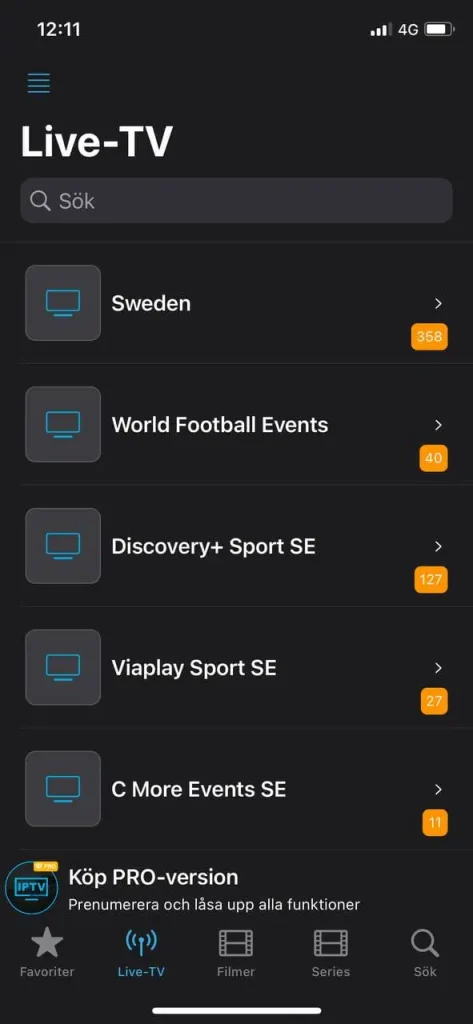
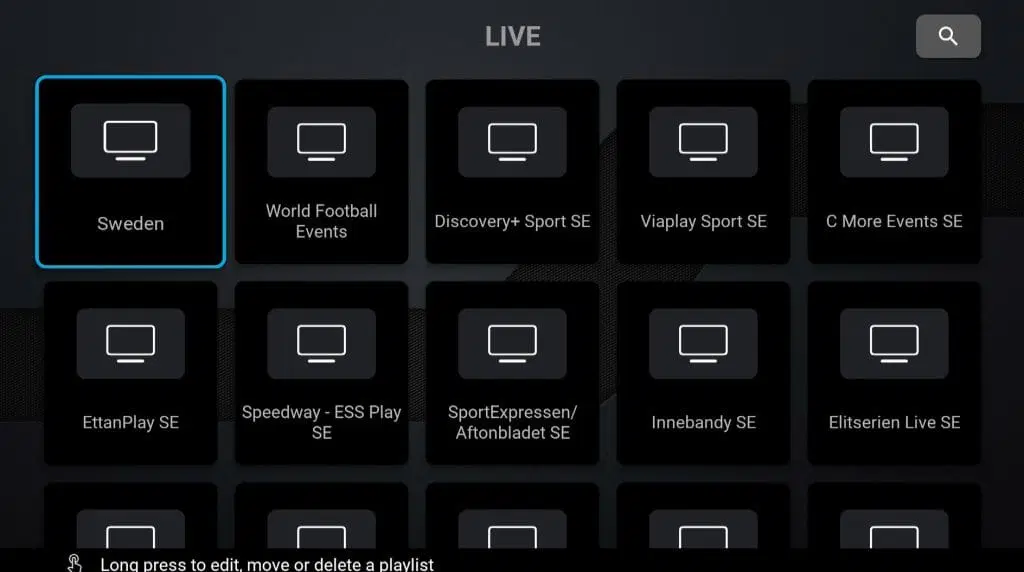
Start the app and go to the “Live” category.
Step 2
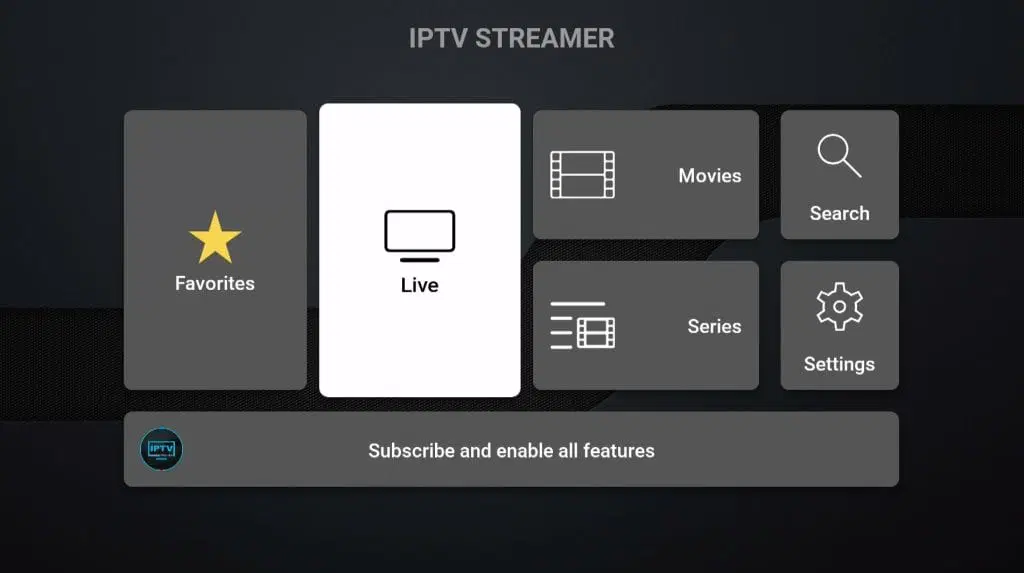
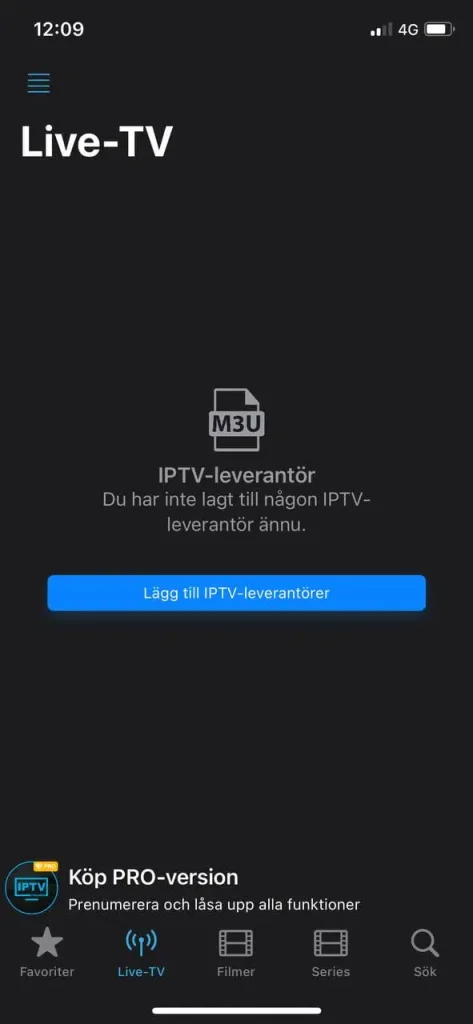
Tap the “Add an IPTV Provider” button.
Step 3
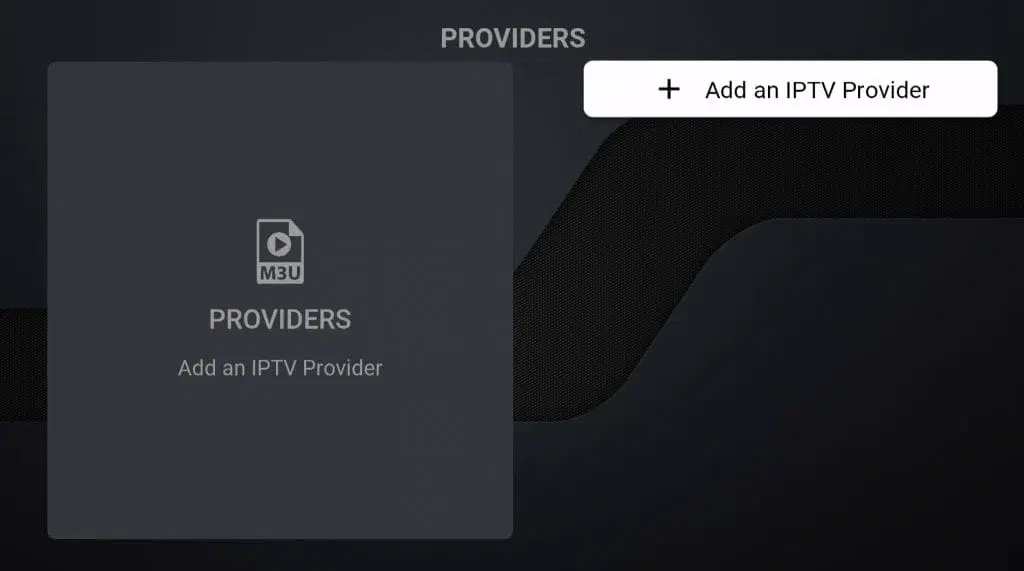
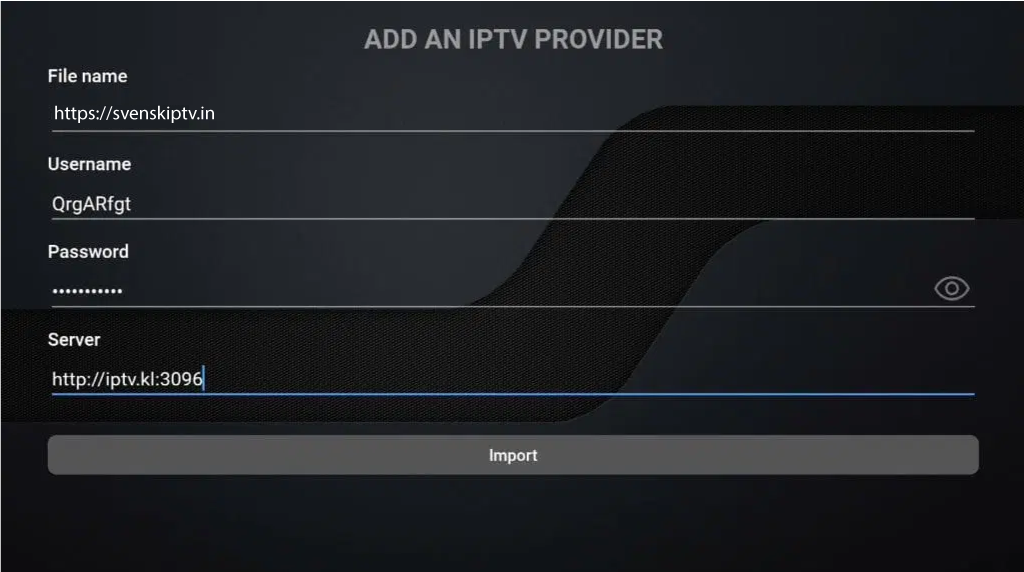
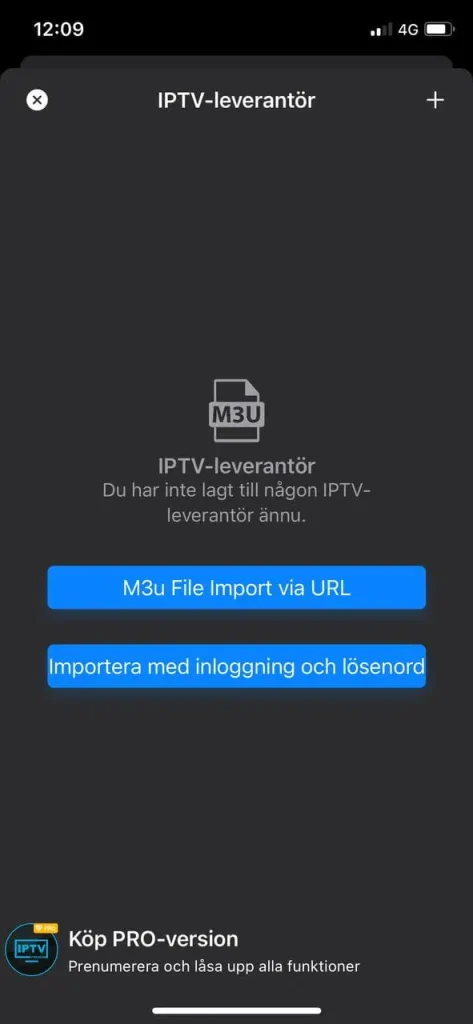
Select “Import with Login and Password
Step 4
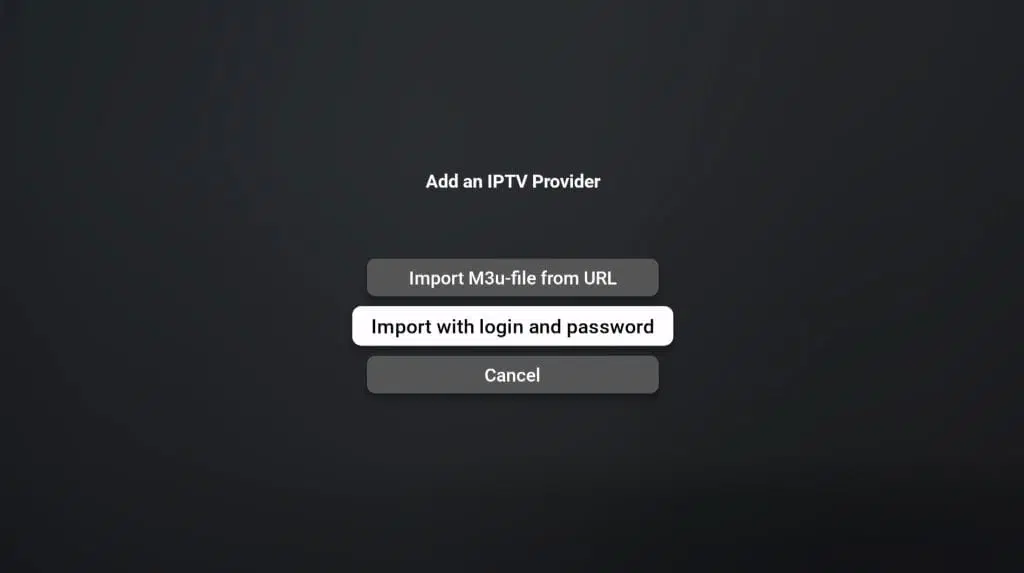
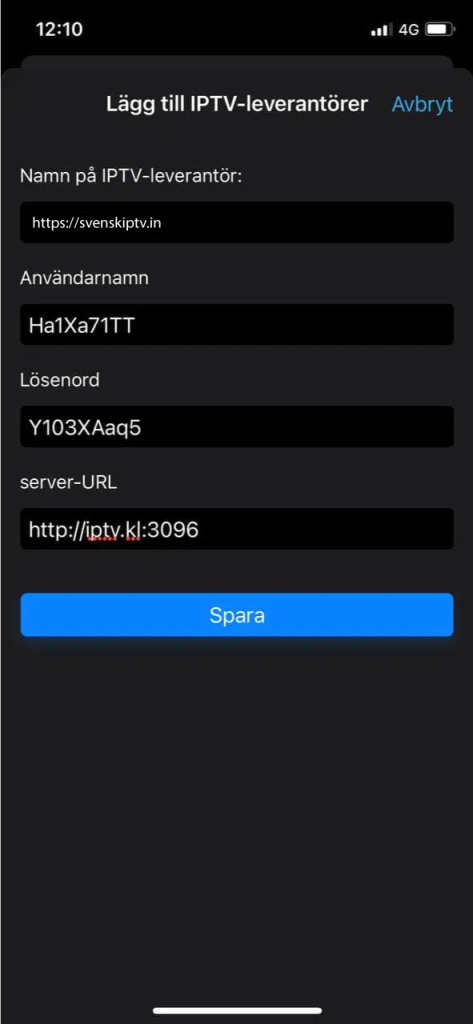
In the “File Name” field, enter “svenskiptv.com.” Then fill in the remaining details you received from us by email. In the “Server” field, enter the portal URL you received from us.
Step 5
Done! 🙂
Where can I download the app?
he apps can be downloaded from the Play Store and the App Store to your device.
Only download the apps from well-known sources, such as the websites we have linked above and below, or from the App Store or Play Store. This is to avoid the risk of accidentally downloading viruses if you are not careful.
Download GSE Smart IPTV to the following devices by clicking the text below:
iPhone & iPad
Android-based phones & tablets
Android boxes
Smart TV
Which devices can I use?
Apple TV
IPTV Streamer with Apple TV is unfortunately not the best solution, as the interface is designed for Android devices. Even though the app can be downloaded to Apple TV, it can be cumbersome to change channels or go back. The graphics are also not the same, as the aspect ratio may vary depending on which version you are using. In addition, the app has received a 3/5 rating on the App Store for Apple TV. It is therefore recommended to use the IPTVX app instead for a better experience on Apple TV.
Smart TV
PTV Streamer with a Smart TV is a good option for beginners. The app works smoothly on TVs, as it is designed to perform best on Smart TV systems, Android TV, Android boxes, and mobile devices. It is available on most LG, Sony, Samsung, and Philips TVs with Android-based systems. Although the app works well on your device, it is recommended to use a better app, such as Tivimate, for a better experience.
Specifications for IPTV Streamer
- App: GSE Smart IPTV Pro
- Installation time: Approx. 5 minutes
- Wi-Fi/Cable: Supports both
- Cost: 50 SEK
- Free trial available: Yes
Mobile
GSE Smart IPTV PRO on mobile is a fast and convenient solution for those who want to get started quickly. Watching IPTV on your phone via the app is an easy way to watch TV while you’re on the go. For iPhone, the IPTVX app is recommended instead, and for Android-based phones, the IPTV Player app is recommended.
Tablet
GSE Smart IPTV PRO on a tablet is a fast and convenient solution for those who want to get started quickly on an iPad or Android-based tablet. Watching IPTV on a tablet via the app is an easy way to watch TV while you’re on the go. If you have an iOS device (iPad), the IPTVX app is recommended instead, and for Android-based tablets, the IPTV Player app is recommended.
IPTV Streamer – Instructions
Step 1
Open the app and select “Live TV.”
Here you will find a list of all available channels.
Choose the channel you want to watch and start streaming.
Step 2
Tap “Add an IPTV Provider.”
Enter the details you received from us.
Confirm and start using your IPTV service.
Step 3
Select “Import with username and password.”
Enter the details you received from us.
Confirm and start streaming your channels.
Step 4
Enter the login details you received by email.
Then tap “Save” to save the settings.
You are now ready to start watching your channels.
Step 5
Done!
You have now added your IPTV provider.
Start enjoying all your channels and programs!
Nvidia Shield
GSE IPTV with Nvidia Shield is a fast and smooth solution that is easy to get started with. Although the app works well with your device, it is recommended to use a better app, such as Nanomid, for a better experience.
Android Box
GSE Smart IPTV PRO with an Android Box works well as a starting point. Although the app works well with your device, it is recommended to use a better app, such as Tivimate, as it offers a better interface and more stable servers.
Xiaomi Mi
GSE PRO with Xiaomi Mi S Box or Xiaomi Mi Stick is unfortunately not the best option for watching IPTV compared to, for example, Apple TV. This is because the processor in both devices is not as powerful. Of course, it is still possible to watch IPTV using Xiaomi Mi devices, and the experience can still be good. However, if you are looking for a more stable, smoother, and more long-term solution, these devices are not recommended.
Formuler Box
GSE Smart IPTV PRO with a Formuler Box works quite well, but the Formuler box is a more specialized Android box for IPTV, as it comes with its own IPTV app, MyTVOnline. The MyTVOnline apps are significantly better than the GSE app, and therefore it is recommended to use them instead for a better experience.
IPTV Streamer – Instructions
Step 1
Open the app and select “Add IPTV Provider.”
Enter the details you received from us via email.
Tap “Save” to confirm and start using the service.
Step 2
elect “Import with login and password.”
Enter the details you received from us.
Tap “Save” to confirm and get started.
Step 3
Enter the details you received from us via email.
Under the “IPTV Provider Name” field, enter svenskiptv.com.
Tap “Save” to confirm and start using the service.
Step 4
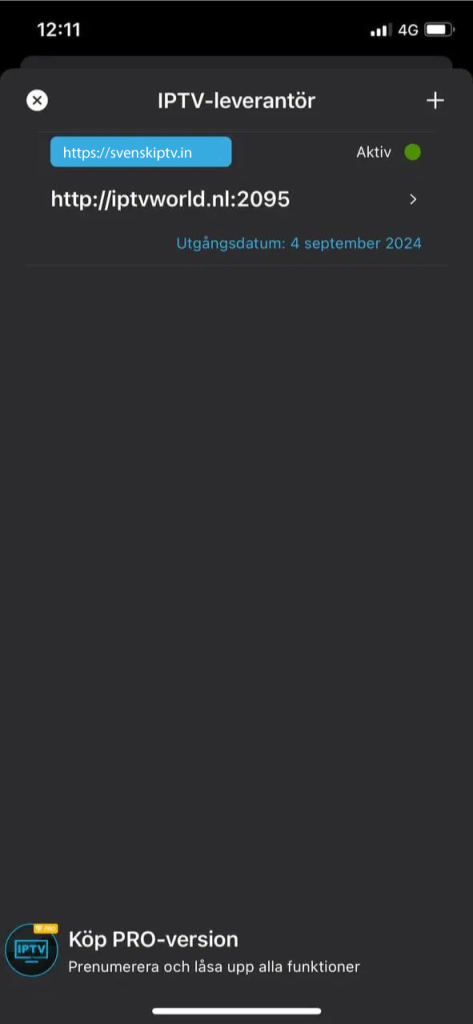
Now tap on the text svenskiptv.com.
You will be taken to your channel list.
Select the channel you want to watch and start streaming.
Step 4
Done!
You have now successfully added your IPTV provider.
Start enjoying all channels and content right away!