
Set IPTV – Instructions for your specific device
Instructions for SET IPTV
SET IPTV can be downloaded on most Android boxes and Smart TVs today. The app is relatively easy to get started with and is recommended for those who do not have the option to purchase a dedicated box or download a better app such as Tivimate.
However, SET IPTV can be a bit tricky for beginners to set up, as you need to upload your playlist via their website.
We recommend starting with IPTV Smarters instead, if the app is available on your device. It is more user-friendly and stable, and offers a better interface. On this page, you will find guides to help you quickly get started with SET IPTV on your device, whether you have an Android Box or a Smart TV.
The app works with the following devices:
- Smart TV
- Nvidia Shield
- Xiaomi Mi Box
- Xiaomi Mi Stick
- Firestick
- Android Box
The app can be downloaded from the Play Store .
SET IPTV works well with Samsung, LG, Philips, Sony, and many other TV brands. Since you can install the app and other applications, a Samsung TV is a good device for IPTV viewing. However, we recommend removing unnecessary apps and using a newer TV model, as many IPTV playlists today are extensive and contain thousands of channels, movies, series, documentaries, and more.
To get started with the installation, follow our instructions here. Typically, it takes between 5–15 minutes to get the TV channels up and running on your Samsung TV. If you encounter any issues or need assistance, you can always contact our support.
Step 1
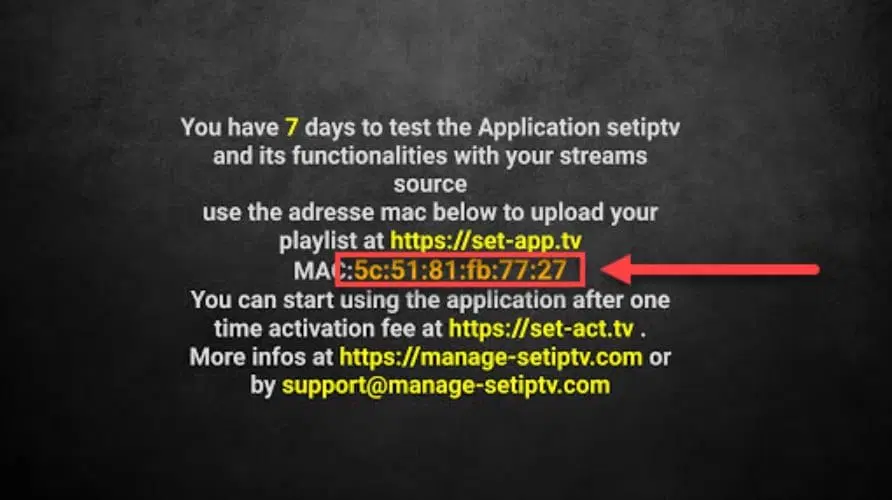
Start the app and note your MAC address in the center of the screen (ending with 77:27 in the image).
Step 2
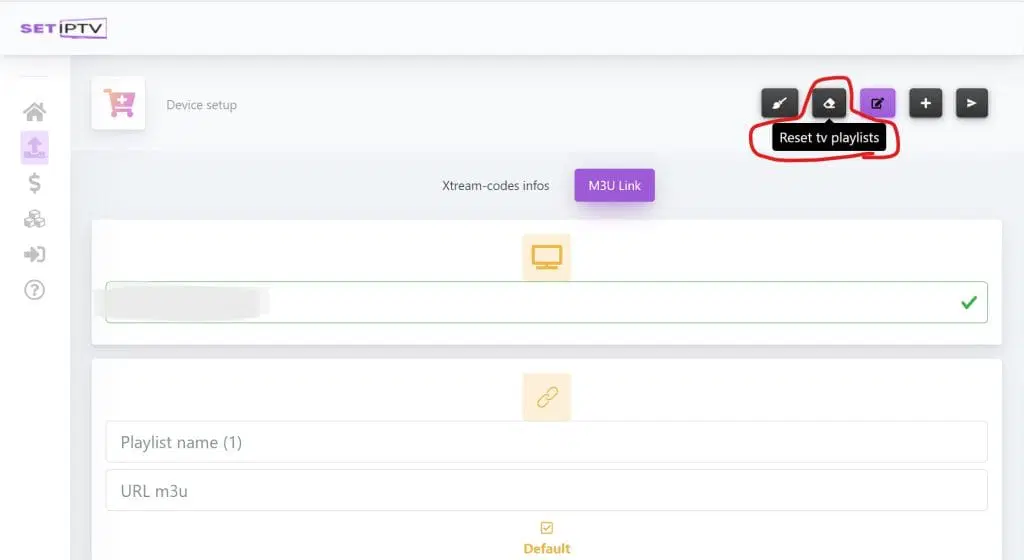
Now visit (https://vizora.tv/set.app) and enter your MAC address in the top field shown on the page. Then click the button highlighted in the red box at the top right called “Reset TV Playlists”.
Step 3
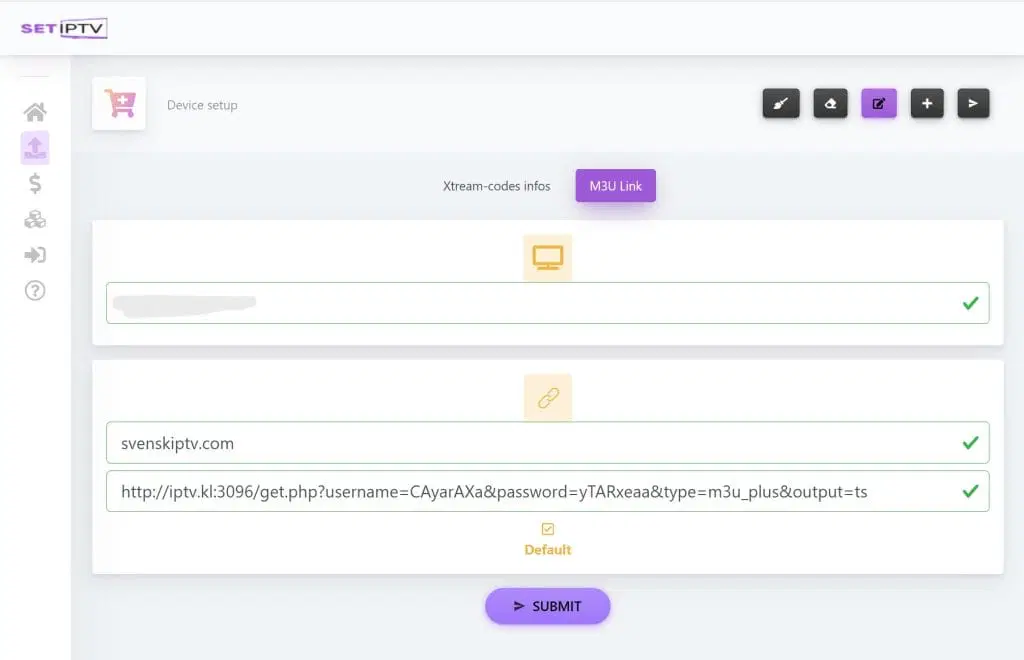
Now copy your M3U link into the “URL M3U” field and enter the name “svenskiptv.in” in the “Playlist Name” field. Save by clicking “Submit”. Restart the app on your TV, and after a short while you should be able to see your channels! 🙂
Where can I download the app?
The app can be downloaded from the Play Store to your device.
Make sure to only download the app from trusted sources, such as the Play Store, to avoid accidentally downloading viruses.
Download SET IPTV for the following devices by clicking the text below:
Which devices can I use?
Smart TV
SET IPTV with Smart TV is a good option for beginners or when other solutions are not available. The app is relatively easy to use on televisions and is designed to work well on most devices. SET IPTV is available on most Android-based TVs from LG, Sony, Samsung, and Philips. Although the app works well, it is recommended to use a more advanced app, such as Tivimate, for a better user experience.

Specifications for SET IPTV
- App: SET IPTV
- Installation time: Approx. 7 minutes
- Wi-Fi/Cable: Supports both
- Cost: 170 SEK
- Free trial available: Yes (7 days)
Mobile
GSE Smart IPTV PRO on mobile is a fast and convenient solution for those who want to get started quickly. Watching IPTV on your phone via the app is an easy way to watch TV while you are on the go. For iPhone, the IPTVX app is recommended instead, and for Android-based phones, the IPTV Player app is recommended.
Tablet
SET IPTV – Instructions
Step 1
Start the app and find your MAC address displayed in the center of the screen.
Note this address, as you will need it for further installation.
Make sure to copy it correctly to avoid problems later.
Step 2
Go to https://vizora.tv/set.app and enter your MAC address in the top field.
Then click the “Reset TV Playlists” button, which is highlighted with a red box in the top-right corner.
Follow the instructions to complete the process.
Step 3
Copy your M3U link into the “URL M3U” field and enter “svenskiptv.com” in the “Playlist Name” field.
Press “Submit” to save.
Restart the app on your TV, and your channels should appear after a short while! 🙂
Nvidia Shield
SET IPTV with Nvidia Shield is a fast and convenient solution that is easy to get started with. Although the app works well on the device, it is recommended to use a better app, such as Nanomid, for a more stable and user-friendly experience.
Android Box
SET IPTV with Android Box works well for beginners, but for a better experience it is recommended to use an app like Tivimate instead. Tivimate offers a better interface and more stable servers for a more reliable IPTV experience.
Xiaomi Mi
SET IPTV with Xiaomi Mi S Box or Xiaomi Mi Stick is not the best option for IPTV viewing, especially when compared to devices like Apple TV. This is because the processors in these devices are not as powerful. Although IPTV does work on Xiaomi Mi devices and the experience can be acceptable, if you are looking for a more stable and long-term solution, other alternatives are recommended.
Formuler Box
SET IPTV with Formuler Box works okay, but the Formuler Box is a more specialized Android box for IPTV, as it comes with its own IPTV app, MyTVOnline. The MyTVOnline app is significantly better than the SET IPTV app, and therefore it is recommended to use it instead of SET.
