
Duplex IPTV Instructions for Your Specific Device
Where can I download the app?
The app can be downloaded on certain devices from the Play Store, but it has disappeared for many since the company now seems to focus on the IBO Player app.
Only download Duplex Play from a trusted source.
Download Duplex IPTV here:
Duplex IPTV Instructions
Duplex IPTV is a very simple app to use and get started with. The app allows you to upload your channels using an M3U link via their website: https://edit.duplexplay.com/
Duplex IPTV (Duplex Play) is one of the most downloaded IPTV apps after Smart IPTV. However, for some reason, it is not available for Apple devices.
Step 1
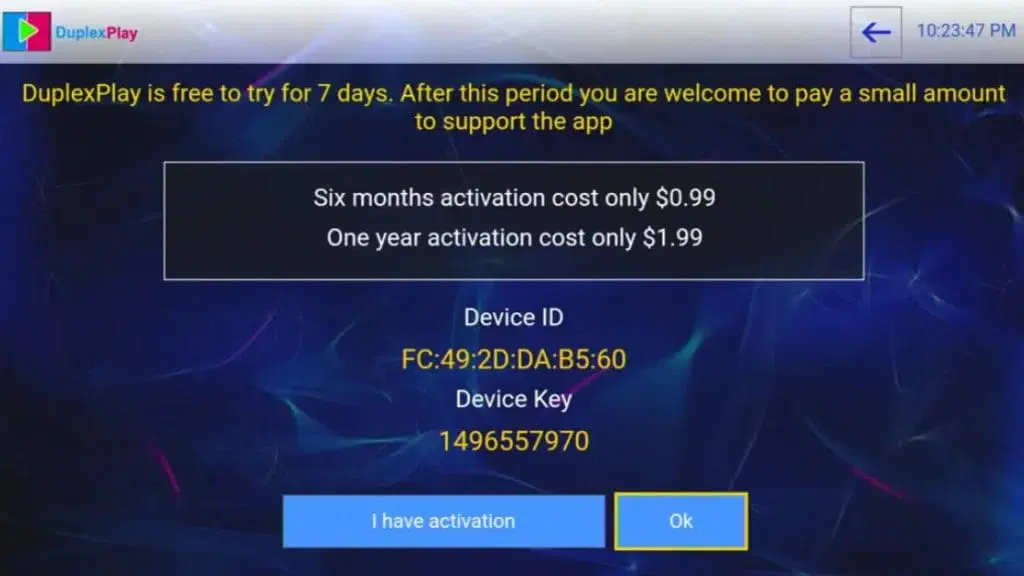
Start by opening the app. Note your ‘Device ID’ and ‘Device Key’
Step 2
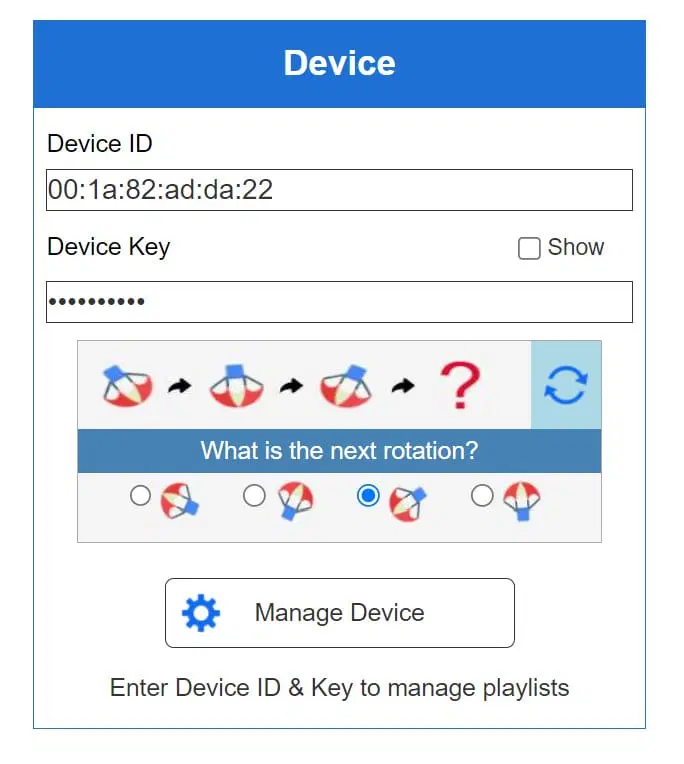
Go to www.edit.duplexplay.com and enter your ‘Device ID’ and ‘Device Key’. Then click ‘Manage Device’ after selecting the correct box on the small rotating icons.
Step 3
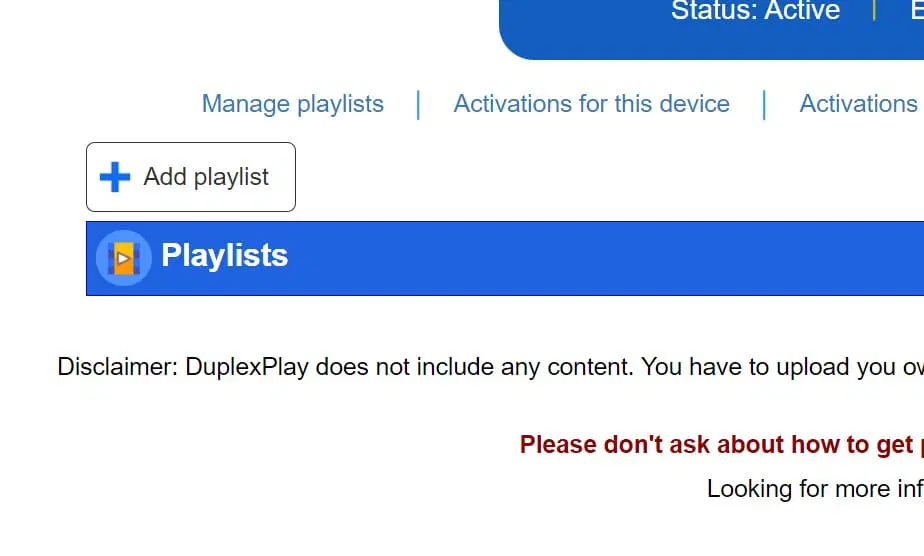
Press ‘Add playlist’
Step 4
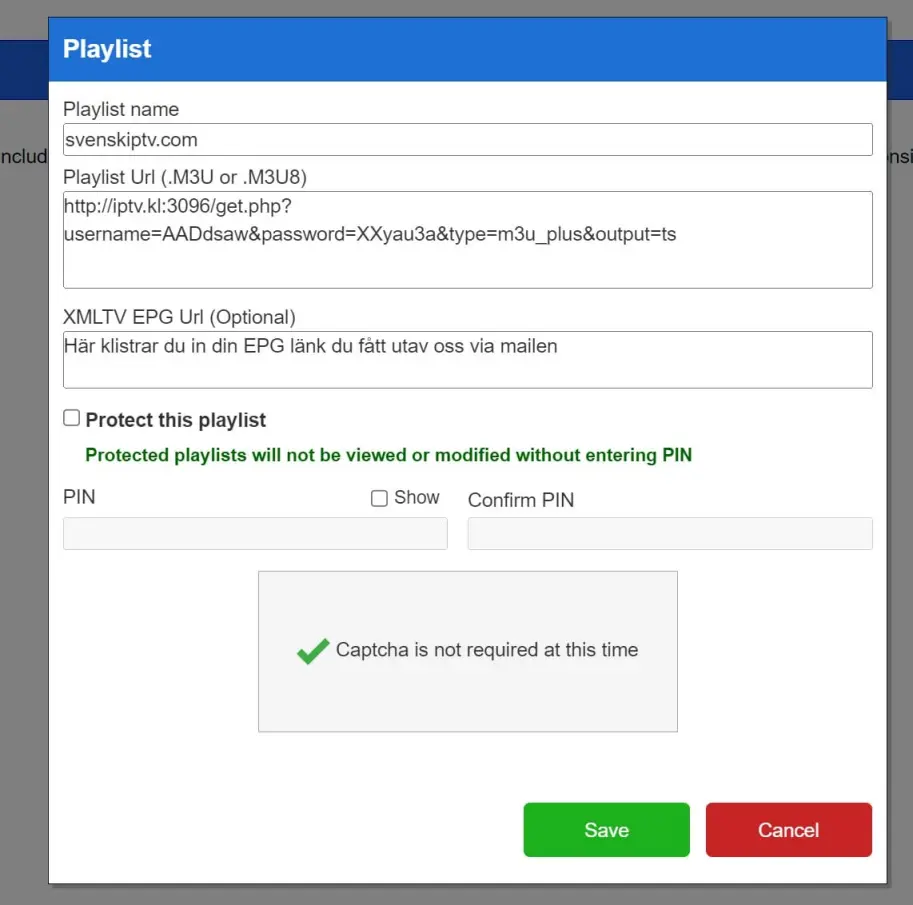
In ‘Playlist name’ enter the name ‘svenskiptv.in’ and in ‘Playlist URL’ paste your M3U link that you received from us by email. Then press ‘Save’ and restart your Smart TV or device, and you should see your new playlist when you open the app
Instructions for Your Device
The app can be downloaded from the Play Store or from the ‘store’ on your TV. APK files are also available for download, but we do not recommend using these as many may contain viruses. However, the APK file from 9Xtream IPTV’s official website is safe to download.
Which devices can I use?
Smart TV
Duplex IPTV with Smart TV is a good combination if you still have access to the app. It works smoothly on TVs as it is designed to work best on Smart TV systems, Android TV, and Android boxes. The IPTV Smarters app is available on most LG, Sony, Samsung, and Philips TVs with Android-based systems. Even though the app works well on your device, it is recommended to use a better app instead, such as Tivimate.
Specifications for Duplex IPTV
- App: Extreme IPTV Pro
- Installation time: Approx. 7 minutes
- Wi-Fi/Cable: Supports both
- Cost: 29 SEK
- Free trial offered: Yes
Computer
Duplex IPTV on a computer with Windows actually works very well and offers a smooth IPTV experience. If you want to watch IPTV on your computer, Duplex Play is an excellent app to use, as it is easy to install and provides stable and good streaming quality. Compared to other devices, the app works significantly better on a computer, making it a good choice for IPTV on Windows.
For the best possible experience, it is recommended that you download the app directly from their official website rather than from third-party sources. This ensures that you get the latest version of the app with all the features and security updates needed for an optimal IPTV experience on your computer.
Duplex IPTV – Instructions
Step 1
Start by opening the app and noting your ‘Device ID’ and ‘Device Key’. These details are needed to link your device with the IPTV service.
Step 2
Go to www.edit.duplexplay.com and enter your ‘Device ID’ and ‘Device Key’. Click ‘Manage Device’ after selecting the correct box with the small rotating icons.
Step 3
Click ‘Add Playlist’ to add your playlist. Follow the instructions to complete the process.
Step 4
“Enter ‘svenskiptv.com’ in ‘Playlist name’ and paste your M3U link under ‘Playlist URL’. Click ‘Save’ and restart your TV to see the new playlist in the app
Nvidia Shield
Duplex IPTV on Nvidia Shield is a fast and convenient solution, as it is easy to get started with and designed to work best with Android-based systems. Even though the app works well on your device, it is recommended to use a better app instead, such as Nanomid.
Android Box
Duplex IPTV on Android Box works reasonably well as a starter solution. The app is designed to work optimally with Android-based systems, making it a good choice if you want to get started quickly. However, even though the app works well on your device, it is recommended to use an app like Tivimate instead. Tivimate offers a more user-friendly interface, better functionality, and more stable servers, providing an overall better IPTV experience
Xiaomi Mi
Duplex IPTV on Xiaomi Mi S Box or Xiaomi Mi Stick is unfortunately not the best option for IPTV viewing, especially when compared to more powerful devices like Apple TV. The S Box is somewhat better than the Mi Stick, but both devices have processors that are not very strong, which can affect the experience if you stream high-quality IPTV content for long periods.
If you want to use Xiaomi Mi devices for IPTV, it is of course possible, and the experience can still be good for simpler use. However, if you are looking for a more stable, faster, and smoother solution, it is recommended to invest in a more powerful device, such as Apple TV, for a more reliable IPTV experience.
Formuler Box
Duplex IPTV on Formuler Box works fairly well and offers a solid IPTV experience. However, Formuler Box is a somewhat different Android device for IPTV because it has its own built-in IPTV app, MyTVOnline. This app is much more optimized and user-friendly compared to IPTV Smarters, providing a better and more stable streaming experience.
Since MyTVOnline is specifically developed for Formuler devices and offers more features and better performance than IPTV Smarters, it is recommended to use this app instead. By using MyTVOnline, you can enjoy a smoother and more reliable IPTV service on your Formuler Box.


