
iMPlayer IPTV – Instructions for your specific device
Instructions for iMPlayer IPTV
iMPlayer IPTV is a relatively new app that is available for several different devices. The app is easy to get started with, as you only need to enter your login details directly in the app, meaning you do not need to upload your playlist via their website, which many other apps require.
The app allows you to upload your channels in the following ways:
• M3U link
• Xtream Codes Playlist (login credentials)
We recommend uploading your IPTV playlist using Xtream Codes (i.e., the login credentials you receive from us when you purchase a subscription or start a free trial). This ensures that your EPG (Program Guide) is automatically installed in the background.
If you choose the M3U link instead, you will need to manually add your EPG link that you receive from us.

Step 1
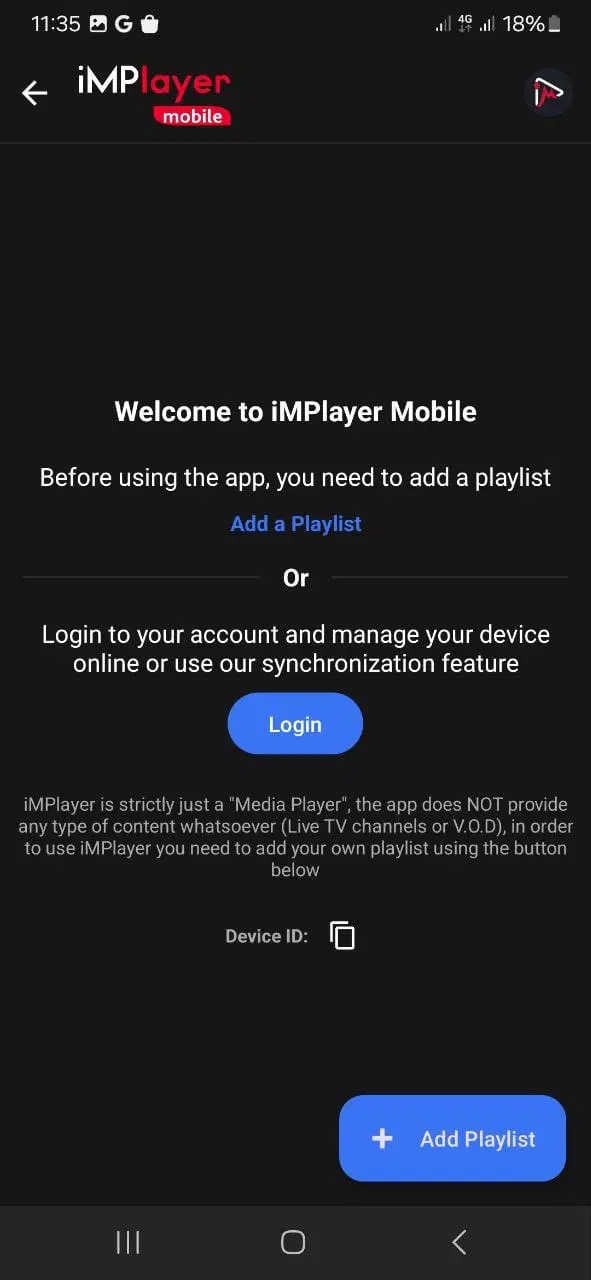
Start the app and tap “Add Playlist”.
Step 2
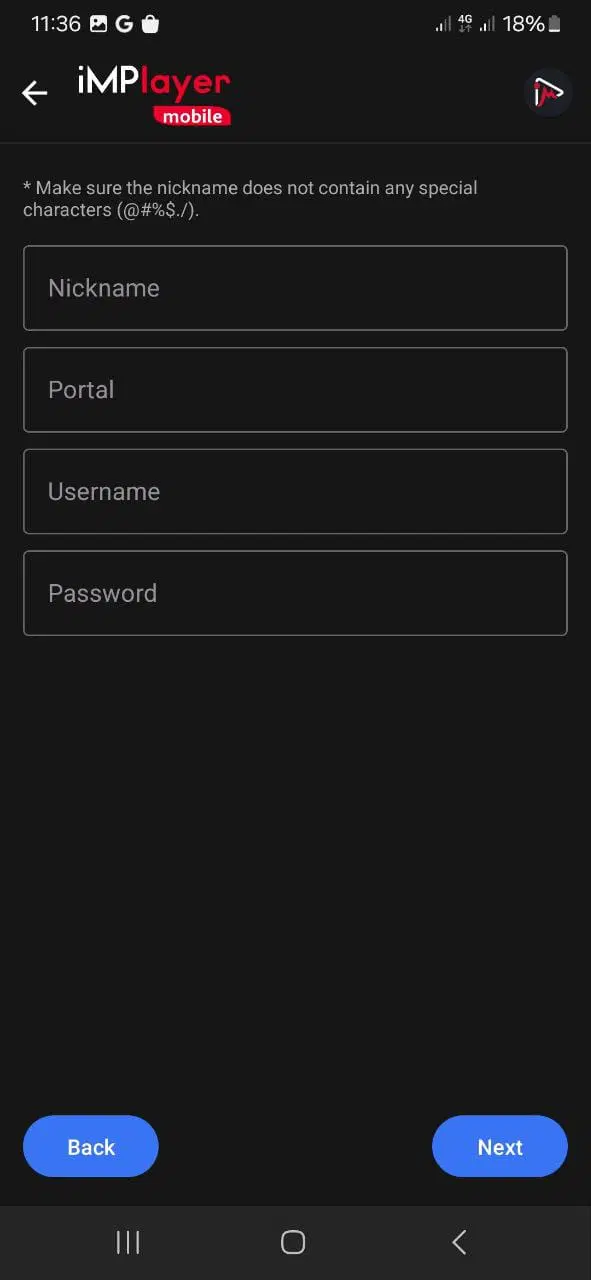
Enter the login details you received from us via email.
In the “Nickname” field, enter “svenskiptv.com”.
Then tap “Next”.
Step 3
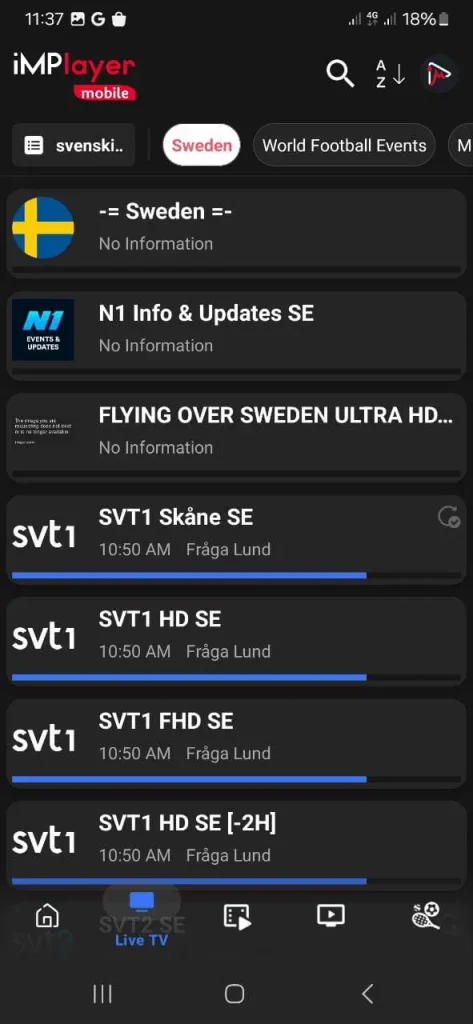
Done! 🙂
Where can I download the app?
The app can be downloaded from the Play Store or from the app store on your TV.
APK files are also available, but we recommend avoiding them as many may contain viruses.
However, the APK file from iMPlayer IPTV’s official website is safe to download.
Which devices can I use?
Smart TV
iMPlayer IPTV with Smart TV is an excellent option for those who are new to IPTV. The app runs smoothly on Smart TV models from manufacturers such as LG, Samsung, Sony, Philips, and others. By installing iMPlayer IPTV along with other compatible apps, you can access a vast range of content. For the best experience, it is recommended to remove unnecessary apps and use a newer TV model, as many IPTV playlists today are very large and contain hundreds of thousands of channels, movies, series, and documentaries.
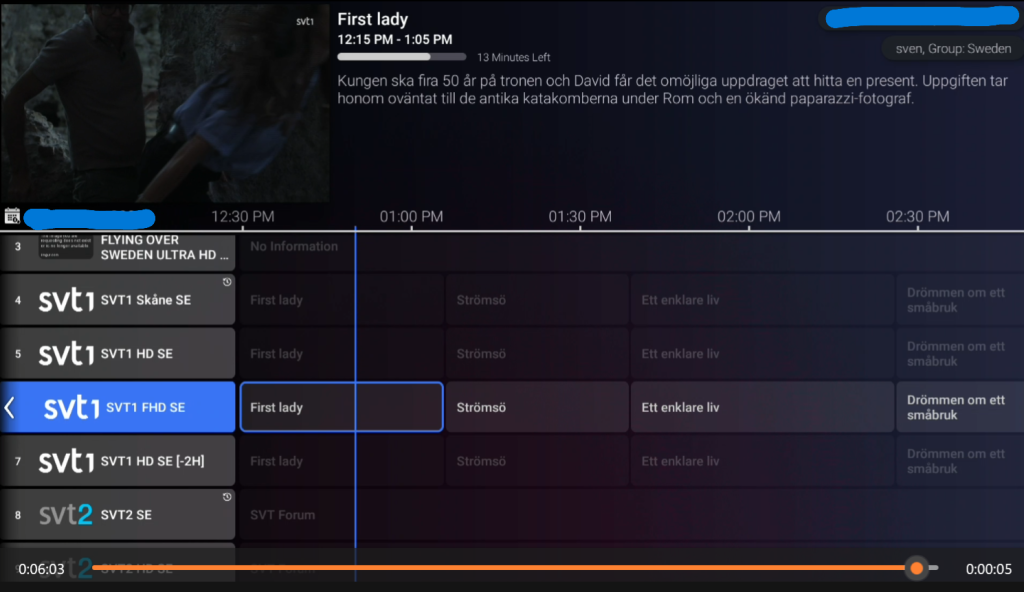
iMPlayer IPTV is a powerful app that gives Smart TV users access to a wide selection of IPTV channels, movies, and series. It is easy to install and offers a smooth user experience with fast navigation and high-quality streaming. The app supports multiple formats and resolutions, allowing you to enjoy your favorite content in HD or 4K, depending on your internet connection. In addition, the app includes an EPG (Electronic Program Guide) for easy channel management and scheduling.
Although iMPlayer IPTV works well on Smart TVs, it is recommended to use an app such as Tivimate for an even better experience.
Specifications for iMPlayer IPTV
- App: Extreme IPTV Pro
- Installation time:
- Approximately 7 minutes
- Wi-Fi/Cable: Supports
- both
- Cost: 29 SEK
- Free trial available: Yes
Mobile
iMPlayer IPTV on mobile phones is a good option for those who want to use IPTV directly on their mobile device. The app works smoothly on both Android and iOS, giving you access to a wide selection of IPTV channels, movies, series, and documentaries wherever you are. For the best experience, we recommend using a phone with sufficient storage space and a stable internet connection, as IPTV playlists can be very large and contain thousands of titles.
The app is easy to install and offers a user-friendly interface with fast navigation and high-quality streaming. It supports multiple formats and resolutions, allowing you to enjoy your favorite content in HD or 4K, depending on your internet connection and your phone’s capabilities. iMPlayer IPTV also includes an EPG (Electronic Program Guide) for easy channel management and scheduling.
Although iMPlayer IPTV works well on mobile devices, it is recommended to use apps such as IPTV Smarters or, for iPhone users, IPTVX, as they offer better functionality and stability on mobile devices.
Tablet
iMPlayer IPTV on a tablet is a better option than on a mobile phone if you want to use IPTV on an Android-based tablet. It works well for watching TV while you are on the go.
However, if you are using an iOS device, such as an iPad, it is recommended to use the IPTVX app instead for better performance and user experience.
iMPlayer IPTV – Instructions
Step 1
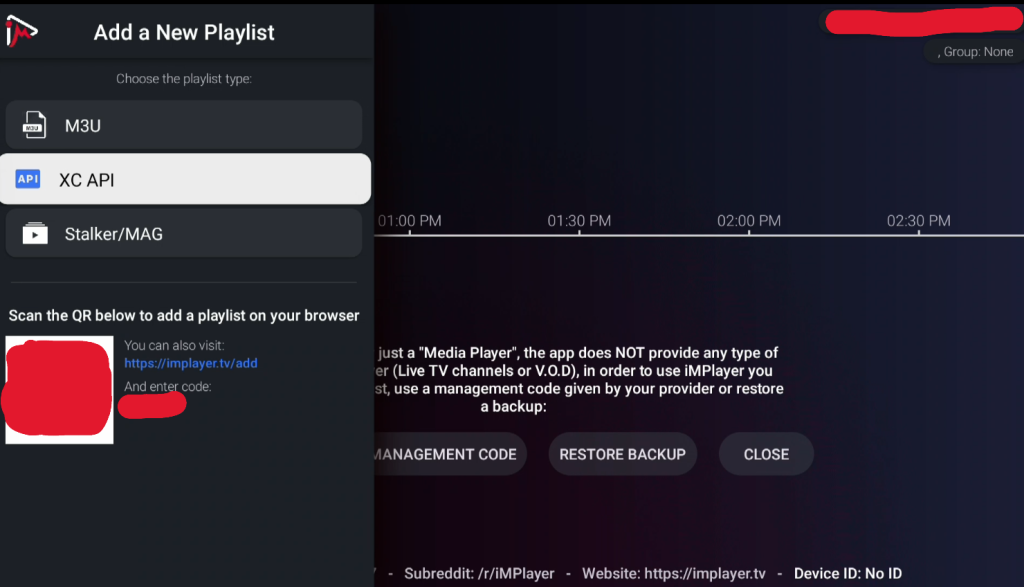
Start the app and select the “Add Playlist” option.
Click it to add your playlist.
Follow the instructions to complete the process.
Step 2
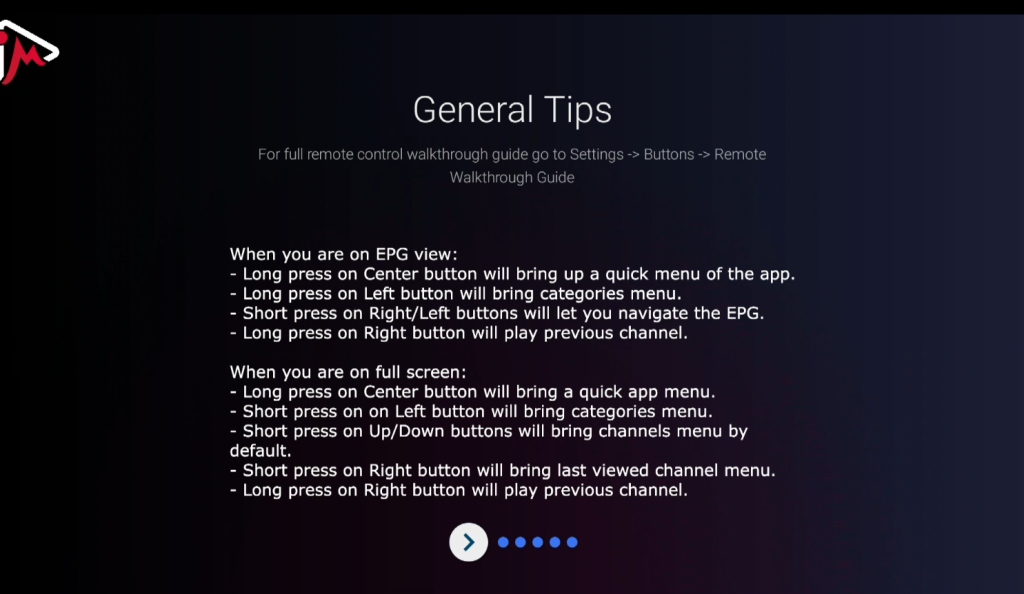
Go through the tips at your own pace.
Make sure to carefully follow each step.
This will give you the best possible results.
Step 3
Done! The app may take longer to load during the initial installation, as all features are being set up for the first time.
If you see a black screen after the playlist has finished loading, simply press the Back button on your remote control! 🙂
Nvidia Shield
iMPlayer IPTV with Nvidia Shield is an excellent option for those using an Nvidia Shield and wanting to get started with IPTV. The app runs smoothly on Nvidia Shield devices, making it a powerful tool for accessing a wide IPTV selection. Thanks to the strong performance of Nvidia Shield, you get a fast and seamless experience when streaming channels, movies, series, and documentaries. For best performance, we recommend keeping your device up to date and ensuring you have sufficient storage space to handle large IPTV playlists containing thousands of titles.
The app is easy to install and offers a user-friendly experience with fast navigation and high-quality streaming. iMPlayer IPTV supports multiple formats and resolutions, allowing you to enjoy your favorite content in HD or 4K, depending on your internet connection and the device’s capabilities. In addition, the app includes an Electronic Program Guide (EPG), making it easier to manage and plan your channels.
iMPlayer IPTV on Nvidia Shield is a perfect choice for those who want to maximize their entertainment with a versatile and extensive IPTV library.
Android Box
iMPlayer IPTV with Android Box is an excellent option for those using an Android Box and wanting to get started with IPTV. The app runs smoothly on Android Box devices and provides access to a wide range of IPTV content. Thanks to the powerful performance of Android Boxes, you can enjoy a fast and seamless streaming experience when watching channels, movies, series, or documentaries. For the best experience, we recommend keeping your device up to date and ensuring you have sufficient storage space to handle large IPTV playlists, which today contain thousands of titles.
The app is easy to install and offers a smooth user experience with fast navigation and high-quality streaming. It supports multiple formats and resolutions, allowing you to enjoy your favorite content in HD or 4K, depending on your internet connection and the capabilities of your Android Box. In addition, iMPlayer IPTV includes an EPG (Electronic Program Guide), making it easy to manage and plan your channels. iMPlayer IPTV on Android Box is an excellent choice for those who want to get the most out of their TV entertainment with a broad and varied IPTV selection.
Although the app works well, we recommend using a more advanced app such as Tivimate, which offers a better interface and more stable servers.
Xiaomi Mi
iMPlayer IPTV with Xiaomi Mi Box or Xiaomi Mi Stick is unfortunately not the best option for IPTV viewing when compared to devices such as Apple TV. This is because the processors in both devices are not as powerful.
Although it is possible to watch IPTV on Xiaomi Mi devices and the experience can be good, it is not the optimal solution if you are looking for a more stable and smooth streaming experience. For a more reliable and efficient IPTV experience, we instead recommend using a device with stronger performance.
Formuler Box
iMPlayer IPTV with Formuler Box works fairly well, but the Formuler Box is a slightly different Android box as it comes with its own IPTV app, MyTVOnline. The MyTVOnline apps offer a significantly better user experience than iMPlayer and the Xtream app.
Therefore, it is recommended to use MyTVOnline instead of other apps for a more stable and smoother IPTV experience.
IPTV Expert - Instruktioner
Step 1
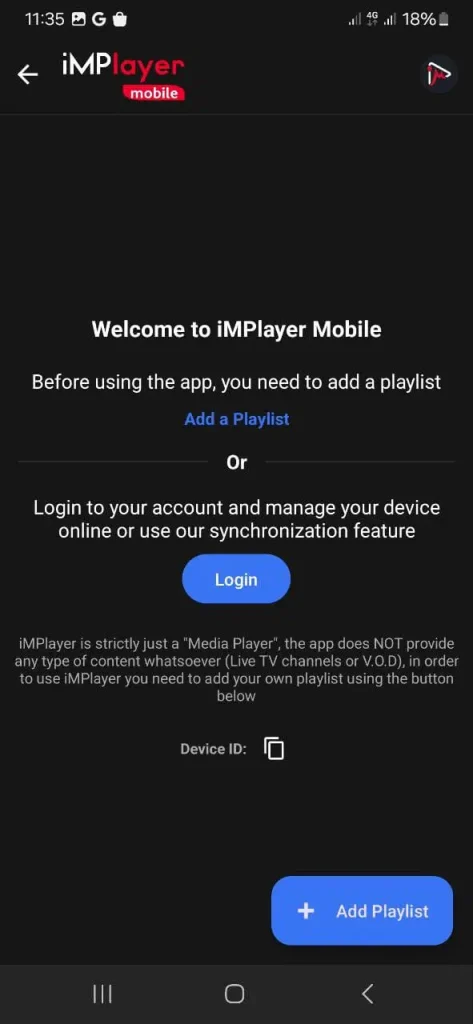
Start the app and go to the top right corner.
Tap “Add Playlist” to add your playlist.
Follow the instructions to complete the installation.
Step 2
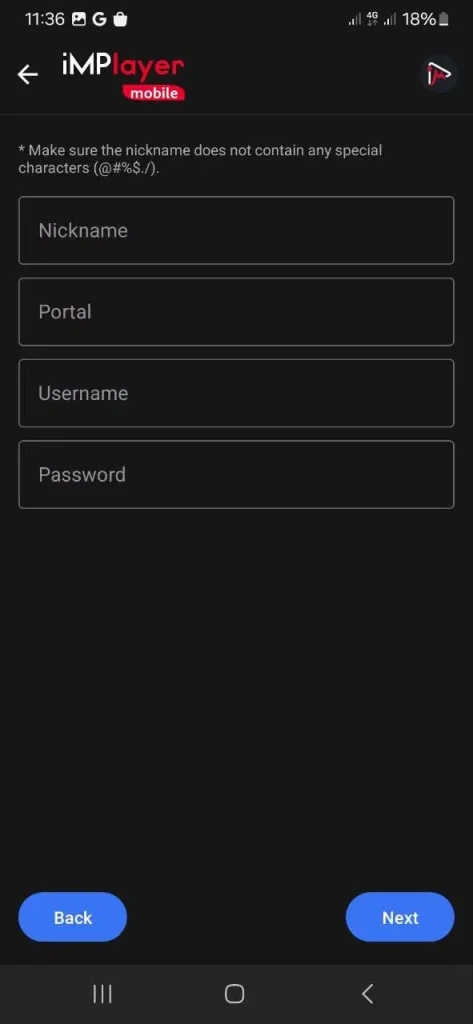
Enter the login details you received from us via email.
In the “Nickname” field, enter “svenskiptv.com”.
Then press “Next” to continue.
Step 3
Done! 🙂
Everything is now set up and you can start enjoying your IPTV content.
If you need any further assistance, don’t hesitate to contact us.


