
MyIPTV Player Instructions for your specific device
Instructions for MyIPTV Player
The MyIPTV Player app can be downloaded to most devices today. The app has a simple and clean design, but it can be a bit difficult to get started with, and is therefore mainly recommended for users who are already familiar with the app. If you have not used the app before, we recommend IPTV Smarters instead, especially if you are using a PC, as it tends to be more stable and easier to get started with.
On this page you will find instructions for using the app on the following brands, as well as all brands with Windows installed:
Asus
Acer
Lenovo
Chromebook
Dell
HP
MSI
Xbox
The app can be downloaded from the Windows Store.
The MyIPTV Player app allows you to upload your channels via your M3U link, which you receive from us after purchase or when requesting a free trial.
It is recommended to upload your IPTV playlist using Xtream Codes API (i.e., with the username, password, and Portal URL that you receive from us upon purchase or free trial). If this is not possible (depending on a possible app update), you can instead use the M3U link to log in.
Step 1
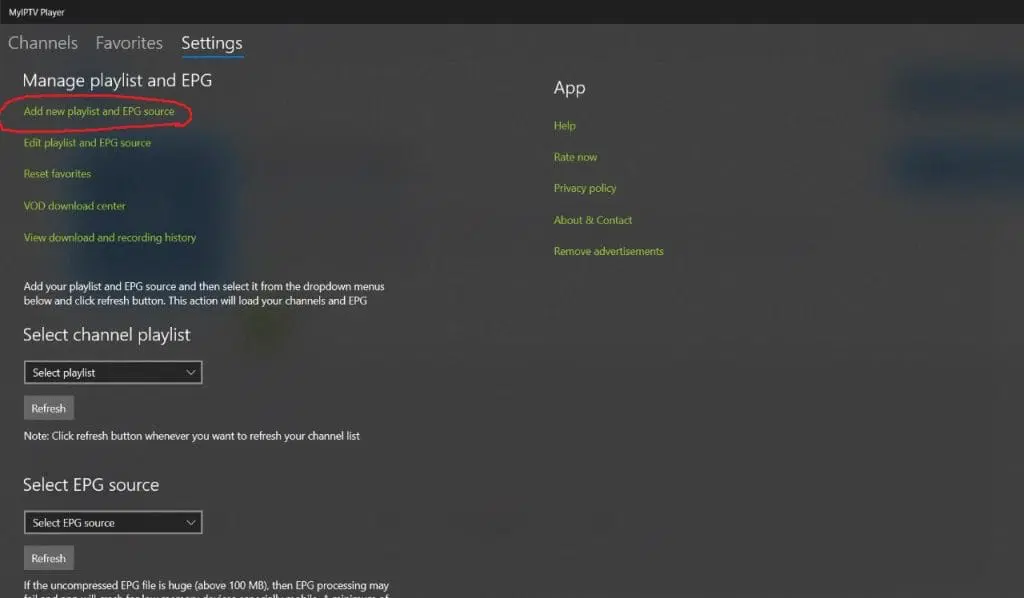
Open the app and select “Add new playlist and EPG source”.
Step 2
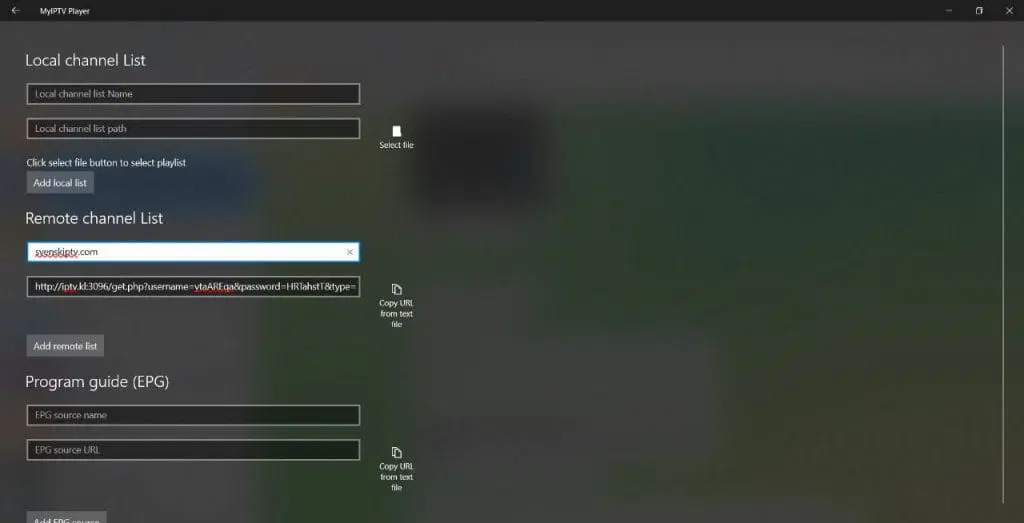
Enter the name “svenskiptv.com” as the playlist name. Copy and paste your M3U link that you received from us by email. Then click “Add remote list”.
NOTE! Create the list under the heading “Remote channel List”!
Step 3
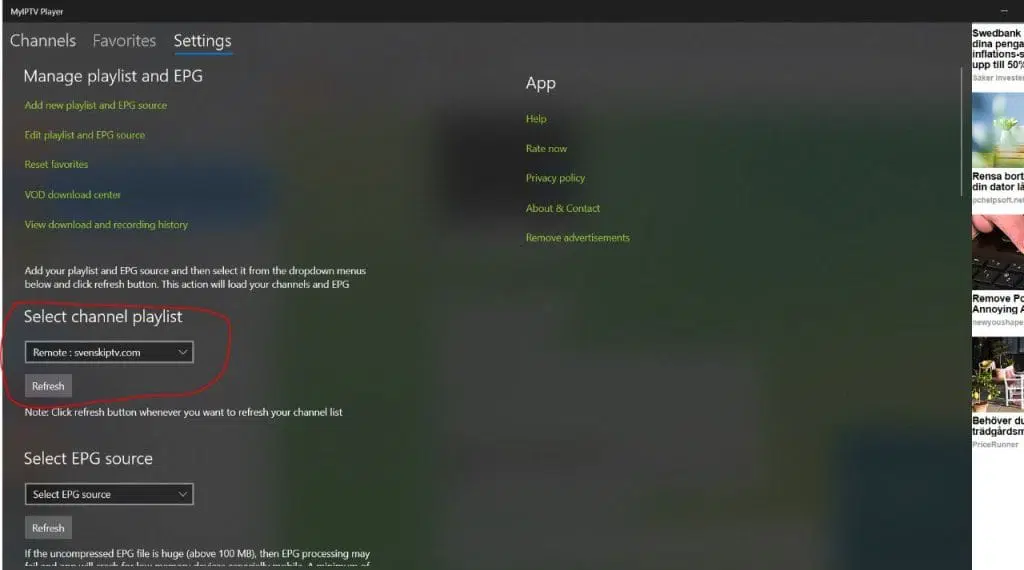
After saving the list, go back to “Settings” as shown in the image. Under the “Select channel playlist” tab, select your new playlist and press the “Refresh” button.
Step 4
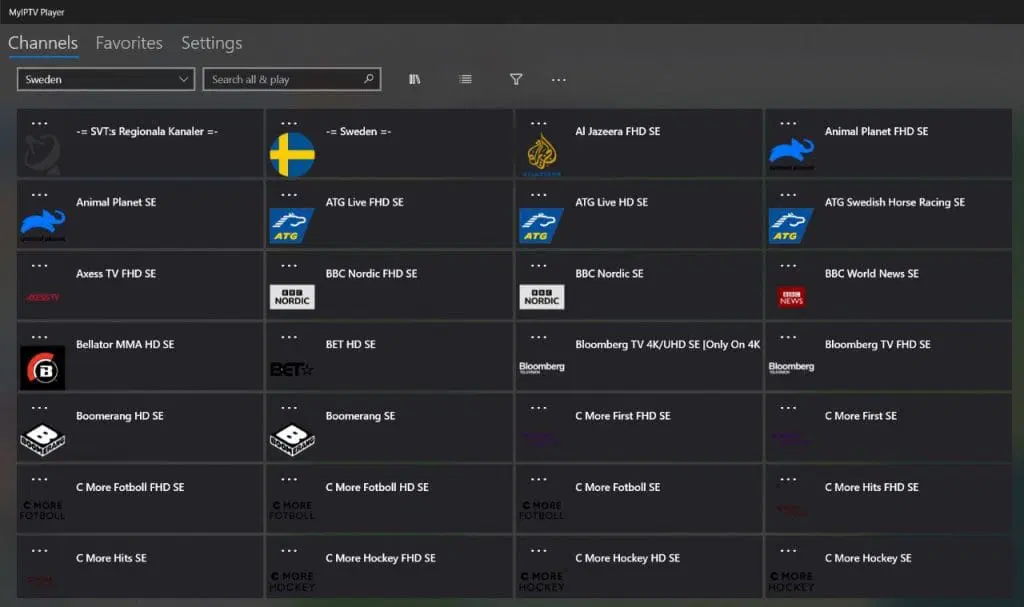
Now go to the “Channels” tab. Done! 🙂
Where can I download the app?
The app can be downloaded from the Microsoft Store.
Do not download the app from other sources such as third-party websites, as there is a risk of downloading viruses if you are not careful.
MyIPTV Player is a popular app for streaming IPTV content on Windows and Xbox devices. It works as a media player with support for M3U links and channel information from your IPTV provider, giving easy access to live TV, movies, and series via the internet. The app has a user-friendly interface with support for electronic program guides (EPG), multiple audio tracks, and subtitles. You can also record programs and create favorite lists for a more personalized viewing experience. MyIPTV Player offers a reliable and smooth solution for IPTV streaming with flexible features to enhance your experience.
Open the app and select “Add new playlist and EPG source”.
Enter your details and save to add your IPTV playlist and EPG.
Which devices can I use?
Computer
MyIPTV Player on a computer is a fast and easy solution if you want to get started with IPTV in a short time. The app works well for basic streaming and offers features such as M3U link support and the ability to use electronic program guides (EPG). This makes the app a good starting point for watching IPTV on your computer.
However, even though it works for IPTV on a desktop or laptop computer, MyIPTV Player offers a somewhat mediocre user experience, especially when it comes to watching TV while on the go. The app lacks some of the more advanced features and stability that other apps provide.
Therefore, we instead recommend using a more robust and stable app such as IPTV Smarters. IPTV Smarters offers a better interface, more reliable streaming, and includes several features that enhance the user experience, making it a better option for those who want to get the most out of their IPTV experience on a computer.
Xbox
MyIPTV Player on Xbox is not the best solution for IPTV viewing, but if you do not have any other device available, it can be a useful alternative. Xbox is a powerful gaming console that is often used for many other entertainment services, but IPTV on Xbox via MyIPTV Player does not offer the same functionality and stability as dedicated apps for TV or Android devices. The app can sometimes be somewhat slow or unstable, and the interface is not as optimized for IPTV viewing as other alternatives.
However, if you are in a situation where you do not have any other device to watch on, MyIPTV Player on Xbox can still work to get started with IPTV. By following the guide below, you can set up the app on your Xbox and start streaming channels and content. Keep in mind that for the best experience, it is recommended to use more dedicated IPTV devices such as a smart TV or IPTV boxes, but Xbox is an option for those who do not have other devices available.
Specifications for 9Xtream IPTV
- App: Extreme IPTV Pro
- Installation time: Approx. 7 min
- WiFi/Cable: Supports both
- Cost: 29 SEK
- Offers free trial: Yes
9Xtream IPTV – Instructions
Step 1
Open the app and select “Add new playlist and EPG source”.
Enter your details and save to add your IPTV playlist and EPG.
Step 2
Enter the name svenskiptv.com as the playlist name and paste your M3U link that you received via email.
Press “Add remote list” and create the list under “Remote channel List”.
Step 3
After saving the list, go back to “Settings” and select your new playlist under “Select channel playlist”.
Press the “Refresh” button to update.
Step 4
Go to the “Channels” tab to view your channels.
Click on the channels to start streaming.
If it does not work immediately, try refreshing the list.
Done! 🙂


