
IBO Player Instructions for your specific device
Instructions for IBO Player
IBO Player is a popular app that is becoming available on more and more devices over time. The app can be a bit advanced to get started with, so it is recommended for those who are already familiar with uploading IPTV playlists. You upload your playlist via their website here:
https://iboplayerpro.com/device/login
The app allows uploading channels in the following ways:
M3U link
Xtream Codes Playlist (login credentials)
We recommend uploading your IPTV playlist using Xtream Codes (with the login credentials you receive from us upon purchase or free trial). This ensures that your EPG (program guide) is installed automatically in the background.
If you choose M3U, you must manually enter your EPG link, which you receive from us. The Pro version is available for certain Smart TVs and Android devices, but it is not available for Apple devices, as the apps are specifically created for Android-based systems.

Step 1
Open the app, and if the box in the image appears, select ‘Allow’.

Step 2
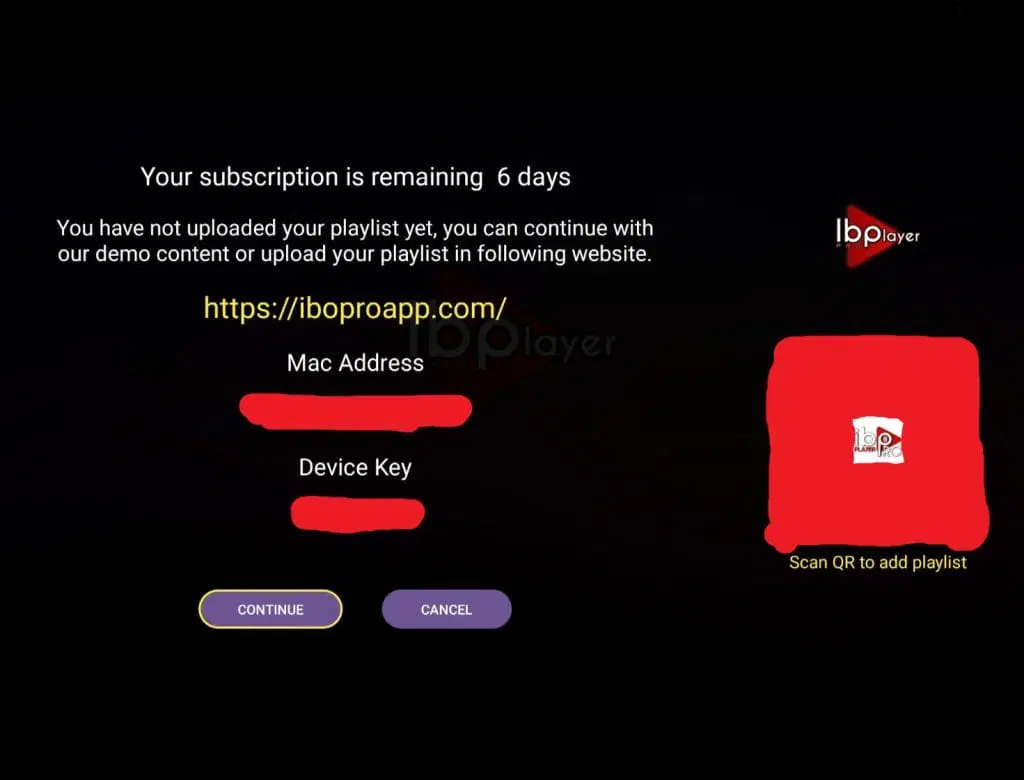
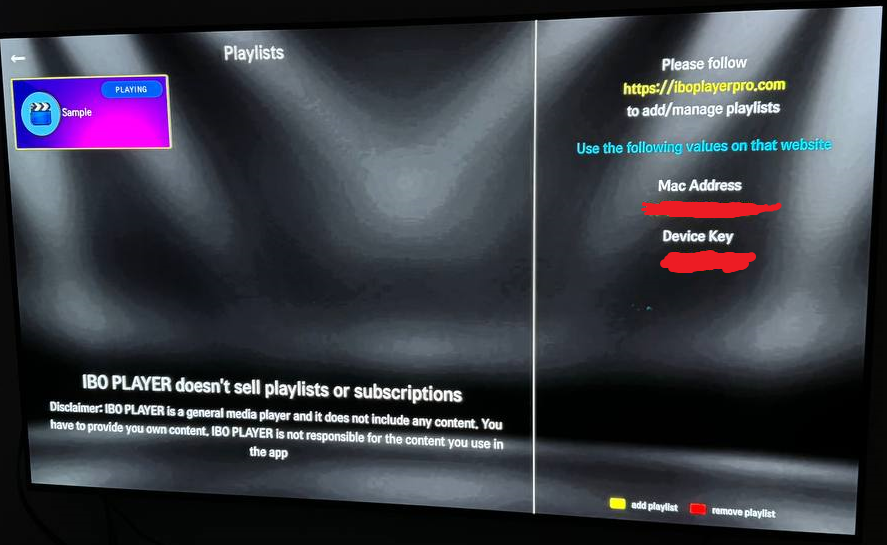
Note your “MAC Address”. You will use this MAC address to upload your playlist on devices that require uploading via their website.
If you don’t see the option to press “Continue” as shown in the image below, you will need to scroll down and follow the guide for your specific device.
Step 3
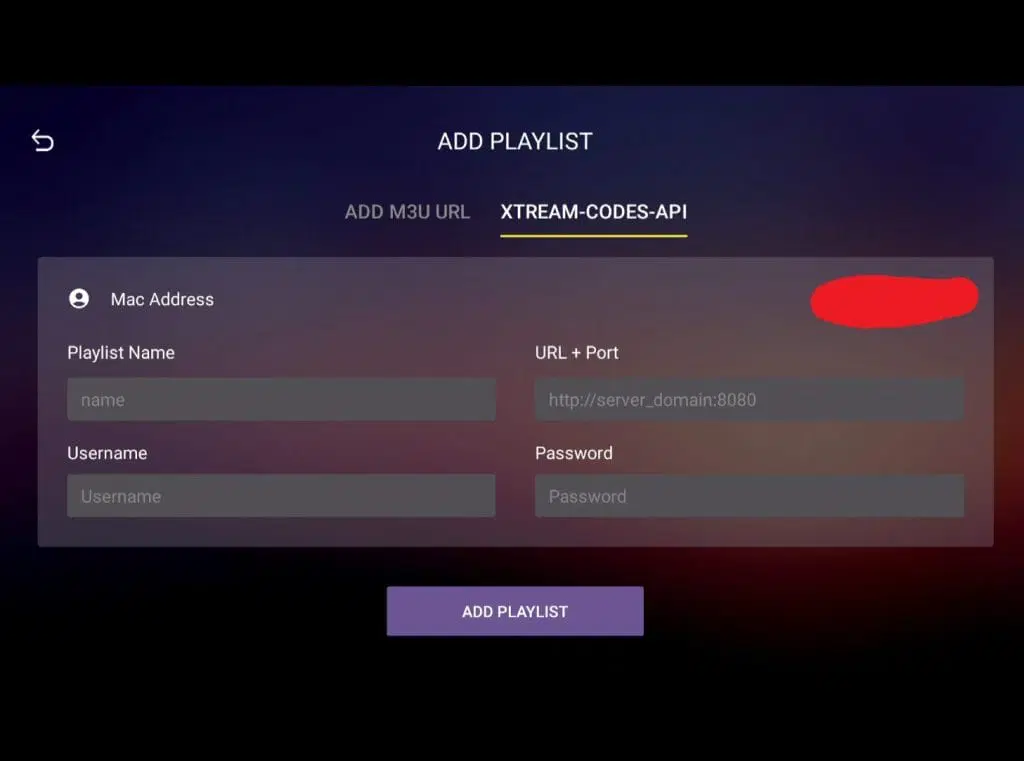
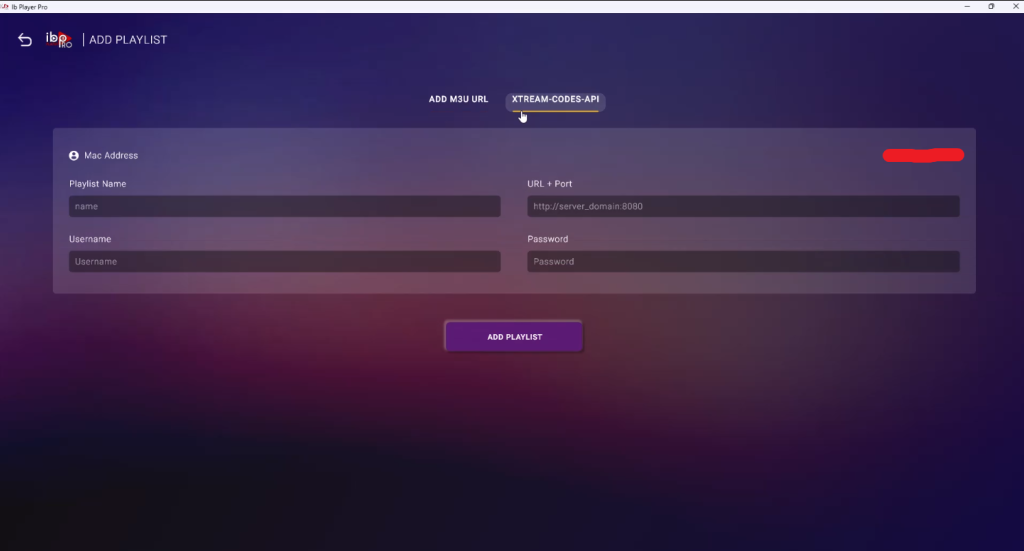
Select “XTREAM-CODES-API” and enter your login details that you received via email. In the “Playlist Name” field, enter “svenskiptv.com”.
Double-check the spelling, and then click “ADD PLAYLIST”.
Step 4
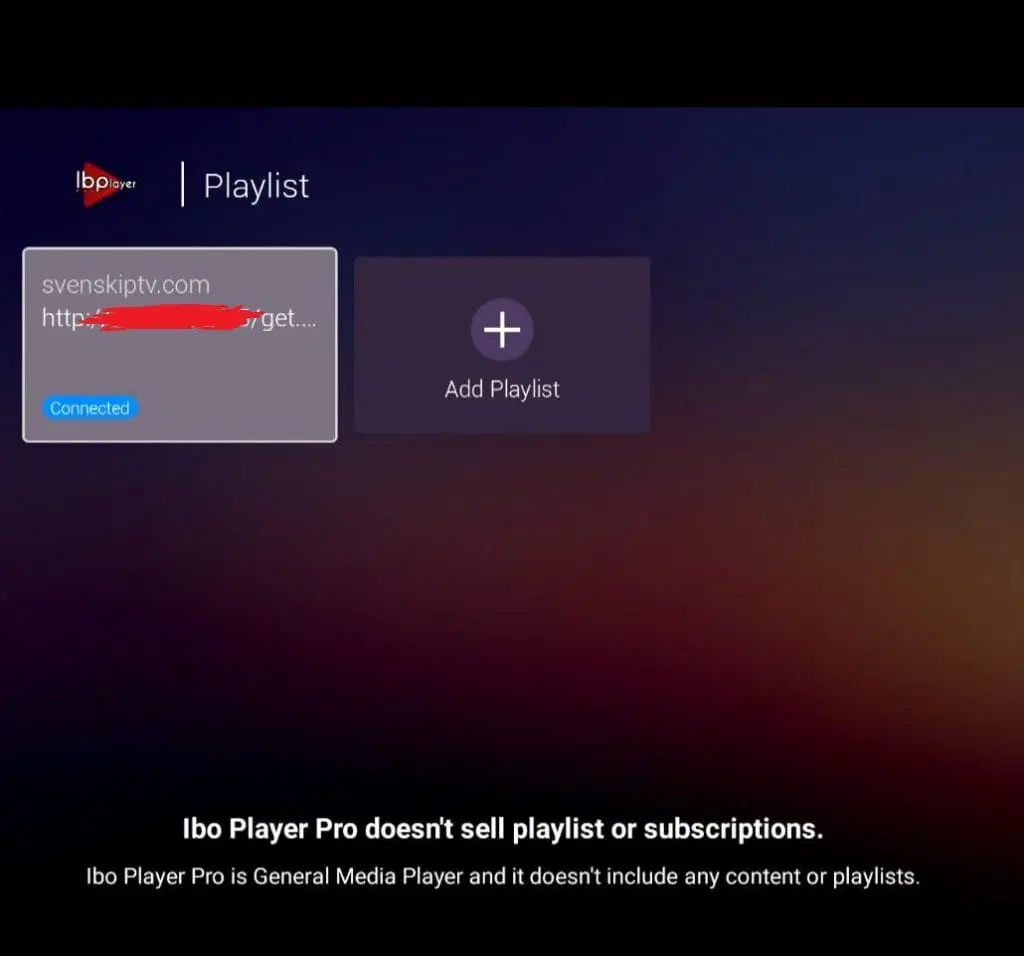
Done!
Everything is now set up, and you can start enjoying your IPTV lineup.
Thank you for choosing us!
Where can I download the app?
The app can be downloaded from the Play Store, but also from other sources depending on which device you are using. APK files are also available, but we recommend avoiding these as they may contain viruses.
Which devices can I use?
Smart TV
IBO Player on Smart TVs is a good solution for those who have experience with IPTV apps. The app works well with Smart TV devices such as LG, Samsung, Sony, Philips, and others. Since you can install IPTV Extreme Pro and many other apps, an LG Smart TV is a good device for watching TV. However, we always recommend removing unnecessary apps and preferably using a newer model, as most IPTV playlists today are very large and contain hundreds of thousands of titles, including channels, movies, series, and documentaries.
The app is convenient on TVs as it is designed to work best on Smart TV systems, Android TV, Android boxes, and mobile devices. It is available on most LG, Sony, Samsung, and Philips TVs that use Android-based systems. Even though the app works well with your device, we recommend using a better app, such as Tivimate, instead.
Specifications for IBO Player
- App: IBO Player
- Installation time: About 7 minutes
- Wi-Fi/Cable: Supports both
- Cost: 150 SEK
- Offers free trial: Yes
Computer
IBO Player on a computer works really well and provides users—whether they are using Windows or Mac—with an excellent IPTV experience, giving access to a wide range of channels, movies, and series. The app is designed to run smoothly on both operating systems, making it a flexible choice for different users. With an intuitive and easy-to-use interface, it’s simple to navigate between channels and quickly find the content you’re looking for.
IBO Player supports both HD and 4K resolution, providing crystal-clear picture quality and a better viewing experience directly on your computer. The fast and stable streaming ensures that you can watch without annoying buffering or interruptions. The app also works with various IPTV services, giving you flexibility to customize your viewing.
Another advantage of IBO Player is its support for EPG (Electronic Program Guide), which makes it easy to plan your viewing schedule and keep track of upcoming programs and broadcasts. Whether you are using a Windows or Mac computer, IBO Player delivers a reliable and high-quality IPTV solution that meets your needs.
IBO Player – Instructions
Step 1
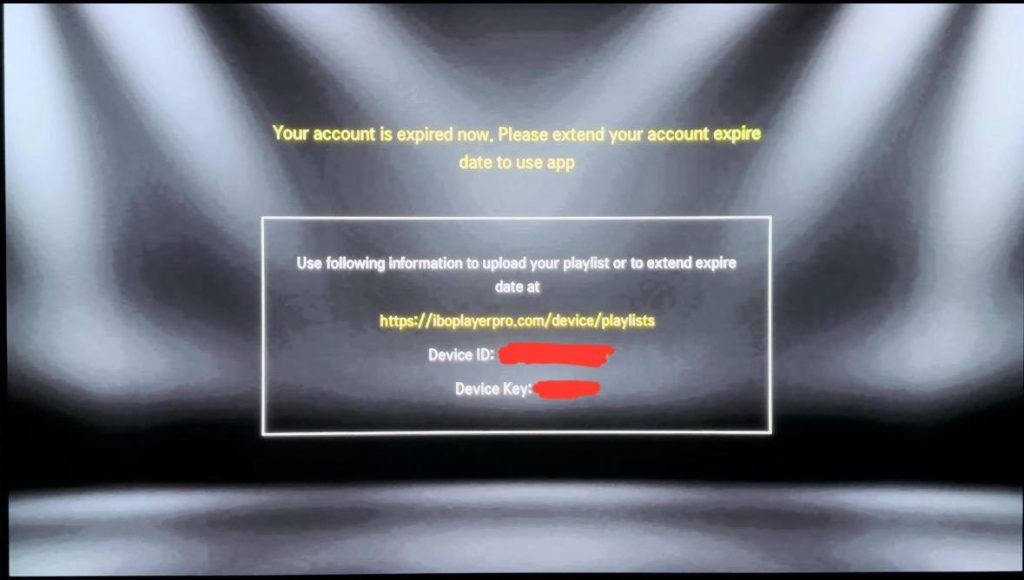
Open the app and note your “Device ID” and “Device Key”.
These details are needed to configure the app correctly
Step 2
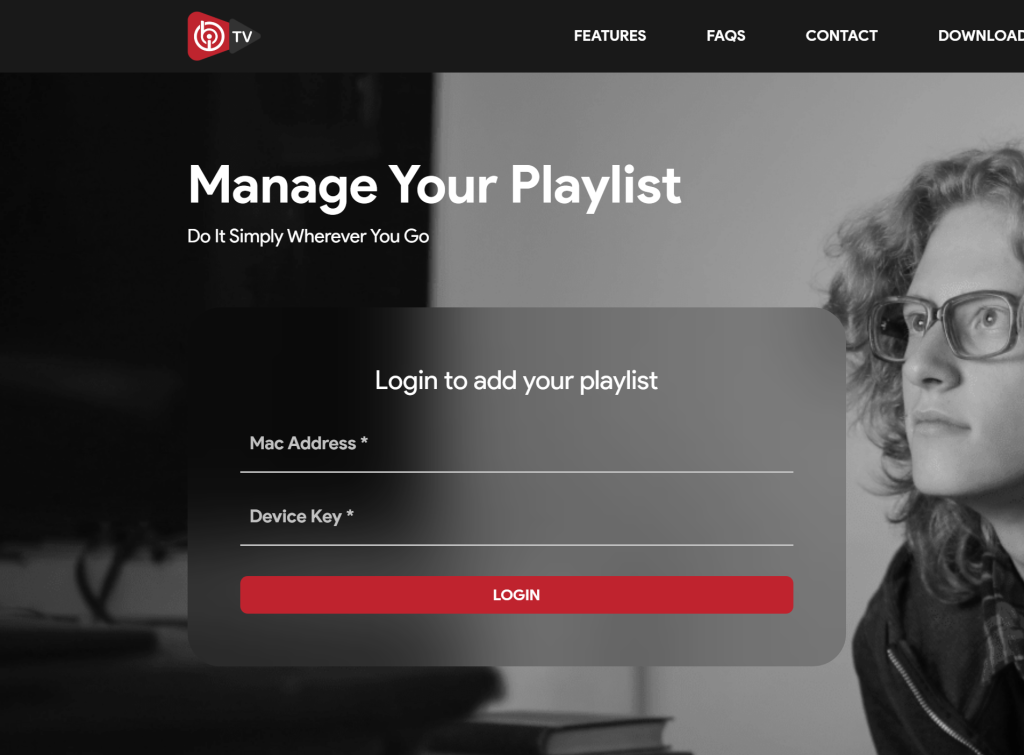
Visit https://iboplayerpro.com/device/login and enter your details. In this case, your “Device ID” is your MAC Address, as requested on the website.
Step 3
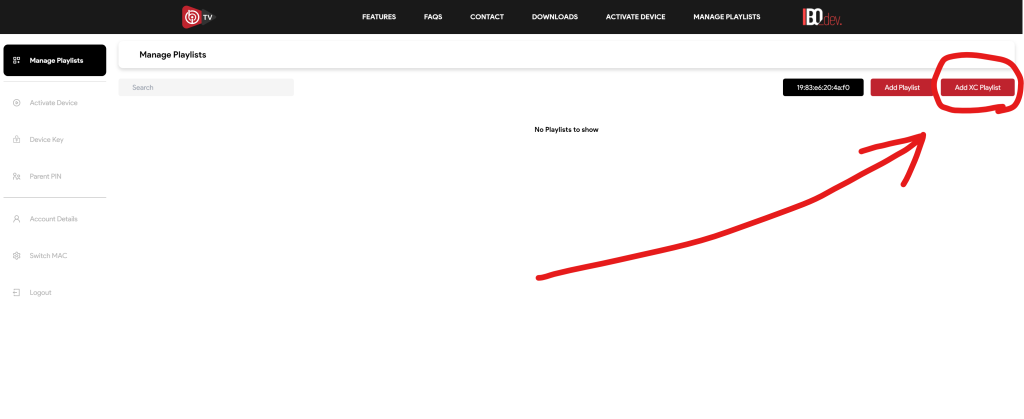
Click “Add XC Playlist”.
Then select the playlist you want to add.
Step 4
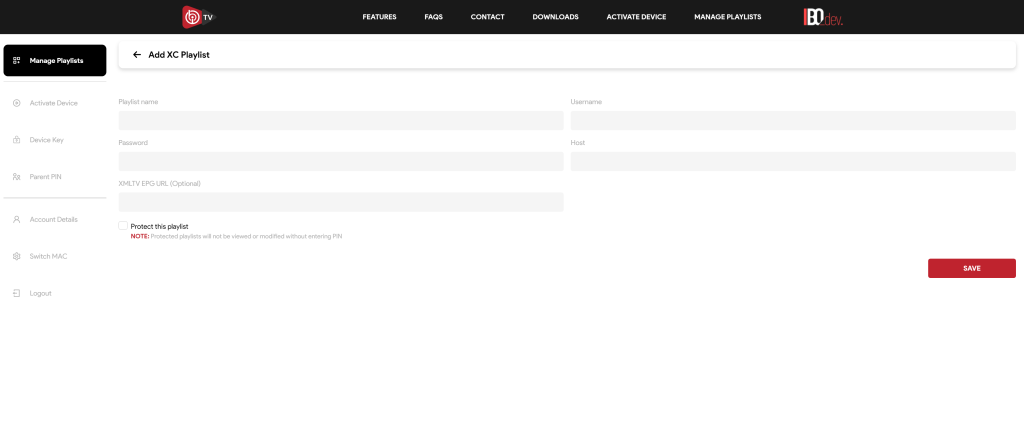
Enter your login details that you received via email.
Enter your portal URL in the “Host” field, which you also received via email.
Step 5
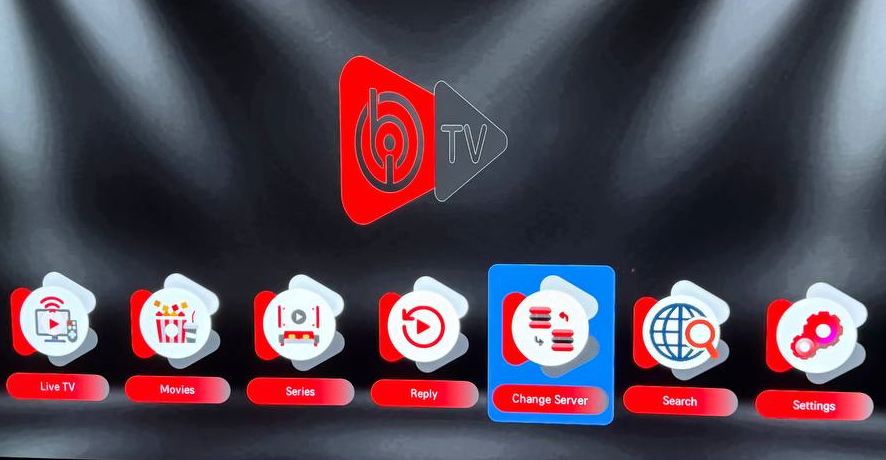
Select “Live TV” on the far left of the screen.
Alternatively, you can choose “Change Server” to select your playlist.
It will appear in the next step.
Step 6
Done!
Everything is now set up, and you can start enjoying your IPTV lineup.
Thank you for choosing us!
Nvidia Shield
IBO Player with Nvidia Shield is a good solution, but there are better alternatives to get started. The app is optimized for Android-based systems and works well with the device. Despite this, it is recommended to use a more advanced app, such as Nanomid, for an even better experience.
Android Box
IBO Player on an Android Box works reasonably well as a starter solution. Since the app is designed for Android-based systems, it works fine with the device. However, even though the app functions well, it is recommended to use a better app, such as Tivimate, as it offers a better interface and more stable servers.
Formuler Box
IBO Player on a Formuler Box works fairly well, but the Formuler Box is a slightly different Android device, as it has its own IPTV app, MyTVOnline. The MyTVOnline apps provide a better user experience than IBO Player and are therefore recommended instead for a more stable and high-quality IPTV experience.
IBO Player – Instructions
Step 1
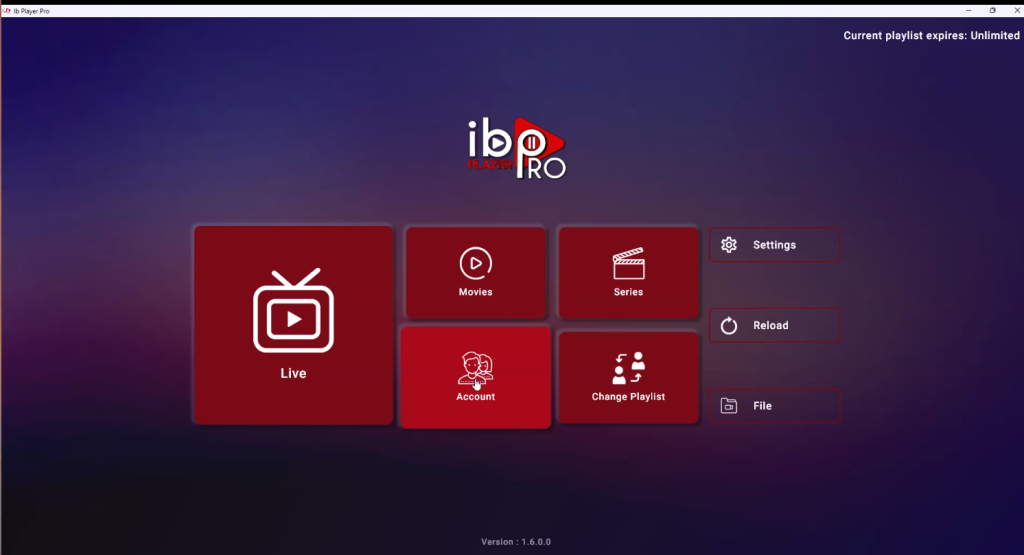
Open the app and tap “Change Playlist”. Then select “Add Playlist”
Step 2
Select “XTREAM-CODES-API” and enter the login details you received from us via email.
Step 3
Done! 🙂 Everything is now installed and ready to use. Enjoy your IPTV content directly on your device!


