
iPlayTV – Instructions for your specific device
Instructions for iPlayTV
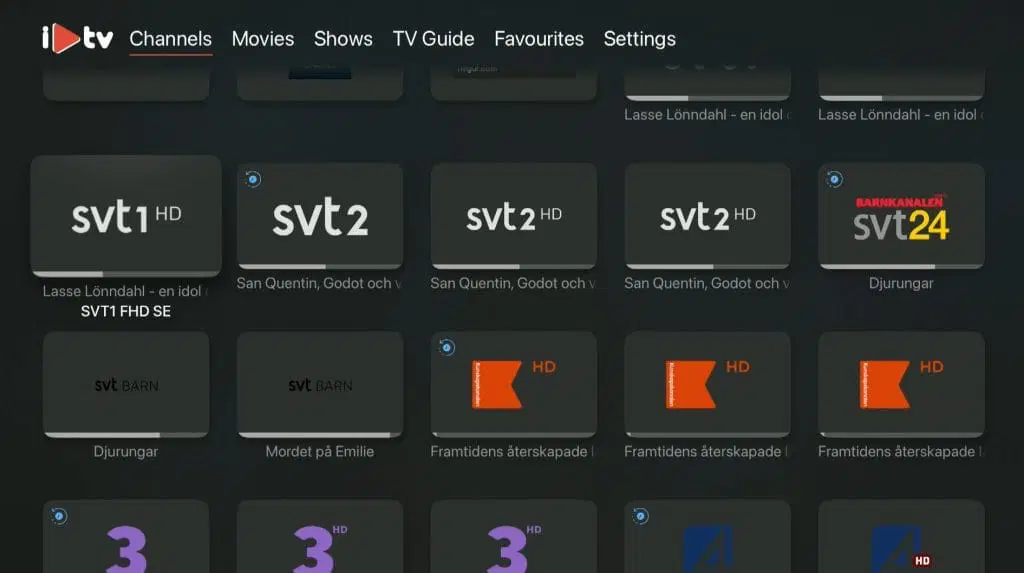
iPlayTV is, in our opinion, one of the best apps in the same category as IPTVX for watching IPTV on Apple TV. It is very easy to get started with and allows you to upload your channels in the following ways:
• Remote Playlist File (M3U link)
• Local File (M3U file)
• Xtream Server (login credentials)
The app works excellently with Apple TV. However, we always recommend removing unnecessary apps that are not being used and using a slightly newer model. This is because most IPTV playlists today are very large and contain hundreds of thousands of titles, such as channels, movies, series, documentaries, and more.
IPTV with iPlayTV
Instructions on how to complete the installation can be found here. Normally, it takes about 5–15 minutes to get started when setting up TV channels on your Apple TV for the first time. However, if you get stuck or need assistance, you can always contact our support.
We recommend uploading your IPTV playlist using Xtream Server (i.e. your username, password, and portal URL that you receive from us when you purchase a subscription or start a free trial).
This is because your EPG (program guide) will then be installed automatically in the background. If you choose to use an M3U link instead, you will need to manually enter your EPG link that you receive from us.
The app is one of the most popular IPTV apps for Apple TV, as its interface is much simpler compared to apps such as IPTVX and others in the same category. The app is only available for Apple TV.
IPTV with a TVIP box is also a good alternative for watching IPTV.
Step 1
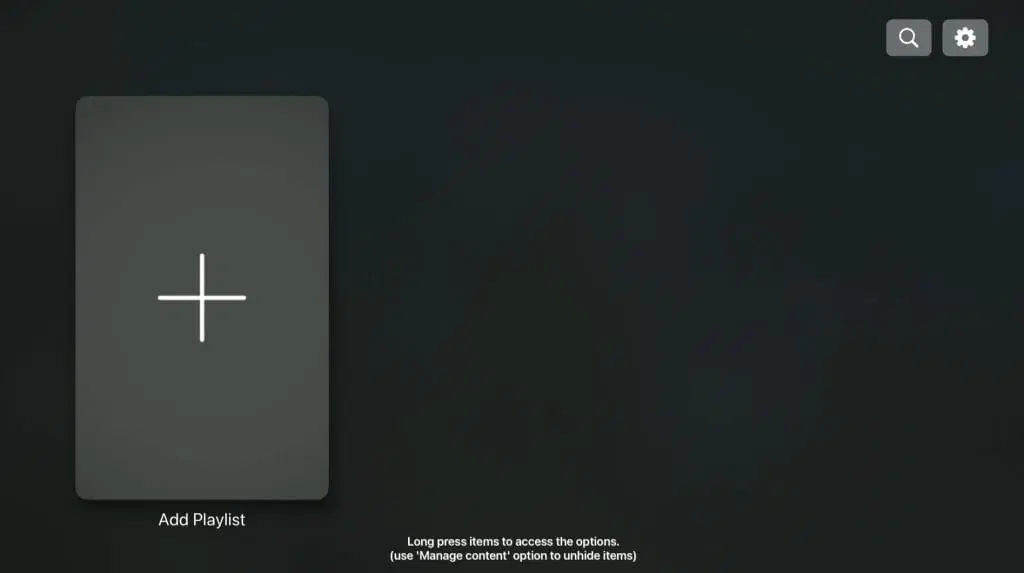
Start the app and tap the large plus sign (“Add Playlist”).
Step 2
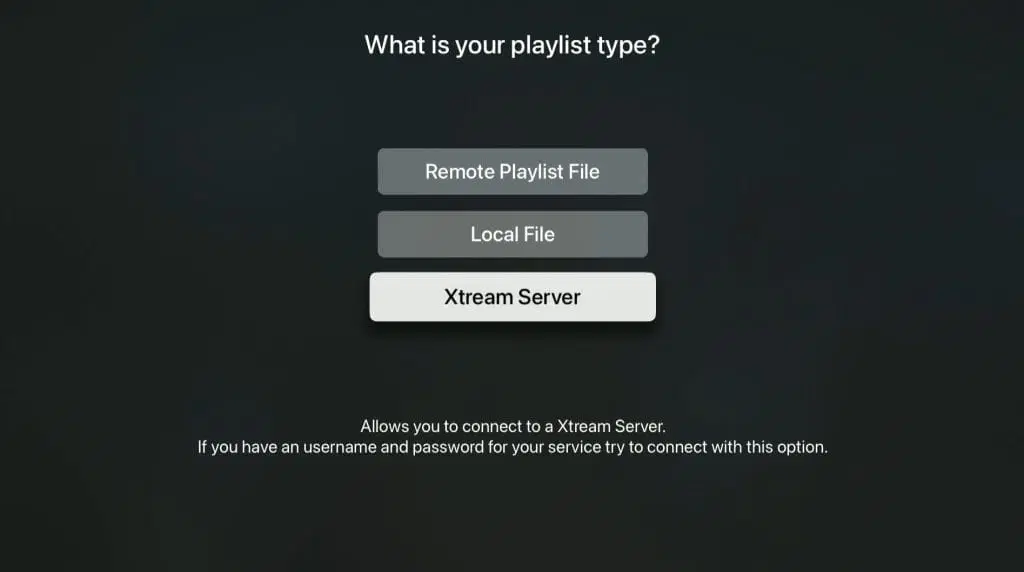
Tap “Xtream Server”.
Step 3
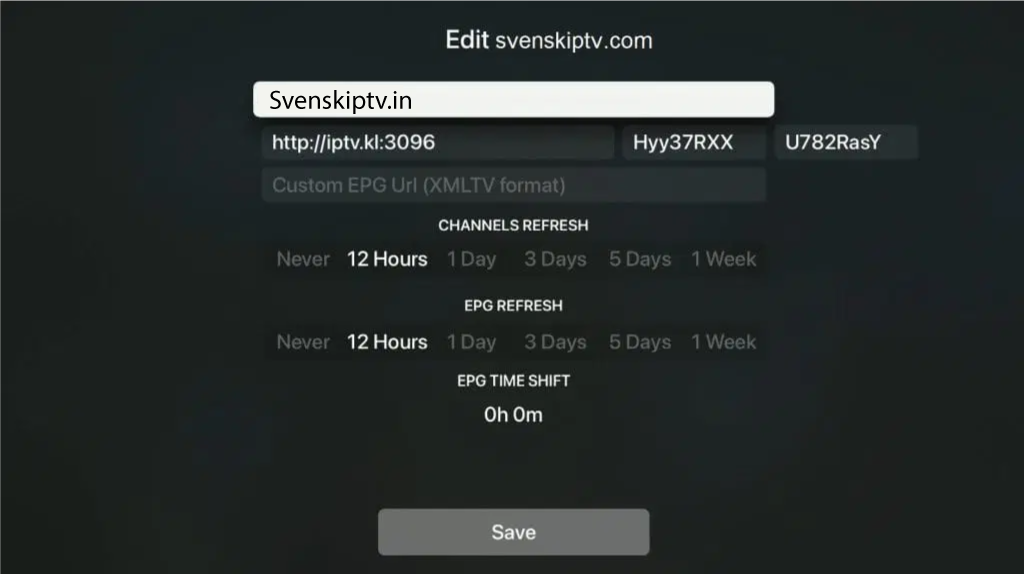
Choose a name for your new playlist. In this case, we chose “Channels”.
Make sure that “Channel Refresh” and “EPG Refresh” are set to 12 Hours.
Then tap “Save”.
Step 4
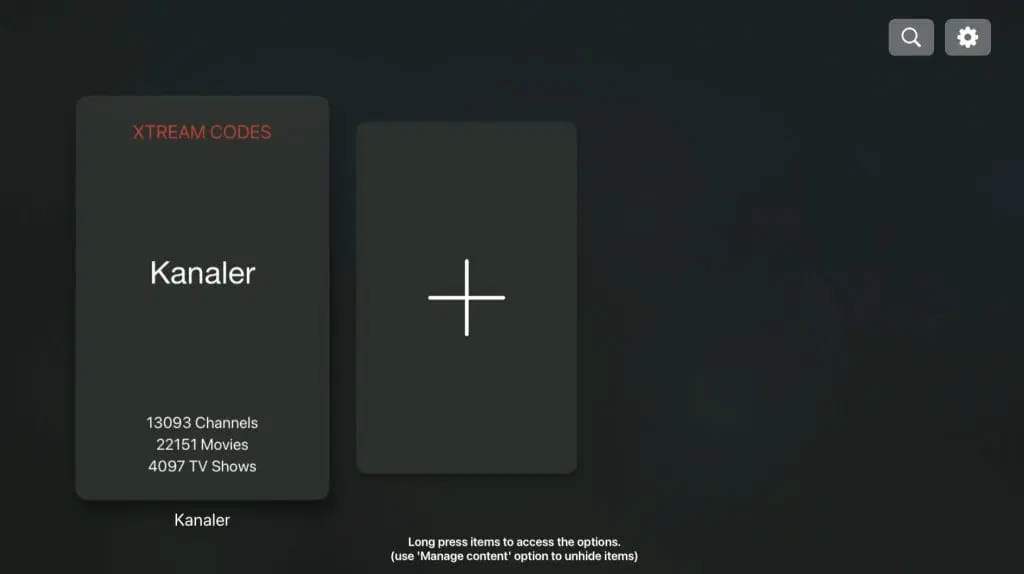
You have now saved your channel list. Select it using your remote control.
Step 5
Done! 🙂
Where can I download the app?
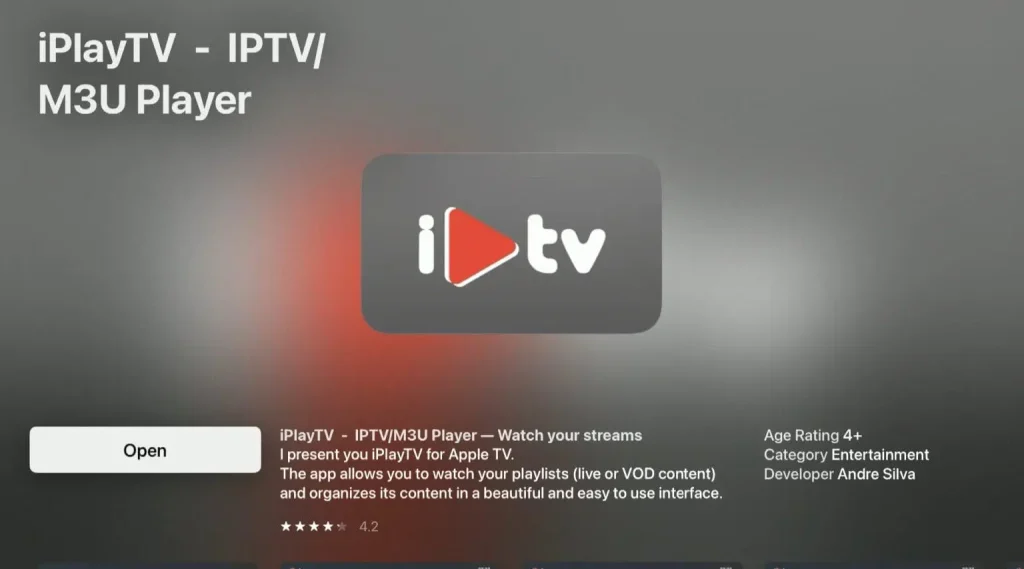
The app cannot be downloaded from the company’s website, but it is available on the App Store for your iOS device.
Never download the app from any source other than the App Store, such as similar websites, as these may be fake.
iPlayTV instructions on Apple TV
iPlayTV works excellently on Apple TV. On Apple TV 4 and Apple TV 5, the app performs perfectly, and the quality is truly noticeable when you get the chance to test it at your own pace. For this reason, we recommend starting with a 1–3 month subscription to get a good overall experience.
Unfortunately, the app cannot be downloaded on Apple TV 3, as it is too old. Even though the app does not have many reviews on the App Store, there are forums and other platforms where many users have reviewed it and given it a good rating (around 4/5). There are other apps with similar quality, but iPlayTV has been around for a long time and seems to be here to stay.
Keep in mind that our free trials only last one hour, so be sure to use the trial wisely and plan ahead to get the most out of it.
Which devices can I use?
Apple TV
IPTVX on Apple TV is without a doubt one of the best combinations for IPTV viewing. The interface is nearly perfect, and IPTVX’s servers perform excellently—even during major events when many users are active at the same time. For the best possible experience, we recommend connecting your Apple TV to your router using an Ethernet cable, even though the app itself is very stable.
Specifications
- App: iPlayTV
- Installation time: Approx. 5 minutes
- Wi-Fi / Cable: Supports both
- Cost: 79 SEK
- Free trial available: No

Specifications for Mobile and iPad
- App: IPTVX
- Installation time:
- Approx. 5 minutes
- Wi-Fi/Cable: Supports
- both
- Cost: 245 SEK/year
- Free trial available: Yes
iPlayTV – Undertexter
Most titles have automatic subtitles that load together with the channels. If certain channels lack subtitles, unfortunately none are available. Keep in mind that you should log in using the Xtream Server option to automatically receive subtitles and the EPG.
However, most titles do include subtitles. In some cases, you may also upload your own subtitles from external sources. This is not something we provide support for, as our focus is on handling the more essential services for our customers.
For more information about subtitles in your specific app, a quick Google search is usually enough.
iPlayTV EPG
EPG (Electronic Program Guide) is available in the app. In many applications, you need to manually copy and paste an EPG link (XML) that you receive from us after purchase.
However, some apps automatically load the EPG when you log in using the Xtream Codes API, meaning no manual setup is required. If your app only supports M3U links, you will most likely need to add the XML EPG link manually.
iPlayTV – Instructions
Step 1
Open the app and tap the large plus (+) icon to add a playlist. Here, you can enter your M3U link or Xtream Codes URL to start streaming.
Step 2
Tap the “Xtream Server” option to log in using your server information. This will automatically give you access to channels and the EPG.
Step 3
Choose a name for your new playlist, for example “Channels”.
Make sure “Channel Refresh” and “EPG Refresh” are set to 12 hours, then tap “Save”.
Step 4
You have now saved your channel list. Select it using the remote control to start watching.


