
IPTV Extreme Instructions for Your Specific Device
Instruktioner för IPTV Extreme PRO
IPTV Extreme PRO is, as the name suggests, the most advanced version of the apps. The app can be somewhat difficult to get started with and is therefore recommended for users who are experienced in uploading IPTV playlists. You can upload your playlist via their website here: https://vizora.tv/
The app allows you to upload your channels in the following ways:
M3U link
Xtream Codes Playlist (login credentials)
MAG/Stalker Portal
We recommend uploading your IPTV playlist using Xtream Codes (i.e., the login credentials you receive from us when purchasing or requesting a free trial). This is because your EPG (program guide) will then be automatically installed in the background.
If you choose to use M3U instead, you must manually enter your EPG link, which you will receive from us. The PRO version is available for certain Smart TVs and Android devices. However, it is not available for Apple devices, as the apps are specifically developed for Android-based devices
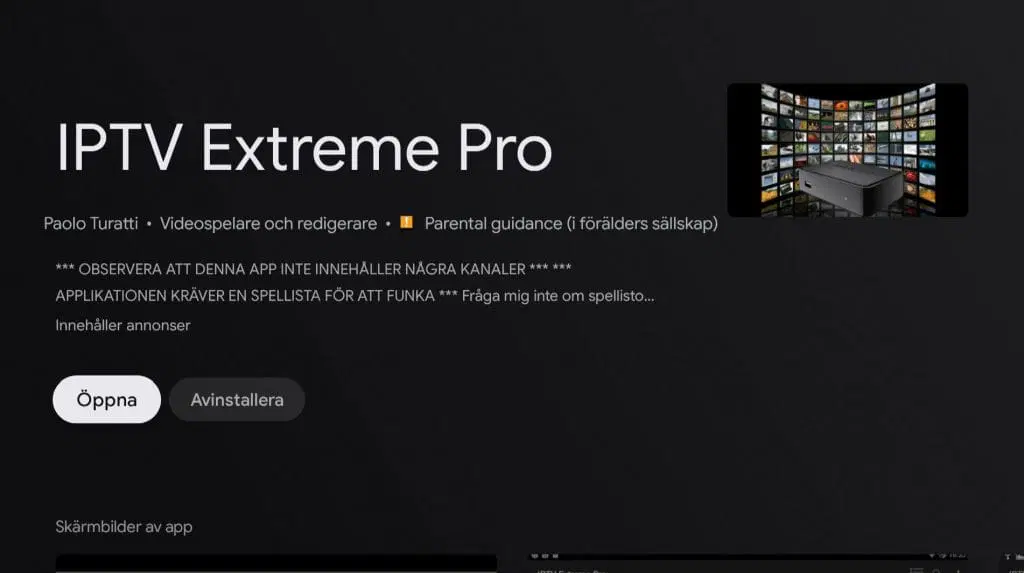
Step 1
Launch the app and note your MAC address, which is displayed in the middle of the screen. You should not enter this with us, but instead use it on their website to pair it with the Xtream Codes credentials you receive from us
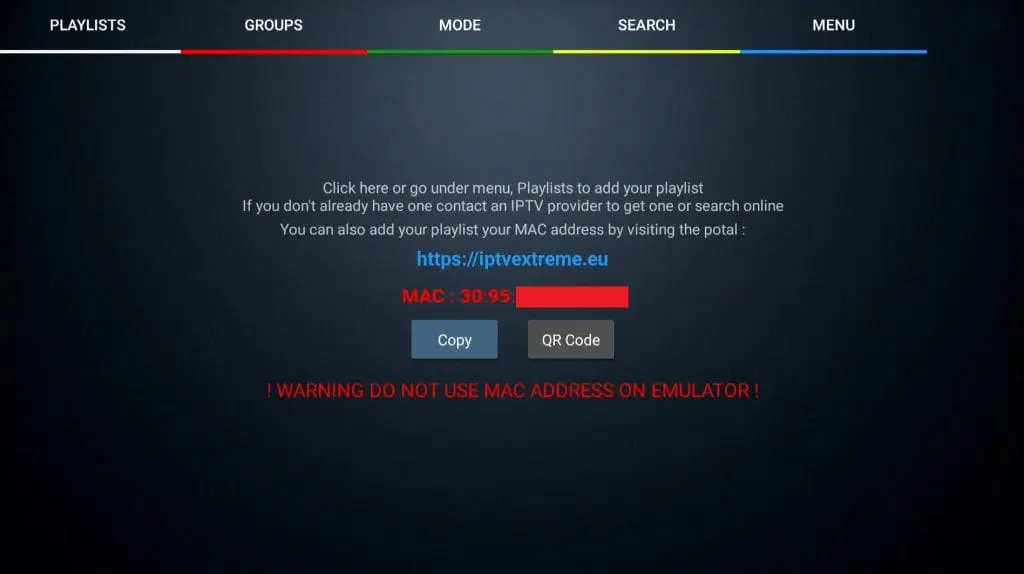
Step 2
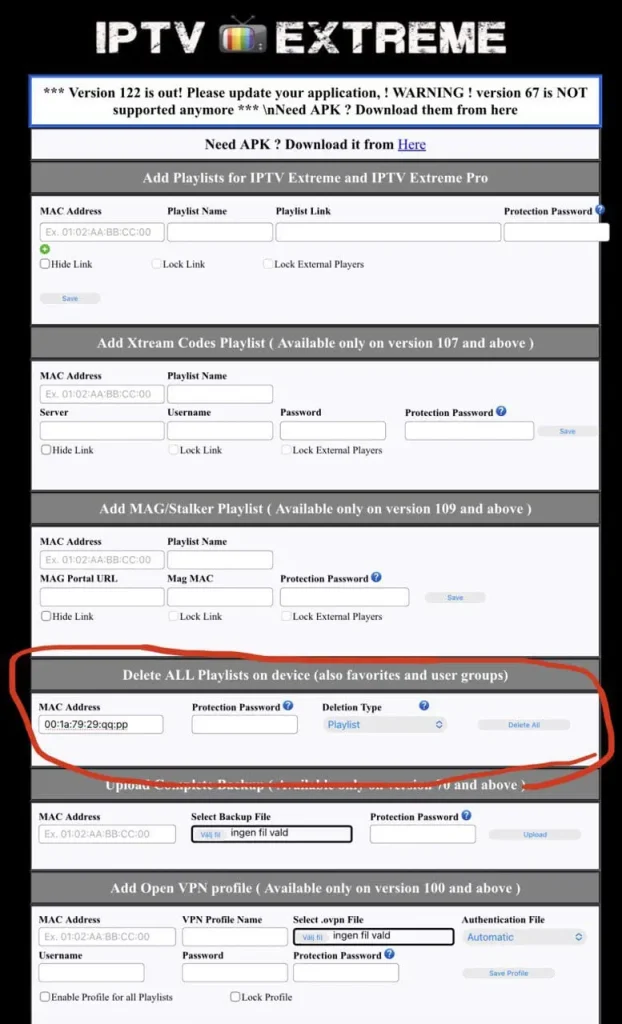
Now go to https://iptvextreme.eu/ and first delete any existing playlists. We recommend doing this even if you do not have an active playlist. You do this by entering your MAC address in the ‘Delete All Playlists’ field. Then select ‘Playlists and VPN Profiles’. Next, press the ‘Delete All’ button located next to it
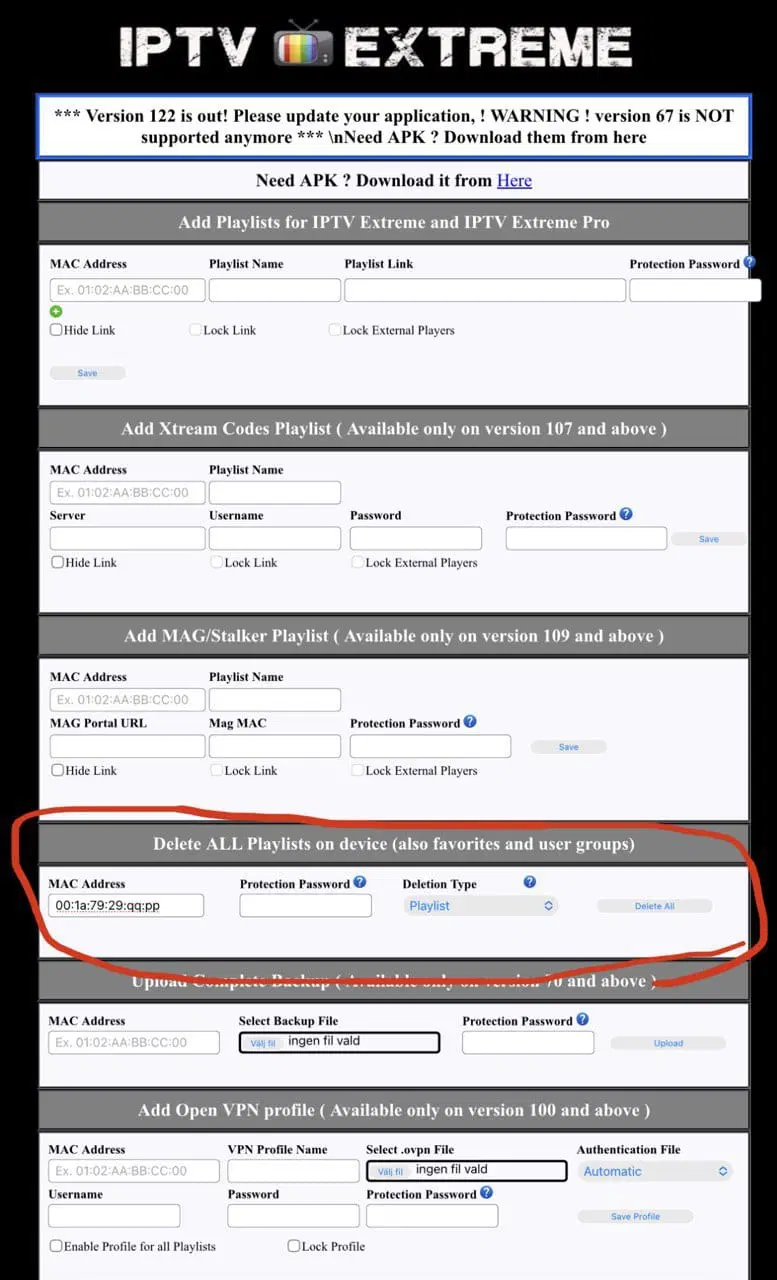
Step 3
Copy and paste your MAC address into the ‘Add Playlists’ field, and also copy your M3U link that you received from us by email. Then paste your M3U link into the ‘Playlist Link’ field. Enter ‘svenskiptv.com’ in the ‘Playlist Name’ field.
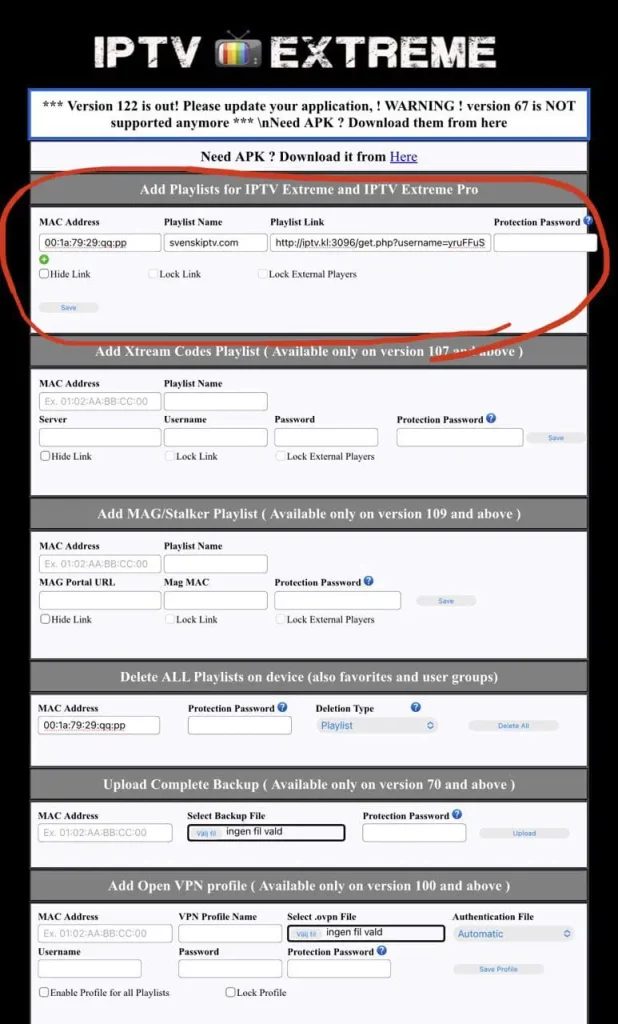
Step 4
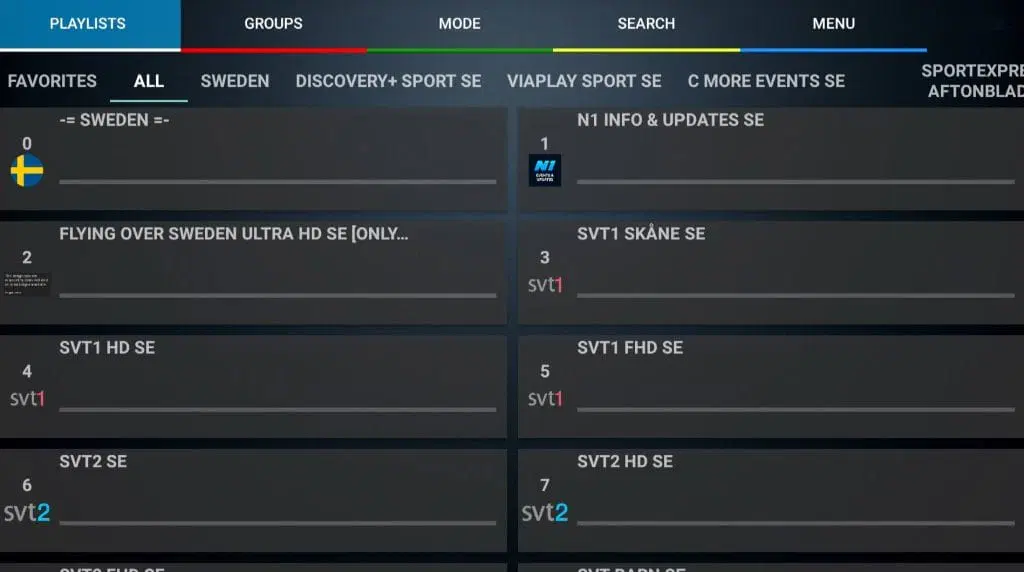
Reload the channels by restarting the app or by pressing 0 on your remote control. Note that you may sometimes need to restart the app by power-cycling your device 2–3 times.
Step 5
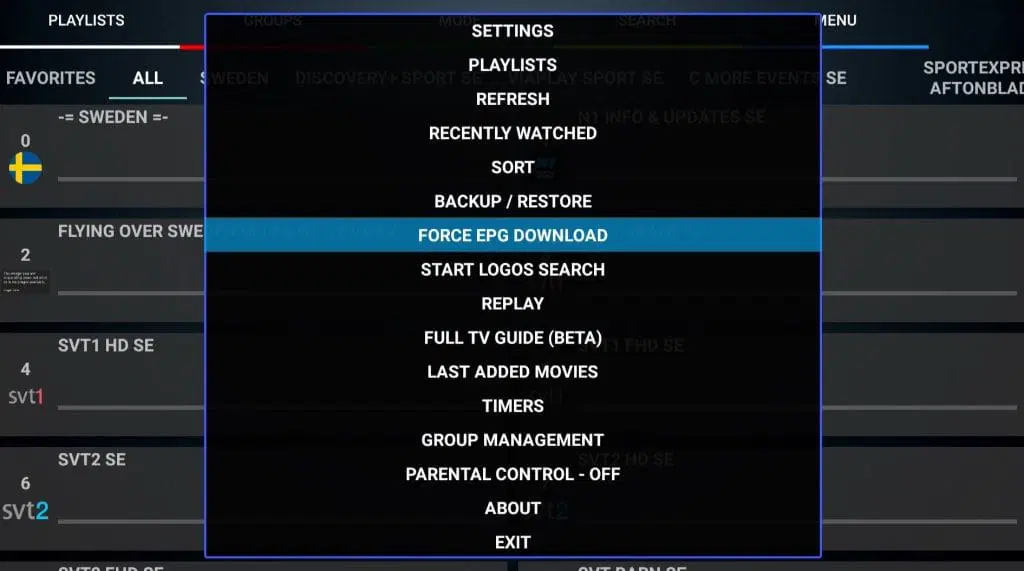
For the EPG, go to ‘Menu’ and select ‘Force EPG Download’ if the EPG has not appeared after 20 minutes.
Where can I download the app?
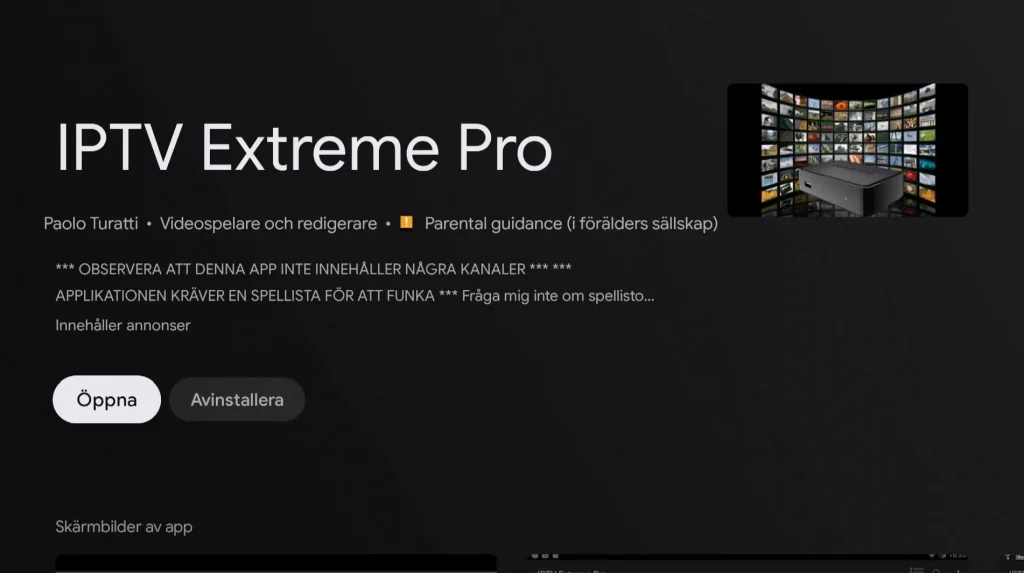
The app can be downloaded from the Play Store. There are also APK files available for download, but this is not recommended as many may contain viruses. The APK file from IPTV Extreme’s own website no longer appears to be available.
Which devices can I use?
Smart TV
IPTV Extreme with a Smart TV is a good combination for users who have experience with IPTV apps. The app works well with LG Smart TVs and, of course, other Smart TV brands such as Samsung, Sony, Philips, etc. Since you can install the IPTV Extreme Pro app and many other apps, LG Smart TVs are devices that can be used for watching TV. However, we always recommend removing unnecessary apps that are not used and having a newer model, as most IPTV playlists today are very large and contain hundreds of thousands of titles such as channels, movies, series, documentaries, and more.
The app works smoothly on TV sets as it is designed to perform best on Smart TV systems, Android TV, Android boxes, and mobile devices. The app is available on most LG, Sony, Samsung, and Philips TVs that use Android-based systems. Even though the app works well with your device, it is recommended to instead use a better app, such as TiviMate
Specifications for IPTV Extreme
- App: Extreme IPTV Pro
- Installation time: Approx. 7 minutes
- Wi-Fi/Ethernet: Supports both
- Cost: 29 SEK
- Offers free trial: Yes
Mobile
IPTV Extreme for mobile is an acceptable solution if no other options are available. However, using IPTV on a mobile device with this app can feel somewhat complicated, especially if you want to watch TV while on the go. There are better alternatives for mobile devices, such as IPTV Smarters, which are more user-friendly.
The app is designed for Android devices, so if you have an iPhone, you cannot download this app. In that case, we recommend using the IPTVX
Tablet
IPTV Extreme on a tablet is a better option than on a mobile phone if you are using an Android-based tablet. IPTV on a tablet works quite well for watching TV while on the go.
However, if you are using an iOS device (iPad), the IPTVX app is recommended instead.
IPTV Extreme – Instructions
Step 1
Open the app and find your MAC address displayed in the middle of the screen.
Note the address so you can activate your service.
Step 2
Visit https://iptvextreme.eu/ and delete all playlists, even if none are active.
Enter your MAC address in the ‘Delete All Playlists’ field to do this.
Step 3
Paste your MAC address into the ‘Add Playlists’ field and your M3U link from us into the ‘Playlist Link’ field.
Enter ‘svenskiptv.com’ as the ‘Playlist Name
Step 4
Reload the channels by restarting the app or by pressing the 0 button on your remote control.
It may take a few seconds for the channels to update
Step 5
To download the EPG, go to ‘Menu’ and select ‘Force EPG Download’ if the EPG has not appeared after 20 minutes.
It may take a short while for the download to complete
Nvidia Shield
PTV Extreme PRO with Nvidia Shield is a good solution, but there are better alternatives for getting started. The app is designed to work best with Android-based systems. Even though the app works well on your device, it is recommended to use a better app instead, such as Nanomid
Android Box
IPTV Extreme PRO with an Android Box works well as a starter solution. The app is designed to work best with Android-based systems. Even though the app functions well on your device, it is recommended to use a better app instead, such as TiviMate, as it offers a better interface and more stable performance.
Xiaomi Mi
IPTV Extreme PRO with Xiaomi Mi Box S or Xiaomi Mi Stick is unfortunately not the best option for IPTV viewing, especially when compared to devices such as Apple TV. This is because the processor in both devices is not particularly powerful. Although IPTV works on Xiaomi Mi devices and the experience can be acceptable, it is not the best solution if you are looking for a more stable and smoother experience.
Formuler Box
IPTV Extreme PRO with a Formuler Box works fairly well. However, the Formuler box is a somewhat different Android device, as it has its own IPTV app, MyTVOnline. The MyTVOnline apps are much better than the Extreme app, and therefore it is recommended to use those instead.


