
IPTV TVIP Instructions for your specific box.
Instructions for TVIP boxes.
The TVIP box is one of the most advanced IPTV boxes on the market, and it is also relatively easy to get started with. The box allows you to install your channels via its portal settings.
Usually, it is recommended to upload your IPTV playlist using the Xtream Codes API (i.e., with a username, password, and Portal URL that you receive from us upon purchase or during a free trial). This ensures that your EPG (Electronic Program Guide) is automatically installed in the background.
However, with the TVIP box, you do not need to worry about this. Follow our simple TVIP instructions to quickly get started with your new box.

Step 1
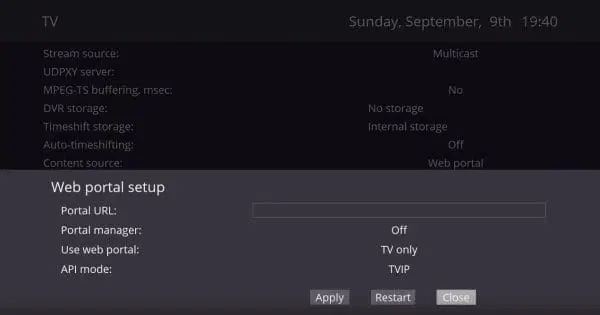
Start the box and enter the details you received from us via email. In some cases, you may need to accept the terms and conditions before this screen appears – simply press “OK” if that happens. When you see the screen, enter the Portal URL you received from us. Your Portal URL should end with “/c”, so it will look something like:
http://abcd.se:3095/c
Step 2
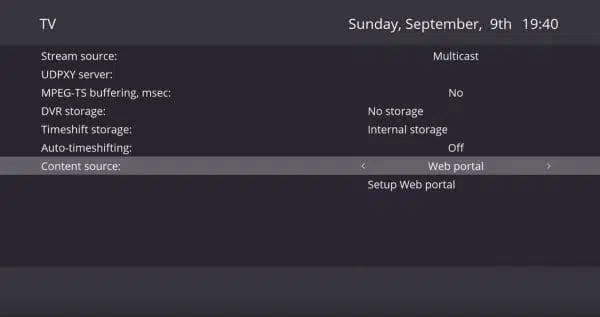
Select “Web Portal” and then “Setup Web Portal.
Step 3
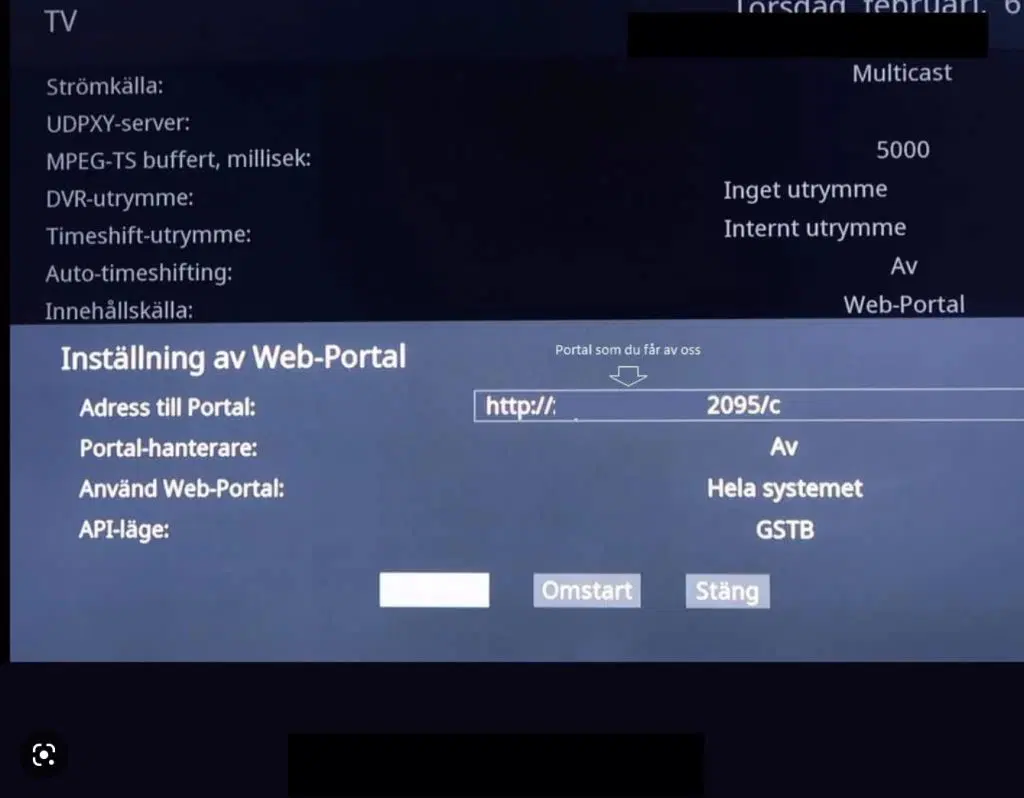
After selecting “Setup Web Portal,” you will be taken to this page. Here, configure the settings so that they match the image below.
TVIP Box Factory Reset.
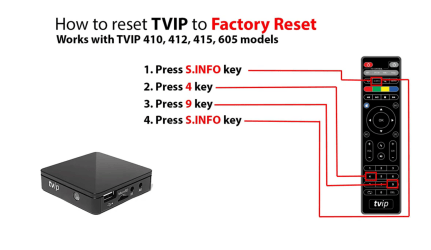
Below you can see how to perform a factory reset on a TVIP box, regardless of the model.
TVIP 705
TVIP Instructions. The TVIP 705 is a popular IPTV box known for its reliable performance and user-friendly features. It provides a smooth and stable streaming experience for watching TV channels and on-demand content over the internet. The box is compatible with a wide range of IPTV services and supports both HD and 4K streams, making it a perfect choice for users who want to enjoy high-resolution TV on their screen.
One of the major advantages of the TVIP 705 is its easy installation and intuitive interface. It comes with a remote control that makes navigation simple and fast, whether you are using it via Ethernet (wired) or Wi-Fi (wireless). The powerful processor enables seamless use of multiple apps at the same time without any interruptions.
The TVIP 705 supports various popular formats such as MPEG-2, MPEG-4, H.264, and H.265, which means you can stream a wide range of media files without any issues. For those looking for a flexible and stable solution to stream their favorite channels, movies, and series, the TVIP 705 is an excellent option.
In addition to TVIP boxes, we also recommend IPTV solutions such as Nvidia Shield, Apple TV, and Formuler Box for even more versatile and reliable IPTV experiences.
TVIP 605
The TVIP 605 is a compact and affordable IPTV box that offers a reliable streaming experience for TV channels and on-demand content over the internet. The box supports HD resolution and provides easy installation with a user-friendly interface. With support for both wired Ethernet and Wi-Fi connections, it offers flexibility depending on the user’s network conditions.
The TVIP 605 is equipped with an efficient processor that enables fast navigation and stable performance. It also supports popular video formats such as MPEG-4 and H.264, making it a good choice for those looking for a smooth IPTV solution at an affordable price.
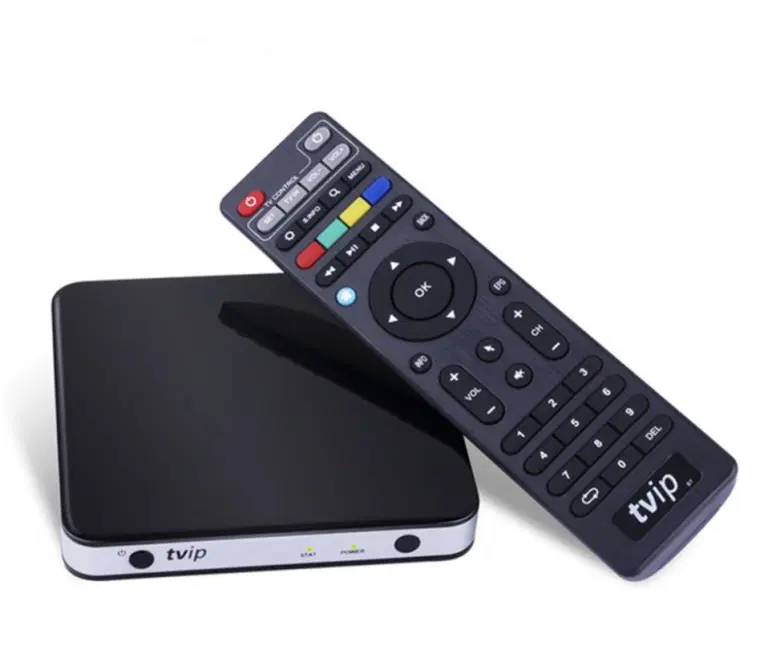
TVIP 415
The TVIP 415 is a reliable and compact IPTV box that delivers a smooth streaming experience for both live TV and on-demand content. With support for HD resolution and stable performance, it is perfect for everyday use. Installation is simple and the interface is user-friendly, making it easy to use even for beginners.
The TVIP 415 supports both wired and wireless (Wi-Fi) connections, providing flexibility depending on the network environment. The box handles popular video formats such as H.264 and MPEG-4, allowing it to manage a wide variety of media files—an excellent choice for IPTV users.
Which devices can I use?
TVIP 705 Instructions.
The TVIP 705 is the latest model in TVIP’s lineup and offers the same high quality as the other boxes, but with improved features. Installation and use are simple, allowing you to get started quickly with a smooth streaming experience. For those looking for a similar experience, the IPTVX app for Apple TV also offers comparable functionality and high quality.
The TVIP 705 is an excellent choice for IPTV users who want a reliable and enhanced streaming solution.
Specifications for IPTV TVIP.
- App: No app required
- Installation time: Approx. 5 minutes
- Wi-Fi/Cable: Supports both
- Cost: Approx. 1,500 SEK
- Stability: 5/5
TVIP 605 Instructions
The TVIP 605 is the previous model that was very popular for several years and played a crucial role in making TVIP well known. The installation of the TVIP 605 follows the same process as the other boxes in the TVIP series, making it easy for users who are familiar with their products. The installation is carried out as follows:
Other TVIP boxes
TVIP Instructions for all TVIP boxes. Installation of TVIP boxes is largely the same whether you have an older or newer model. The process is simple and follows the same basic steps for all boxes in the TVIP series, making it easy to install and get started.
9Xtream IPTV – Instructions.
Step 1
If you have purchased a second-hand box or need to reinstall the channels, perform a factory reset (see step 5). Set the language and time zone, and connect the box to your network (preferably using an Ethernet cable).
Step 2
Make sure the following text and settings are entered correctly in your box (see image). For “MPEG-TS buffer,” select 5000 ms instead of “No.” Check that all other settings are correct before continuing.
Step 3
On the “Content Source” or “Innehållskälla” tab, select “Web Portal” and enter the Portal URL (which you receive from us after purchase). When everything is filled in, press “Apply” and restart the box.
Subtitles.
You have now completed all the steps and can activate subtitles using the magnifying glass button on the remote control when you are on a channel. If no options appear, subtitles are not available for that channel or title.

Factory reset
To perform a factory reset on your TVIP box, press the following buttons in order: S.INFO, 4, 9, S.INFO. After a few seconds, the factory reset will begin


