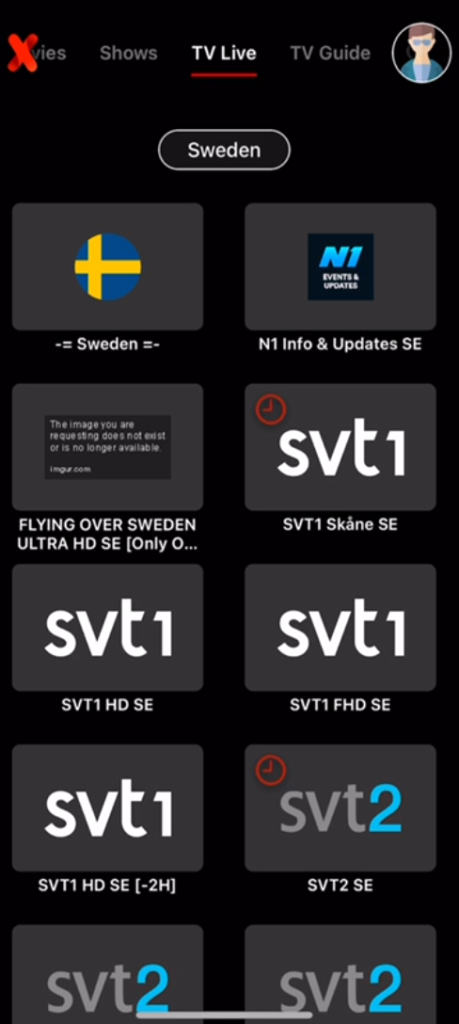
IPTVX – Instructions for your device.
Instructions for IPTVX.
IPTVX is, in our opinion, one of the best IPTV apps available. It is easy to use and allows you to upload your channels in the following ways:
M3U link
M3U playlist with username, password, and domain
Xtream API
Via SMB sharing
Folder via your local network
We recommend uploading your IPTV playlist via the Xtream API (using your username, password, and portal URL that you receive from us upon purchase or during a free trial). This way, your EPG (Electronic Program Guide) is automatically installed in the background. If you choose M3U, you will need to manually add your EPG link.
IPTVX is one of the most popular IPTV apps for Apple TV thanks to its outstanding interface compared to other apps in the same category. The app is only available for Apple devices.
Step 1
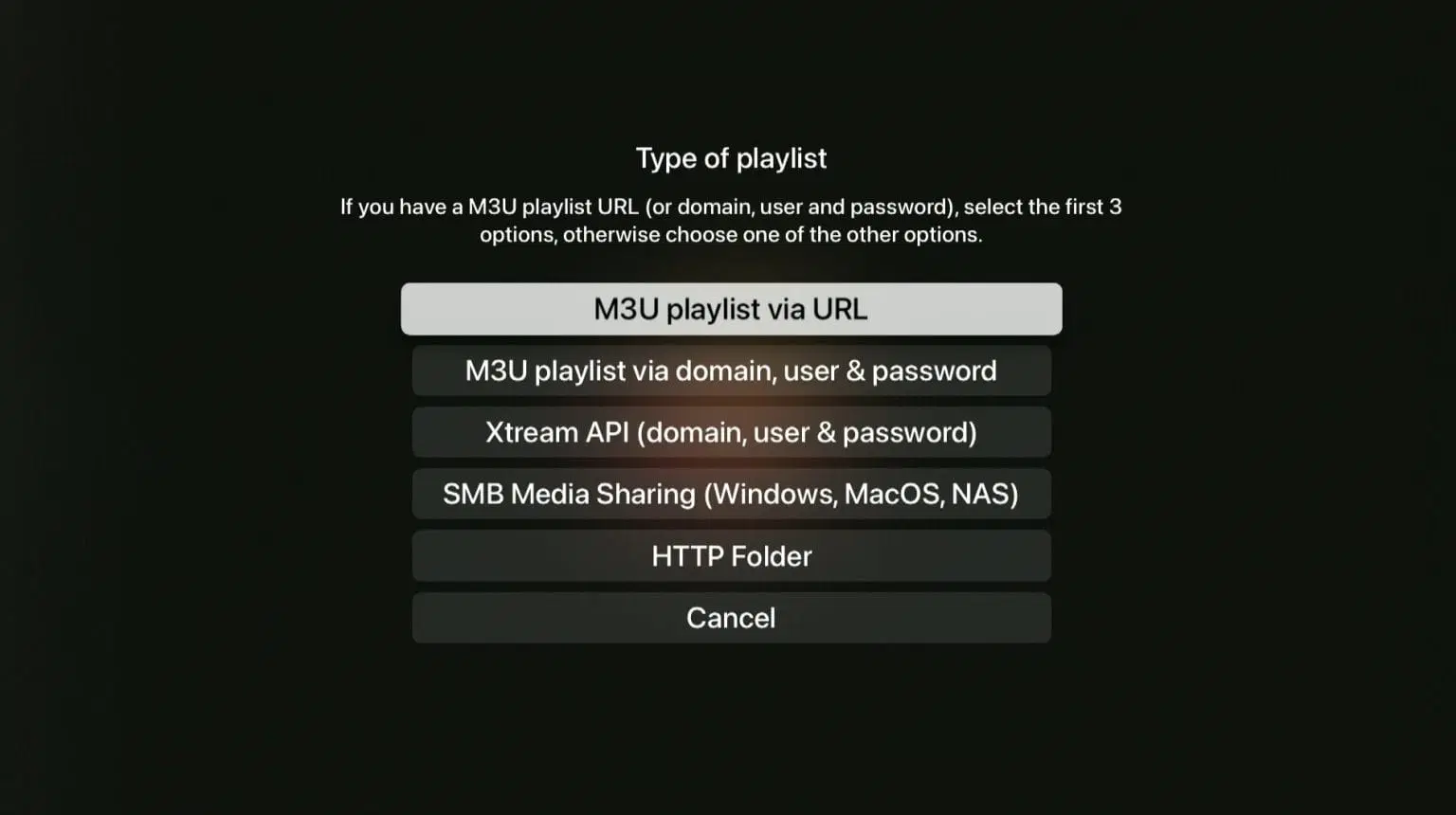
Open the app and select “Add playlist.” Then choose the “Xtream API” option
Step 2
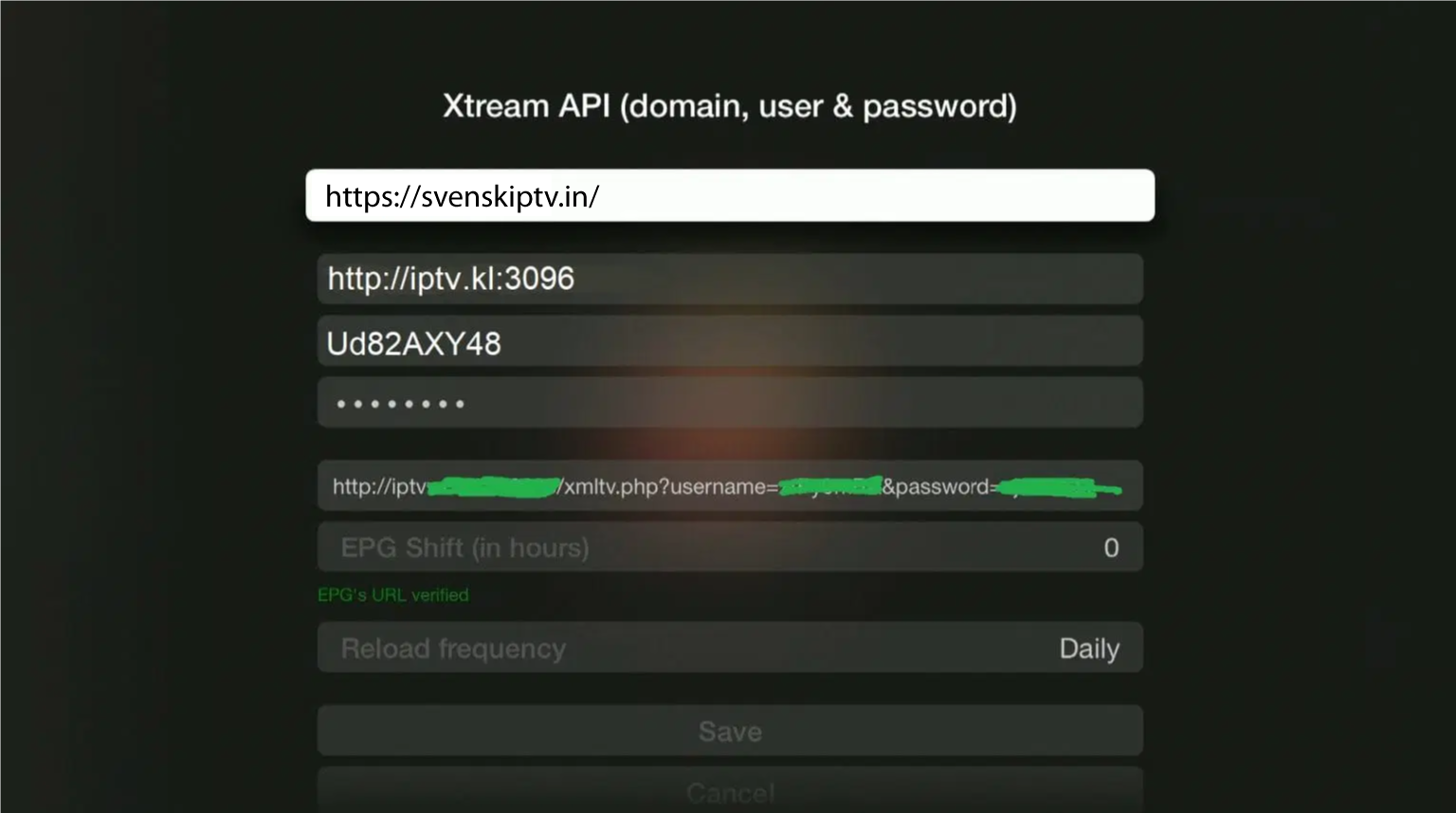
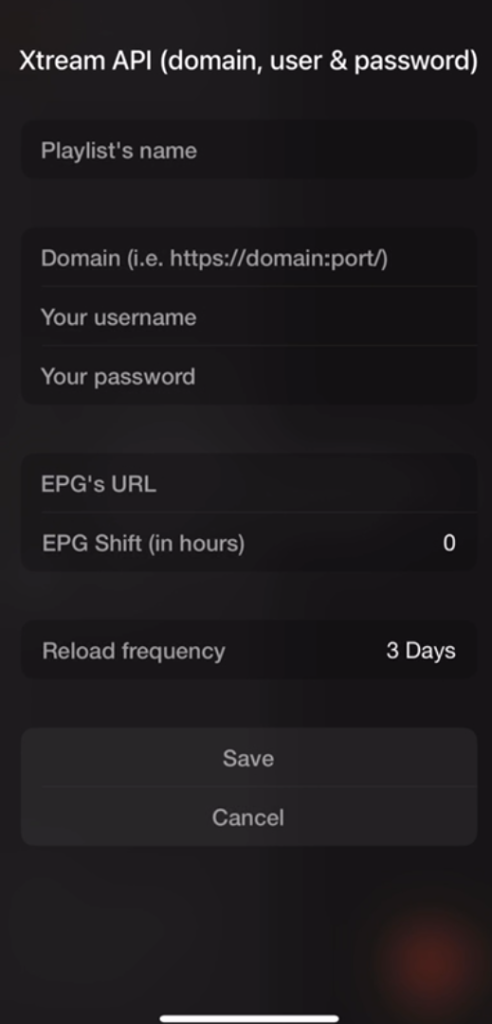
Give your new playlist a name, for example “svenskiptv.in.” Then enter the details you received from us via email. Press “Save” to save.
Step 3
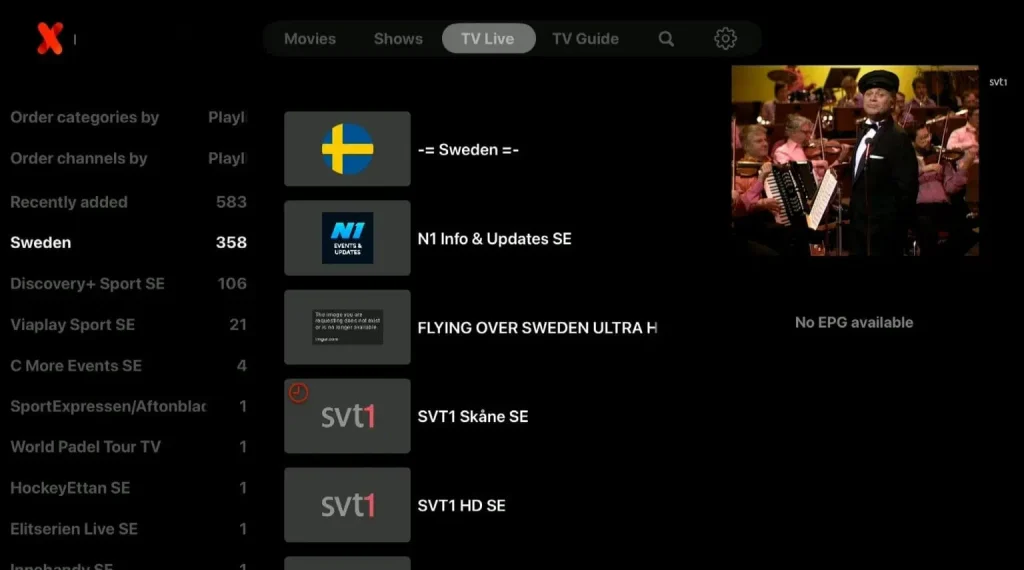
Select your new playlist using the remote control.

Step 4
Done! The EPG is not visible in the image here because we used a free trial when creating the guide.
Where can I download the app?
IPTVX on Apple TV
The app works excellently with Apple TV. Since you can install IPTVX and many other apps, Apple TV is a great device for watching TV. We recommend clearing out unnecessary apps and preferably using a newer model, as today’s IPTV playlists are often large and contain hundreds of thousands of titles, such as channels, movies, series, and documentaries.
Installation instructions can be found here. Typically, it takes 5–15 minutes to get started with TV channels on your Apple TV. If you get stuck or need help, you can always contact our support.
The best thing about the app is how easy it is to search for events, movies, or channels. For example, if you search for a football match, it often appears on several channels at the same time. If you search for “Real Madrid,” all channels broadcasting the match live will be shown, allowing you to choose the stream with the best quality.
Which devices can I use?
Apple TV
IPTVX on Apple TV is definitely one of the best combinations for IPTV viewing. The interface is almost perfect, and IPTVX’s servers perform excellently even during major events when many users are using the app at the same time. For the best experience, we recommend connecting an Ethernet cable between your Apple TV and the router, even though the app itself is very stable.
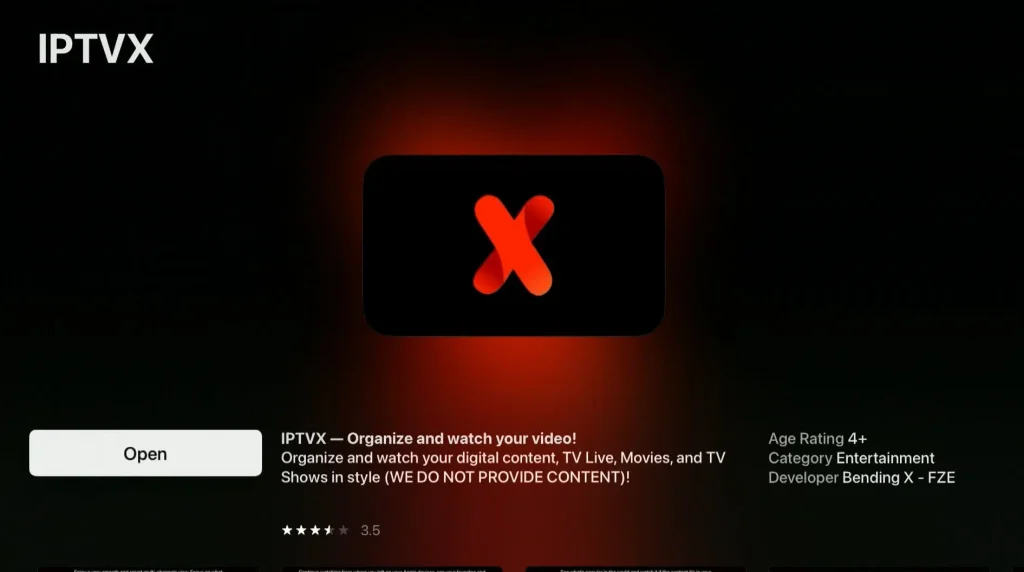
Specifications for Apple TV
- App: IPTVX
- Installation time: Approx. 5 minutes
- Wi-Fi/Cable: Supports both
- Cost: 245 SEK/year
- Free trial available: Yes
Note: This app is very good, but in rare cases it may experience lag on the new Apple TV 5.

Specifications for Mobile and iPad
- App: IPTVX
- Installation time: Approx. 5 minutes
- Wi-Fi/Cable: Supports both
- Cost: 245 SEK/year
- Free trial available: Yes
IPTVX on Mobile
IPTVX on mobile is a fast and convenient solution for getting started right away. With the app, you can easily watch TV while on the go. If you have an iPhone, the experience is excellent, as the app works incredibly well even on mobile. Always make sure you have the latest version of the app downloaded from the App Store for the best experience.
IPTVX on iPad.
IPTVX on iPad is a fast and convenient solution for getting started on your iPad or Android-based tablet. The app makes it easy to watch TV while you are on the go. If you have an iOS device (iPad), the app works perfectly as a middle ground between TV and mobile, giving you the best of both worlds—a larger screen while you’re on the move.
IPTVX – Instructions.
Step 1
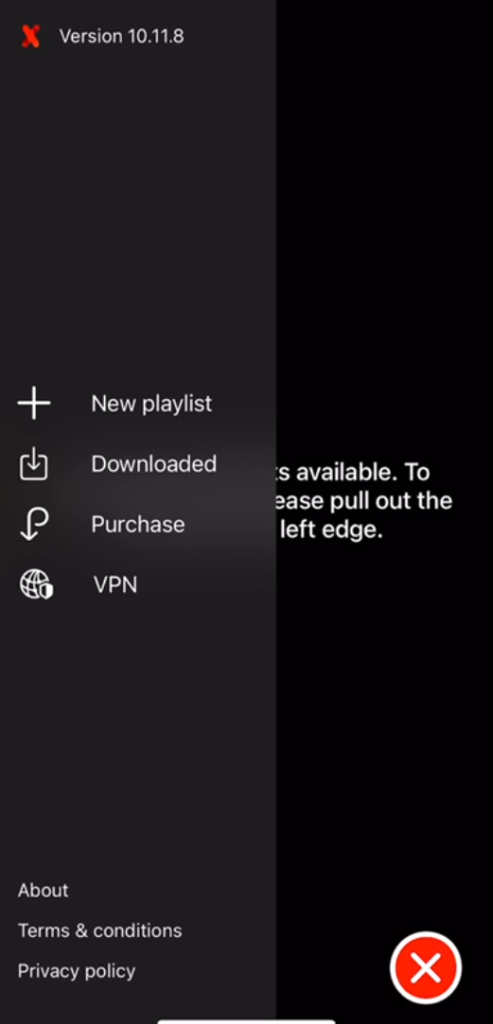
Start the app and tap the three horizontal lines in the lower-right corner if the menu on the left side does not appear automatically. Then select “New playlist
Step 2
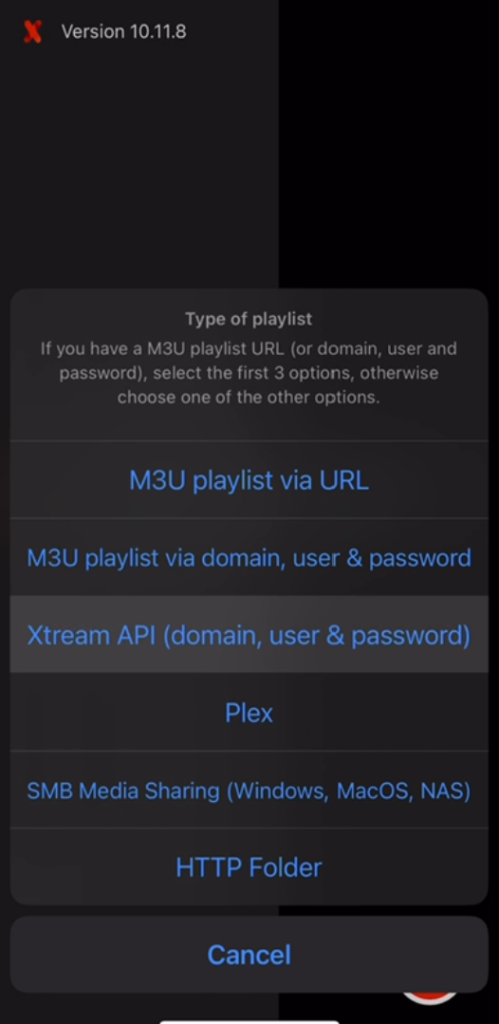
Select “Xtream API.
Step 3
Enter the login details you received from us via email after purchase or during a free trial.
Step 4
The app will now load for a moment, and once it’s finished, you’re ready to get started! 🙂