
MyTVOnline Instructions for your specific device
Instructions for MyTVOnline
The MyTVOnline apps can be downloaded to your box, and soon also to your mobile phone (MyTVOnline+).
The app is easy and smooth to get started with on your box regardless of model and is recommended for everyone who has a Formuler box. Even though an Android box can provide several different apps, it is recommended that you only use MyTVOnline.
On this page you will find instructions for the following apps:
MyTVOnline1
MyTVOnline2
MyTVOnline3
The app can be downloaded from Play Store on your box but should already be there at startup
MyTVOnline3 is the most advanced version of the apps so far, before MyTVOnline4 is released. It is relatively easy to get started with and allows you to upload your channels in the following ways:
M3U link
Xtream Codes API (Username)
Via Portal
It is usually recommended to upload your IPTV playlist using Xtream Codes API (that is, with the username, password, and Portal URL that you receive from us when purchasing or starting a free trial).
For MyTVOnline, when using a box, it is instead recommended that you start via the Portal option. Further down you will find the instructions for this.
Step 1
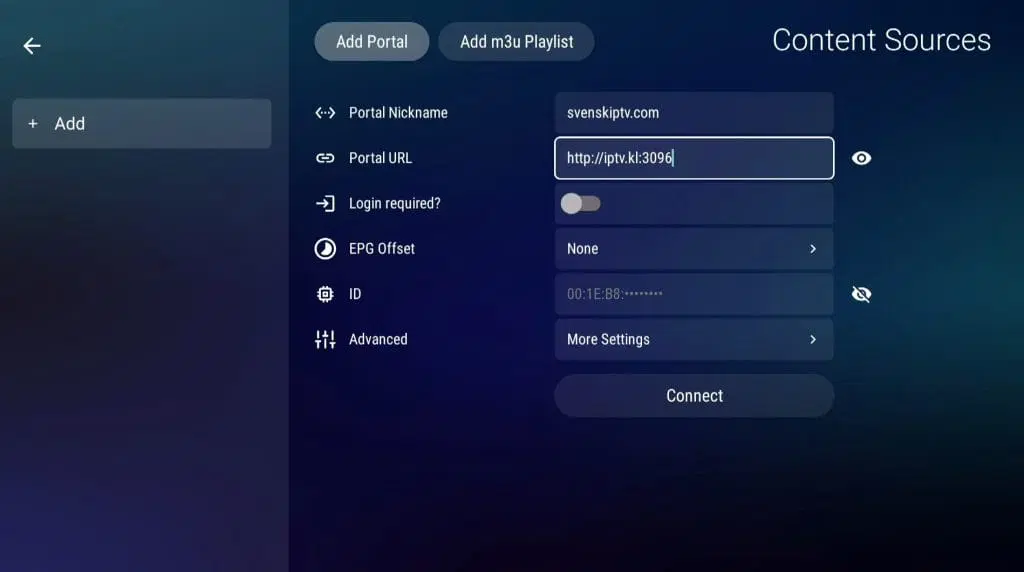
Start your box and open the MyTVOnline3 app (if you have an older box, see the instructions for older apps below). Go to “Content Sources”. In the “Portal Nickname” field, enter the name “svenskiptv.com”.
In the “Portal URL” field, enter the Portal URL that you received from us via email. Then press the OK button on your remote control. If you have not already done so, you should now place an order and provide us with your box ID/MAC address (starts with 00:1E or 00:1A), which you can find in the settings or on the underside of your box.
Step 2
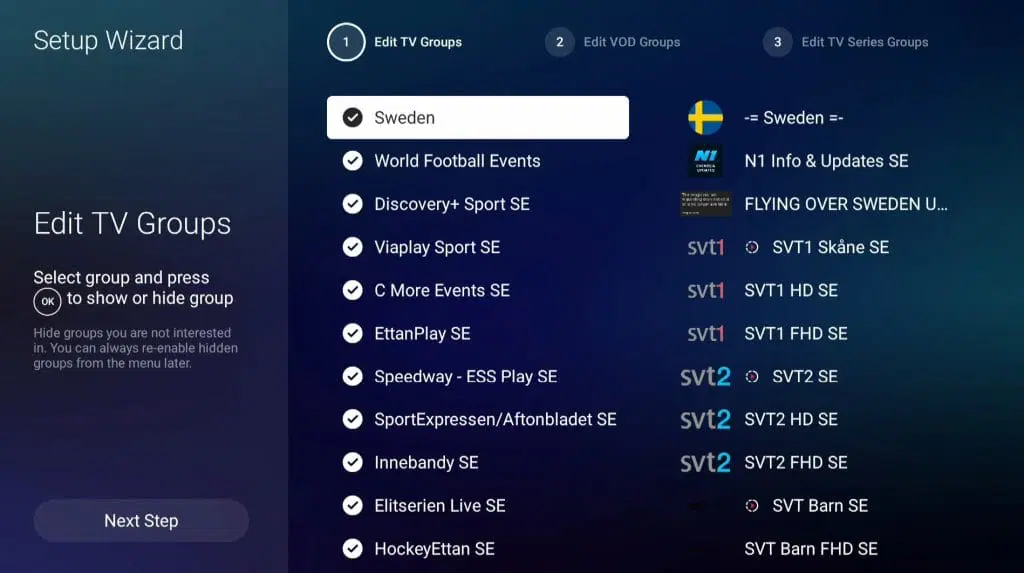
Restart your box. Done! 🙂
Step 3
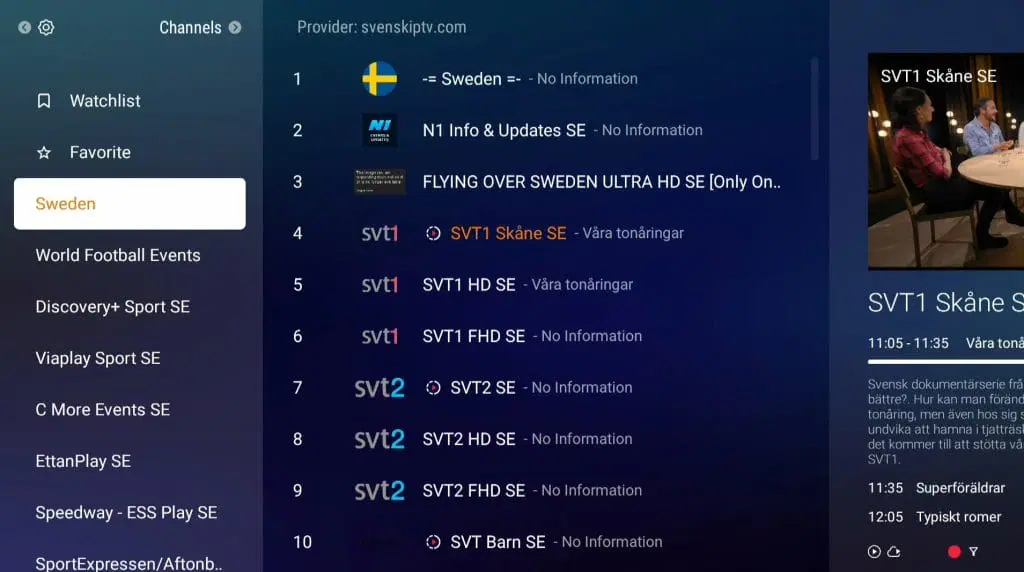
As you can see, it is very easy to get started. However, keep in mind that if you have an older box, you will likely need to provide your “Box ID” instead of the “MAC address” to us.
MyTVOnline 1
MyTVOnline1 works well with older boxes. Since you can install both MyTVOnline1 and many other apps, these older boxes are still useful for TV viewing. However, we recommend removing unnecessary apps that are not used and considering a newer model, as today’s IPTV playlists are very large and contain hundreds of thousands of titles such as channels, movies, series, and documentaries.
MyTVOnline1 is the first app in the series, and there are currently three different versions.

MyTVOnline 2
MyTVOnline2 works well with mid-generation boxes. Since you can install both MyTVOnline2 and many other apps, we recommend these. However, we recommend removing unnecessary apps that are not used and considering a newer model, as most IPTV playlists today are very large and contain hundreds of thousands of titles such as channels, movies, series, and documentaries.
MyTVOnline2 is currently the second latest app in the series.
MyTVOnline 3
MyTVOnline3 works well with newer boxes. Since you can install MyTVOnline3 and many other apps, we recommend this app on your Formuler device.
MyTVOnline3 is currently the latest app in the series and works best with newer models of Formuler boxes. The fourth version of the app is expected to be released soon (estimated in 2025).

MyTVOnline 4
MyTVOnline4 has not yet been released. It is expected to launch sometime in 2025, but this is a preliminary date. The app is expected to be released together with a newer version of the Formuler box. Keep an eye on their website so you don’t miss the release!

Where can I download the app?
The apps are already preinstalled on your Formuler box at startup, depending on which model you have. If you accidentally remove the app, it can be downloaded again from the box’s “marketplace” or app store. You can also factory reset the box, and the app will appear again.
Which devices can I use?
MyTVOnline1
9Xtream IPTV with Smart TV is a good combination when you are just getting started with IPTV. The app works excellently on Smart TVs from LG as well as other brands such as Samsung, Sony, Philips, and more. Since you can install 9Xtream IPTV and many other apps on your Smart TV, LG Smart TV is a good choice for TV viewing. However, we always recommend that you remove unnecessary apps that are not used and that you have a slightly newer model, as many IPTV playlists today are very large and contain hundreds of thousands of titles, such as channels, movies, series, documentaries, and more.
9Xtream IPTV is a powerful app that gives Smart TV users access to a wide range of IPTV channels, movies, and series. The app is easy to install and offers a smooth user experience with fast navigation and high-quality streaming. With support for various formats and resolutions, you can enjoy your favorite content in HD or 4K, depending on your internet connection. In addition, the app offers EPG (Electronic Program Guide) for easy channel management and planning. 9Xtream IPTV is an excellent choice for those who want to maximize their TV entertainment with extensive and varied content. Although the app works well on your device, we recommend using a more advanced app such as Tivimate for an even better experience.
Specifications for MyTVOnline
- App: MyTVOnline1
- Installation time: Approx. 5 min
- WiFi/Cable: Supports both
- Cost: 0 SEK
- Offers free trial: Yes
9Xtream IPTV- MyTVOnline
Step 1
Start your box and open MyTVOnline3. Enter “svenskiptv.com” as the “Portal Nickname” and enter your Portal URL that you received by email, then press OK. If you have not already done so, send us your ID from the settings or the underside of your box.
Step 2
You now have access to all channels on your device.
The channels should be visible immediately, depending on your internet connection.
Enjoy the wide selection and start watching IPTV.
Step 3
Restart your box to complete the installation.
Once the box has restarted, you are ready to watch IPTV.
Done! Enjoy your streaming experience.
