
Net IPTV Instructions for your specific device
Instructions for NET IPTV
NET IPTV can be downloaded to most Android Boxes and Smart TVs, but it requires you to upload your playlist via their website, which can be complicated for beginners. We instead recommend starting with IPTV Smarters for a simpler experience and then moving on to a more advanced app such as Tivimate. Here you will find guides to get started on devices such as Smart TV, Nvidia Shield, Xiaomi Mi Box, Firestick, and Android Box.
The app can be downloaded from Play Store .
NET IPTV works well with Samsung, LG, Philips, Sony, and more. Since you can install the app and many other apps, Samsung TV is a device that can be used for TV viewing. However, we always recommend removing unnecessary apps that are not used and having a slightly newer model, as most IPTV playlists today are very large and contain hundreds of thousands of titles such as channels, movies, series, documentaries, and more. Instructions on how to complete the installation can be found here. Usually, it takes about 5–15 minutes to get started when trying to activate TV channels on your Samsung TV for the first time. However, if you get stuck and need help, you can always contact our support.
Step 1
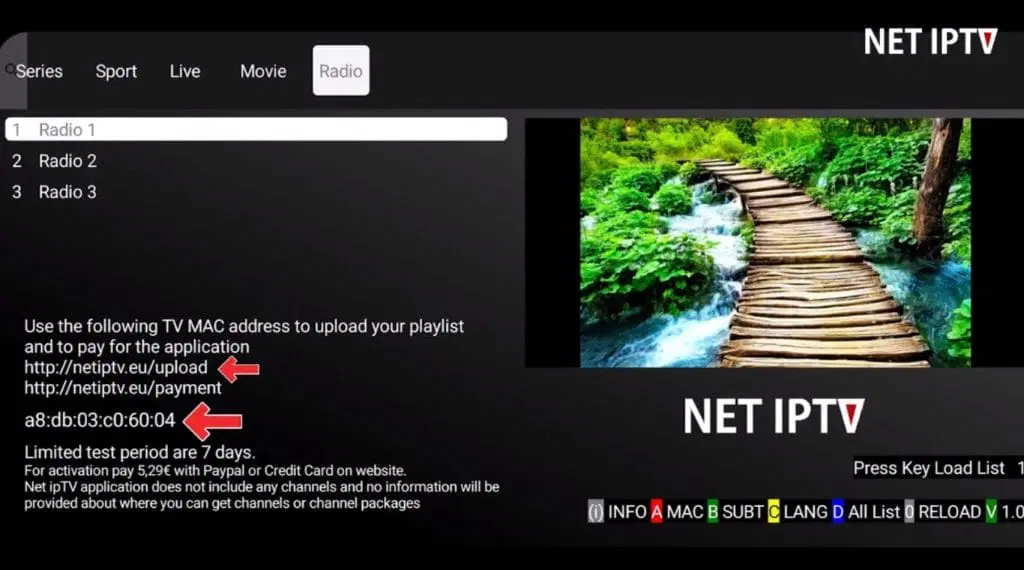
Start the app and note your MAC address, which in this example is shown next to the red arrow (ending in 60:04 in the image).
Step 2
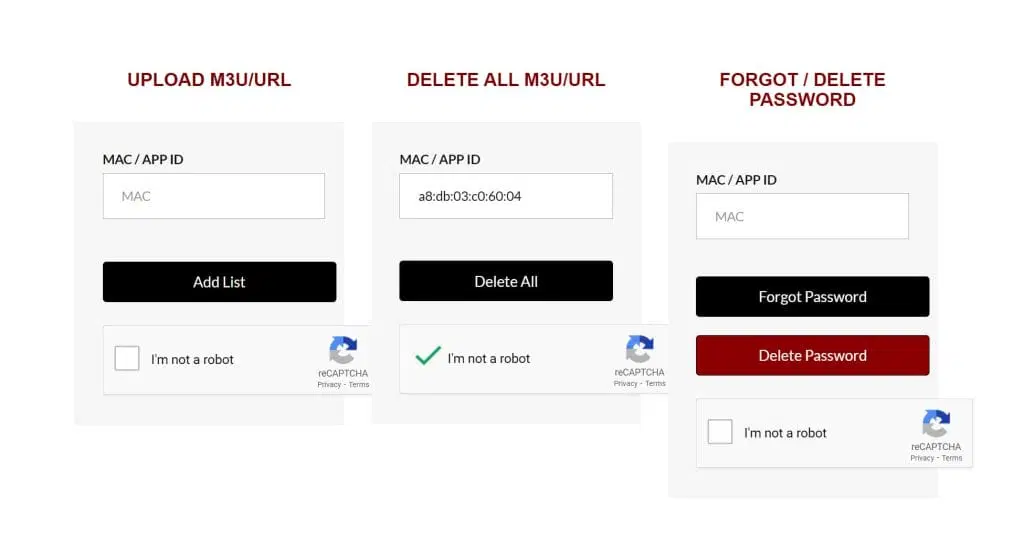
Now visit https://netiptv.eu/upload and enter your MAC address in the “Delete All M3u/URL” field. Then check the “I’m not a robot” box and press “Delete All”.
Step 3
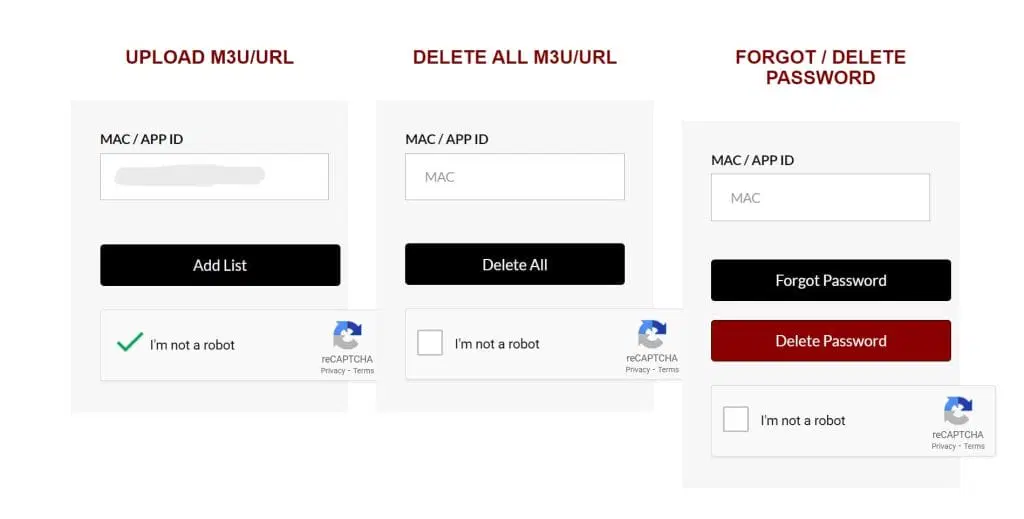
Now enter your MAC address in the “Upload M3U/URL” field and then press “Add List”.
Step 4
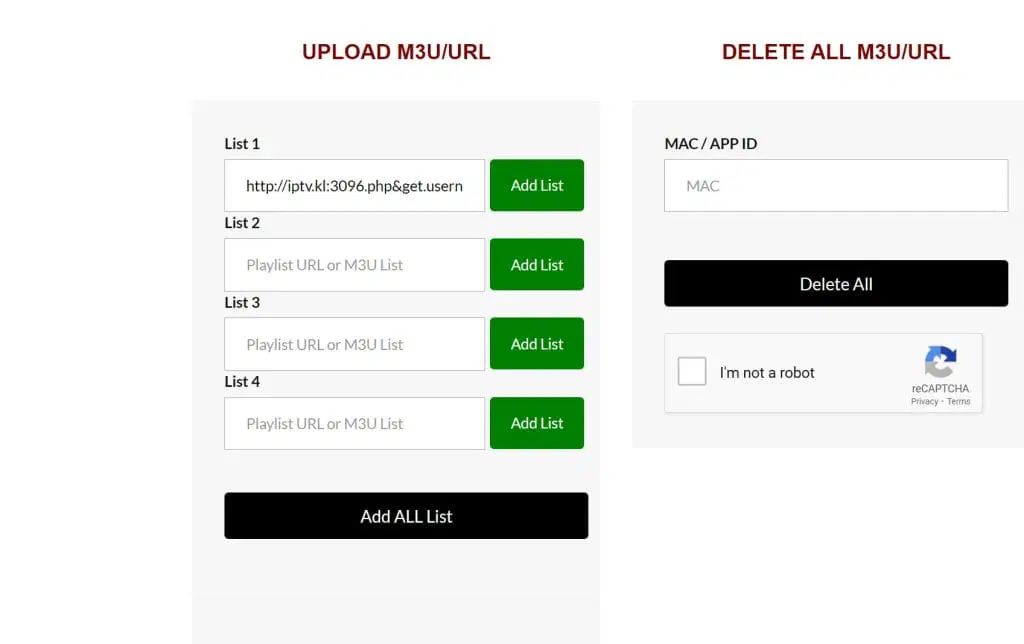
Paste your M3U link here and then press “Add List”. Restart your app. Done! 🙂
Where can I download the app?
The apps can be downloaded from the Play Store to your device.
Only download the app from a well-known source such as the Play Store, as there is a risk of accidentally downloading viruses if you are not careful.
Download NET IPTV to the following device by clicking the text below:
Which devices can I use?
Smart TV
Net IPTV with Smart TV is a good option for those who are beginners in IPTV or when other alternatives are not available. The app is easy to install and works smoothly on most Android-based TVs, making it a good choice for users who want to get started quickly and easily. It is compatible with several popular brands such as LG, Sony, Samsung, and Philips, allowing you to enjoy IPTV on your TV without issues.
The app is designed to provide a user-friendly experience and works well for streaming IPTV channels on larger screens. For those who want to start watching IPTV and do not have access to a more advanced app, Net IPTV is a good choice. It offers basic features and is a good way to get started with IPTV on your Smart TV.
However, even though Net IPTV works well on your device, it is recommended that you consider using a more advanced app for a better user experience. One such app is Tivimate, which offers a more advanced interface, better stability, and more features that make IPTV viewing even more satisfying. Tivimate provides better channel management, faster navigation, and a more reliable streaming experience. If you are looking for a more long-term solution for your IPTV experience, it may be worth switching to Tivimate to get even more out of your IPTV service.

Specifications for Net IPTV
- App: NET IPTV
- Installation time: Approx. 7 min
- WiFi/Cable: Supports both
- Cost: 150 SEK
- Offers free trial: Yes (7 days)
Net IPTV – Instructions
Step 1
Start the app and note your MAC address, which is shown next to the red arrow (ending in 60:04).
This address is needed to configure your IPTV playlist.
Step 2
Now visit https://netiptv.eu/upload and enter your MAC address in the “Delete All M3u/URL” field. Then check the “I’m not a robot” box and press “Delete All”
Step 3
Enter your MAC address in the “Upload M3U/URL” field and press “Add List”.
Your playlist is now uploaded and ready to use.
Step 4
Paste your M3U link into the field and press “Add List”.
Restart the app to load the channels.
Everything is now ready!
Nvidia Shield
Net IPTV with Nvidia Shield is a fast and smooth solution for IPTV, making it easy to get started and begin watching your favorite channels. Nvidia Shield is a powerful device that offers good performance, and the Net IPTV app works well on this platform. The app allows you to stream IPTV channels directly on your TV and is a good choice for users who want a simple and straightforward solution.
Although Net IPTV works well with Nvidia Shield and offers basic IPTV features, we recommend using a more advanced app for an even better user experience. An app such as Nanomid offers a better interface, more features, and a more stable streaming experience, allowing you to enjoy IPTV content without interruptions or technical issues. With Nanomid, you also gain access to more settings and customization options, providing a more flexible and personalized IPTV experience.
Android Box
Net IPTV with Android Box works well as a simple solution for IPTV viewing, especially for users who are just getting started with IPTV. The app is easy to install and get started with, making it a good choice for beginners. It works relatively stably on Android Box and gives you access to the basic features needed to stream IPTV channels and programs.
Although Net IPTV works well, we recommend considering a more advanced and reliable app, such as Tivimate. Tivimate offers a significantly better interface, with more features and a more user-friendly design. In addition, the servers are more stable, providing a better and more consistent streaming experience. For users who want a more professional and streamlined IPTV experience, Tivimate is a more reliable alternative.
Xiaomi Mi
Net IPTV with Xiaomi Mi S Box or Xiaomi Mi Stick works for IPTV viewing, but they are not the best options when compared to devices such as Apple TV. This is because the processors in both the Xiaomi Mi S Box and Mi Stick are not as powerful as those in more premium devices. Although you can watch IPTV with these devices and the experience can be quite acceptable, they are not optimal for long-term and stable use.
If you are looking for a more stable, smooth, and long-term solution for IPTV, it is instead recommended to invest in a more powerful device. An Apple TV or another device with higher performance would provide a more stable and better experience when using IPTV apps and handling larger channel lists or high-resolution content.
Formuler Box
Net IPTV with Formuler Box works okay, but Formuler Box is a somewhat different Android Box designed specifically for IPTV, as it comes with its own IPTV app, MyTVOnline. This app is significantly more optimized for IPTV viewing and offers a better user experience than the NET IPTV app. MyTVOnline has a more stable interface, better features, and handles IPTV streams more efficiently, making it the preferred choice. Therefore, it is recommended to use MyTVOnline instead of NET IPTV when using a Formuler Box to maximize your IPTV experience.
