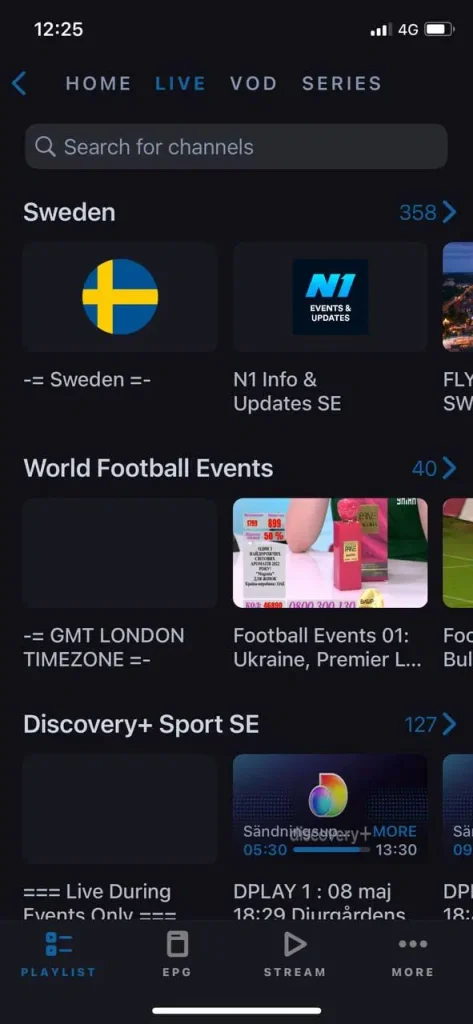
Perfect IPTV Instructions for your specific device
Instructions for Perfect IPTV
Perfect IPTV can be downloaded on most devices today. The app is easy to get started with and provides a smooth user experience, making it an excellent choice for anyone who wants a good IPTV experience.
It is not the easiest app to use, but it is also not the most difficult. If you find it too complicated, we recommend starting with IPTV Smarters instead. Follow the instructions on this page and you will be up and running in just a few minutes. Here we have gathered guides for the app so that you can quickly get started on your specific device, whether you are using Apple TV, Smart TV, or another device.
On this page you will find instructions for the apps (note that these apps come from different developers and not from the same company):
- Apple TV
- Smart TV
- Nvidia Shield
- Xiaomi Mi Box
- Xiaomi Mi Stick
- Firestics Box
- Mobile
- Tablet
The app can be downloaded from the Play Store and the App Store.
Perfect IPTV is, as the name suggests, a perfect IPTV app that is easy to get started with, has a good interface, and offers good stability. It is also available on most devices, which is unusual.
The app allows you to upload your channels in the following ways:
M3U link
Xtream Codes API (Username)
It is recommended to upload your IPTV playlist using Xtream Codes API (that is, with your username, password, and Portal URL that you receive from us upon purchase or free trial). Perfect IPTV is one of the most downloaded IPTV apps over the past year on Apple TV.
Step 1
Start the app and tap on “Xtream Codes API”.
Step 2
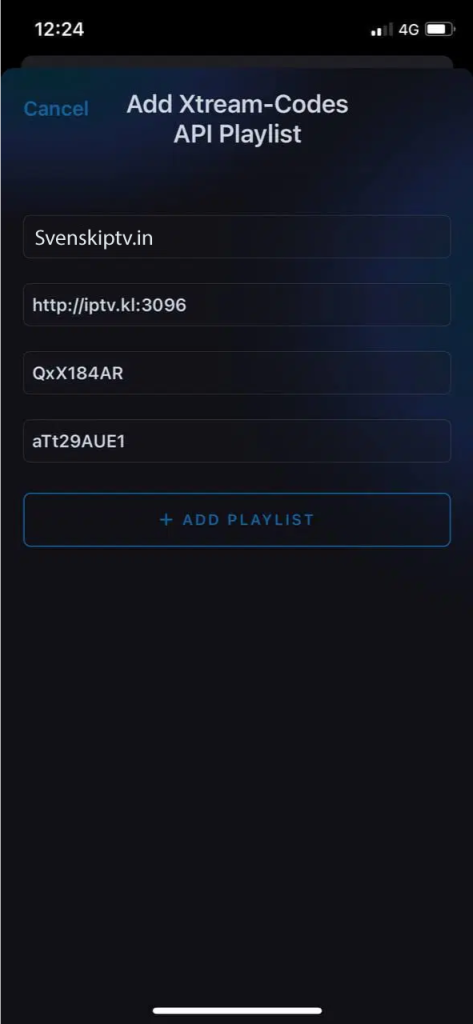
Tap the plus icon or “Add playlist” and enter the details you received from us via email.
Step 3
After you have saved your new list, tap on it. In this case, the list is called “KANALER”.
Where can I download the app?
The apps can be downloaded from the Play Store and App Store to your device.
Only download the app from a trusted source, such as the links we have provided above and below, or directly from the App Store or Play Store. This is to avoid accidentally downloading viruses from unsafe sources.
Download Perfect IPTV for the following devices by tapping the text below:
- iPhone & iPad
- Android-based phones & tablets
- Android Boxes
- Smart TV
Which devices can I use?
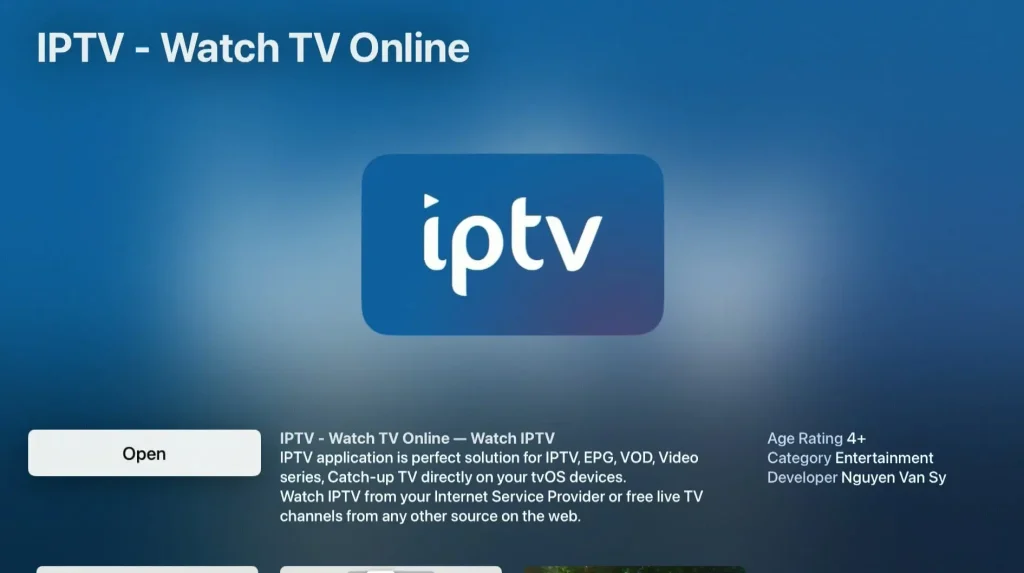
Apple TV
Perfect IPTV on Apple TV works okay, but the app was better in the past when there were fewer alternatives to more advanced apps. Although the app is available for download on Apple TV, the interface and user-friendliness leave something to be desired. The graphics have also changed, and the aspect ratio may vary depending on which version you are using. For a better experience, it is instead recommended to use the app IPTVX together with Apple TV
Specifications
- App: Perfect IPTV
- Installation time: Approx. 3 minutes
- Wi-Fi/Cable: Supports both
- Cost: 50 SEK
- Free trial available: Yes
Smart TV
Perfect IPTV on Smart TV is a good solution for beginners or when other alternatives are not available. The app is relatively smooth on TV devices, as it is designed to work well across all platforms. It is available on most LG, Sony, Samsung, and Philips TVs with Android-based systems. Although the app works well on your device, it is recommended to use a better app instead, such as Tivimate, for a better experience.

Specifications for Mobile and iPad:
- App: IPTVX
- Installation time: Approx. 5 minutes
- Wi-Fi/Cable: Supports both
- Cost: 245 SEK/year
- Free trial available: Yes
IPTVX on Mobile
Perfect IPTV on mobile is a fast and convenient solution for those who want to get started quickly. Watching IPTV on your phone is an easy way to watch TV while on the go. For iPhone, the IPTVX app is recommended, while IPTV Player is a good alternative for Android-based phones.
Tablet
Perfect IPTV on tablet is a fast and convenient solution for those who want to get started quickly on their iPad or Android-based tablet. Watching IPTV on a tablet is an easy way to watch TV while on the go. If you have an iOS device (iPad), the IPTVX app is recommended instead. For Android-based tablets, the IPTV Player app is recommended.
Nvidia Shield
Perfect IPTV on Nvidia Shield is a fast and convenient solution that is easy to get started with. Although the app works well on the device, it is recommended to use a better app, such as Nanomid, for an even better experience.
Android Box
Perfect IPTV on Android Box works okay for getting started. Although the app functions well on the device, it is recommended to use a better app, such as Tivimate, as it offers a better interface and more stable servers.
Xiaomi Mi
Perfect IPTV on Xiaomi Mi Box or Xiaomi Mi Stick is unfortunately not among the best devices for IPTV viewing compared to, for example, Apple TV. The reason is that the processor in both devices is not particularly powerful. Of course, it is still possible to watch IPTV on Xiaomi Mi devices and the experience can still be good. However, if you are looking for a more stable, smoother, and long-term solution, these devices are not the best option.
Formuler Box
Perfect IPTV on Formuler Box works fairly well, but the Formuler box is designed as a more specialized Android box for IPTV, as it comes with its own IPTV app, MyTVOnline. The MyTVOnline apps are better than the Perfect IPTV app on Formuler boxes, and therefore it is recommended to use them instead for a better experience.
Perfect IPTV – Instructions
Step 1
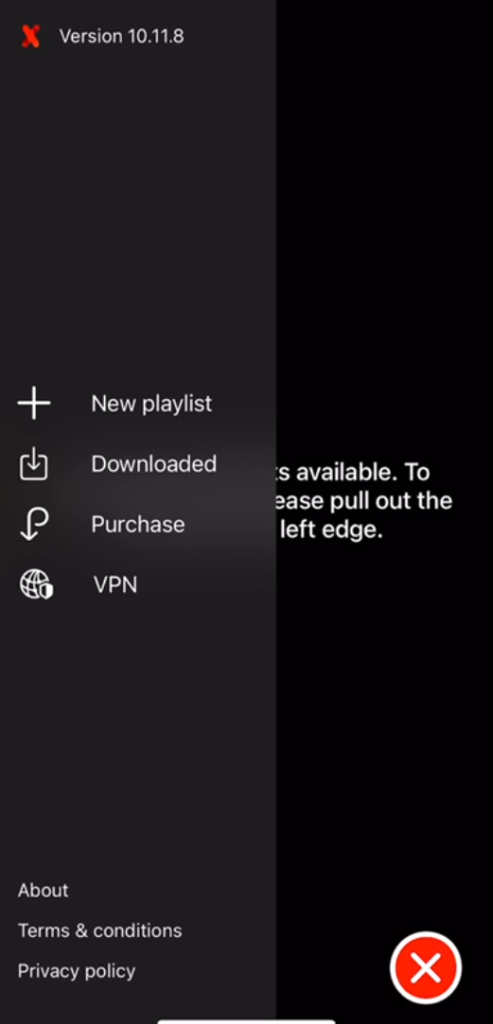
Start the app and tap the three horizontal lines in the bottom-right corner if the menu on the left does not appear automatically. Then select “New playlist”.
Step 2
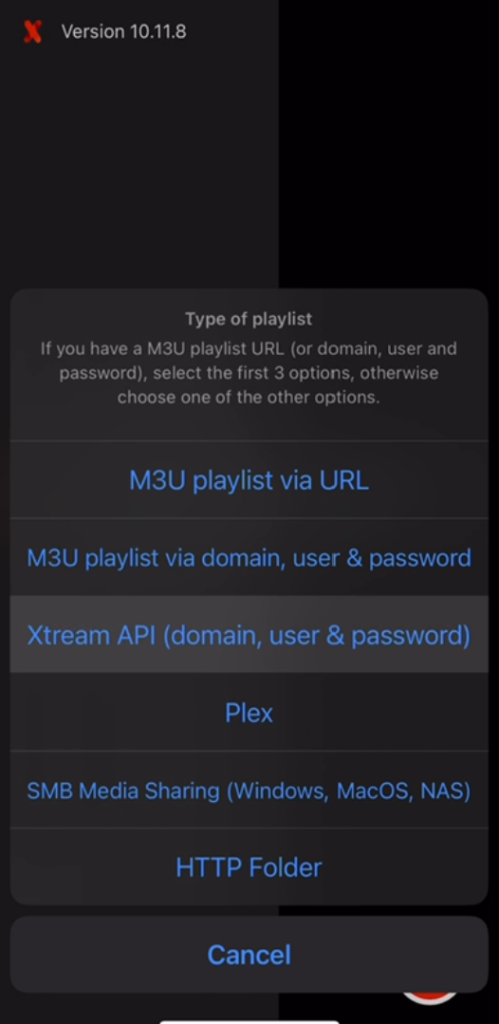
Tap the plus icon to add a new playlist. This will open a window where you can enter your link.
Step 3
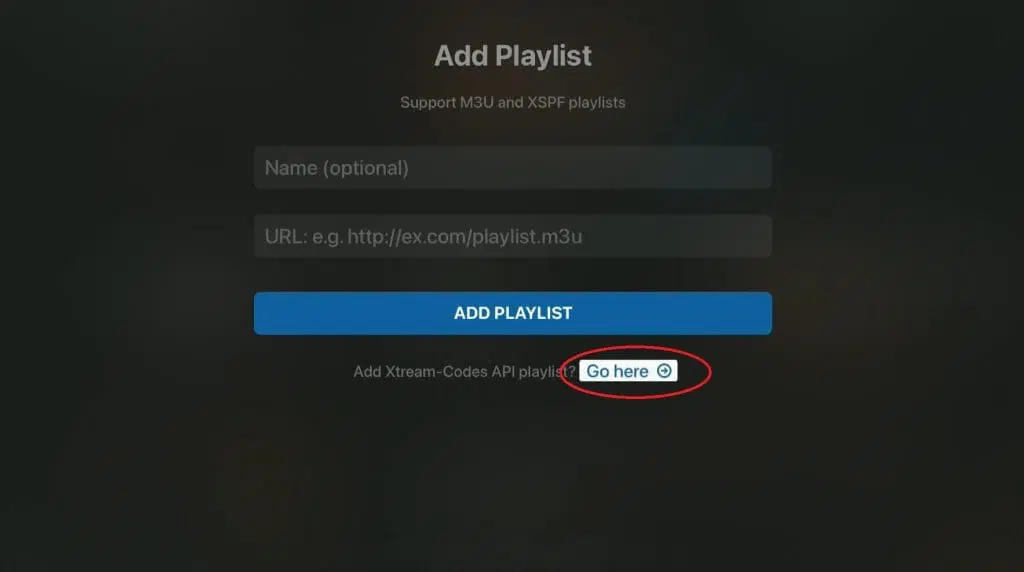
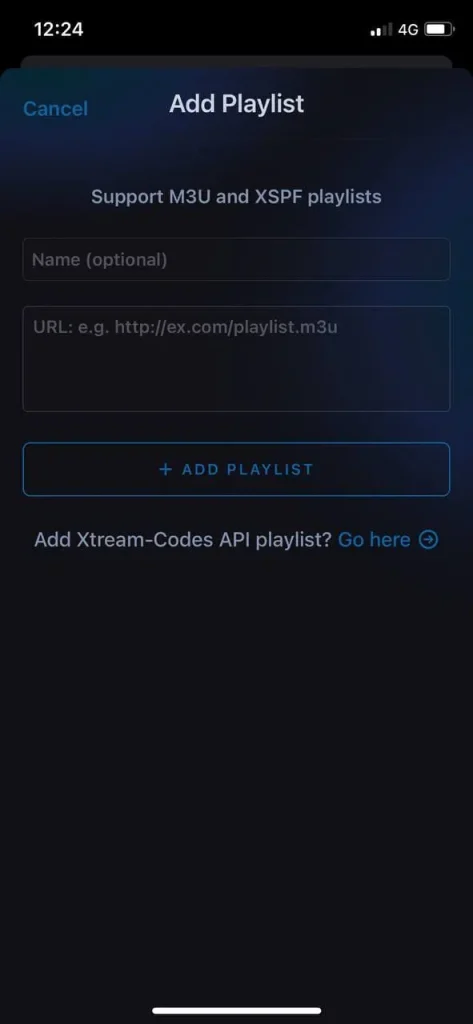
Tap the blue text “Go here” next to “Add Xtream-Codes API playlist”. This will take you to the correct place to add your Xtream-Codes API playlist.
Step 4
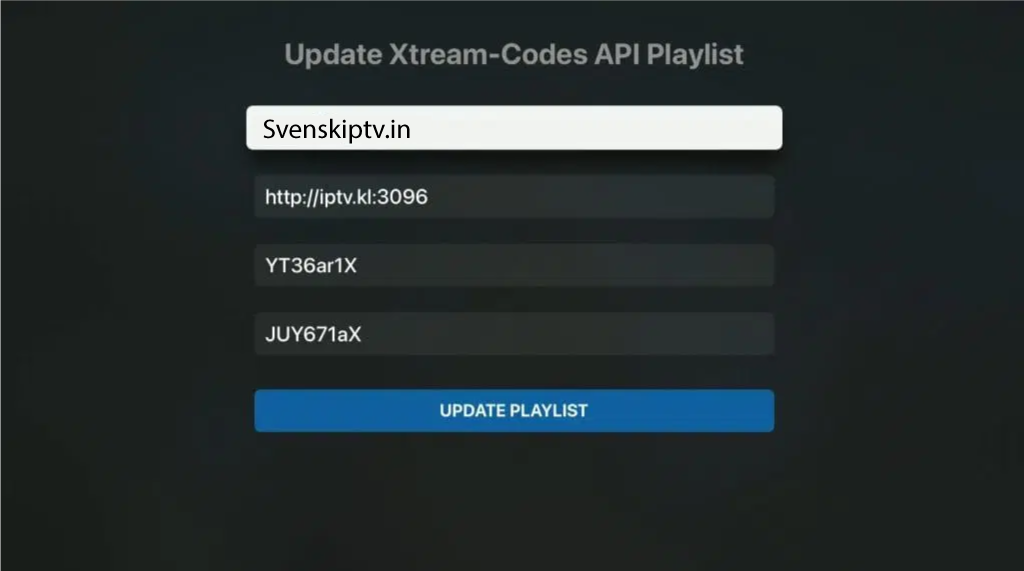
At the top, or where it says “Playlist name”, enter svenskiptv.com. Then fill in the remaining details you received from us via email.
Step 5
Done! 🙂