
Smart STB instructions for your specific device
Instructions for Smart STB
Smart STB can be downloaded on most devices today and is relatively easy to get started with, making it suitable for those who are already familiar with the app. However, it is not the easiest app to begin using, and we recommend that beginners first try IPTV Smarters before moving on to a more advanced and stable app like Tivimate, which also offers a better interface.
On this page, we have gathered guides to help you quickly get started with the app on different devices, whether you are using Apple TV, Smart TV, or another device.
The instructions cover the following apps (note that these come from different developers/companies):
- Apple TV
- Smart TV
- Nvidia Shield
- Xiaomi Mi Box
- Xiaomi Mi Stick
- Firestick
- Android Box
- Mobile
- Tablet
The app can be downloaded from Playstore.
Smart STB is, as the name suggests, the most advanced version of the apps, yet it is still relatively easy to get started with. The app allows you to upload your channels in the following ways:
M3U link
Portal URL (via the app or their website)
In this case, it is recommended that you upload your IPTV channels directly via the portal. Follow the instructions below.
Step 1
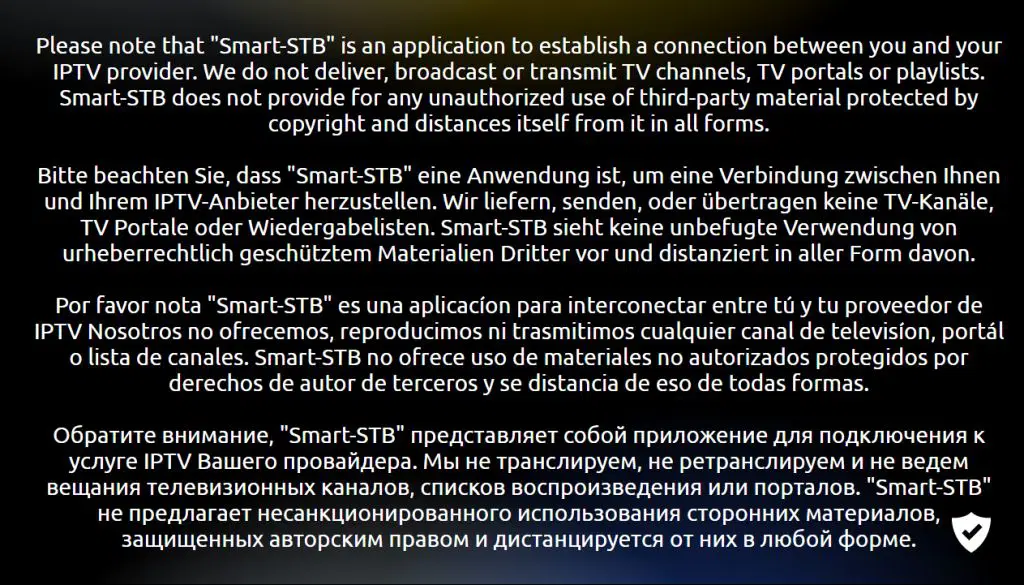
Start by downloading the app. When you launch it, this window will appear. If it does not disappear automatically, tap the “OK” button. Accept the app’s terms if prompted and confirm that you receive a 7-day free trial of the app.
NOTE: You need to locate your “Virtual MAC Address” and enter it in the form when requesting your free trial or purchasing our service. See step 3.
Step 2
When you see this window in the image, quickly press the “OK” button to access the settings. If you do not do this in time, the screen may turn black and get stuck in that state. In that case, you will need to restart the app or, in the worst case, restart the TV by unplugging the power cable.

Step 3
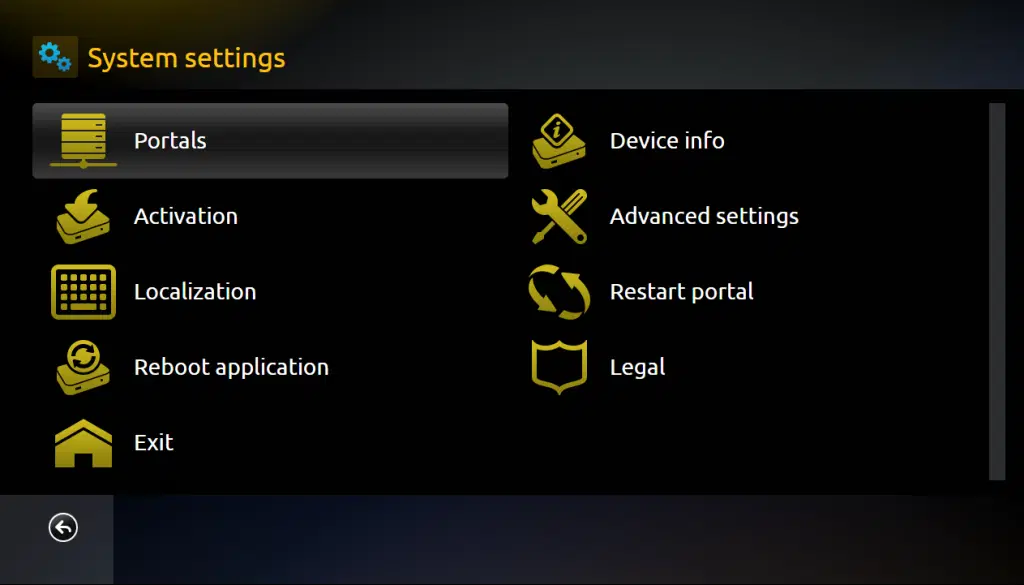
Select “Device info” to find your “Virtual MAC address”. Write it down and double-check the spelling.
Select “Embedded portal” to reach the screen shown in this step. Once there, choose “Portals”.
Step 4
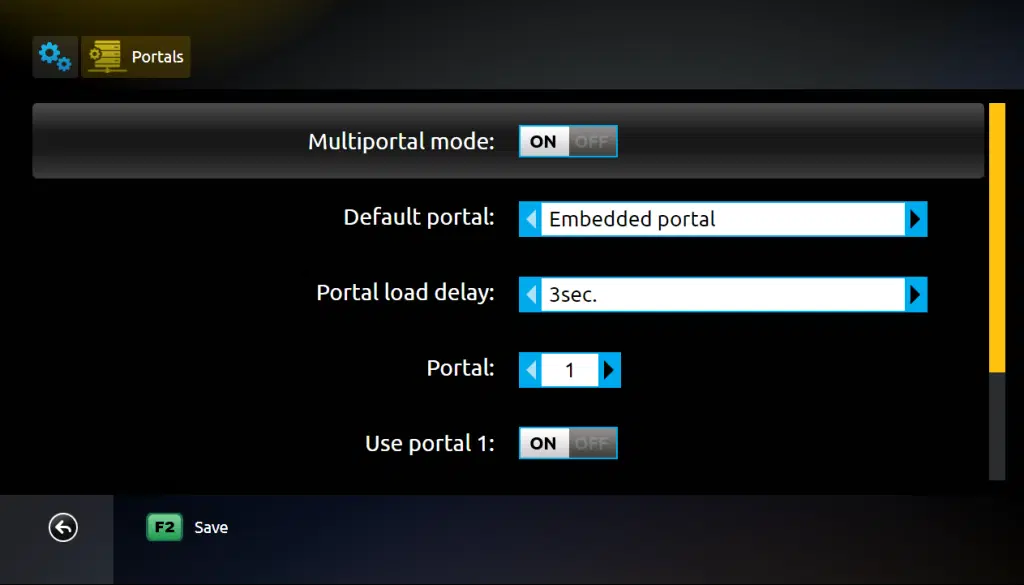
The “Multiportal mode” should be enabled. Make sure that the option “Use portal 1” is activated so you can add your own portal URL by scrolling further down the page.
Step 5
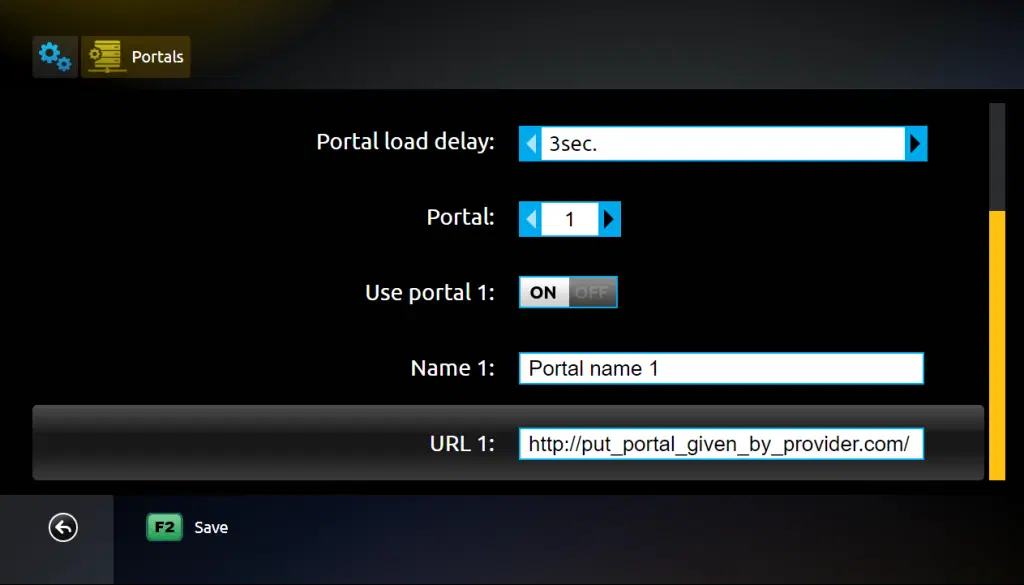
In the “Name” field, enter “svenskiptv.com”. In the “URL 1” field, enter our Portal URL that you receive when you request a free trial or purchase our service.
To be able to test our service with the Smart STB app, you first need to find your Virtual MAC address (which starts with 00:1A:79). You then enter it in the form at the link below after selecting the Smart STB app from the menu.
Where can I download the app?
The app can be downloaded from the Play Store and the App Store to your device, but we do not recommend this app for Apple devices.
Only download the app from well-known sources such as the App Store or the Play Store, as downloading from unsafe sources may lead to virus infections.
Download Smart STB for the following devices by clicking the text below:
Which devices can I use?
Smart TV
Smart STB with Smart TV is a good option when other solutions are not available. The app works relatively smoothly on televisions as it is designed to optimize the experience on Smart TV devices, but it can be somewhat tricky to get started with. The app is available on most LG, Sony, Samsung, and Philips TV models. Although the app works well with your device, it is recommended to use a more stable app such as Tivimate for a better user experience.

Specifications for Smart STB
- App: Extreme IPTV Pro
- Installation time: Approx. 7 minutes
- Wi-Fi/Cable: Supports both
- Cost: 29 SEK
- Free trial available: Yes
Smart STB – Instructions
Step 1
Download and start the app, tap “OK” if the window does not disappear, accept the terms and the trial period, and enter your “Virtual MAC Address” when requesting or purchasing the service.
Step 2
When you see this window, quickly press “OK” to access the settings. If you miss this, the screen may turn black, and you will need to restart the app or the TV by unplugging the power cable.
Step 3
Select “Device info” to find your “Virtual MAC address” and write it down carefully. Then go to “Embedded portal” and select “Portals” to continue.
Step 4
Enable “Multiportal mode” and make sure the option “Use portal 1” is activated. Then scroll down to add your own portal URL.
Step 5
Enter “svenskiptv.com” in the “Name” field and our Portal URL in “URL 1”. Find your Virtual MAC address and enter it in the form.
Nvidia Shield
Android Box
Smart STB med Android Box fungerar bra som en startlösning. Men även om appen fungerar bra, rekommenderas det att använda en mer stabil och användarvänlig app som exempelvis Tivimate, då den erbjuder bättre gränssnitt och stabilare servrar.
