
Tivimate instructions for your specific device
Instructions for Tivimate IPTV Player
Tivimate is a popular IPTV app available for Smart TVs and Android boxes. Although it can be used on other devices, it is primarily recommended for TVs and boxes for the best experience. The app allows you to upload your IPTV playlist in several different ways, but we recommend using the Xtream Codes API for the best results. For this, you need your username, password, and portal URL, which you receive from us when you purchase or request a free trial. By using the Xtream Codes API, your EPG (Electronic Program Guide) is installed automatically in the background, making it easier to manage. If you choose to use an M3U link, you must manually enter the EPG link that you receive from us.
Tivimate is one of the most downloaded IPTV apps in recent years, after IPTV Smarters, and offers a stable and user-friendly interface. Unfortunately, the app is not available for Apple devices, which means it can only be used on Android-based platforms and certain Smart TVs.
Step 1
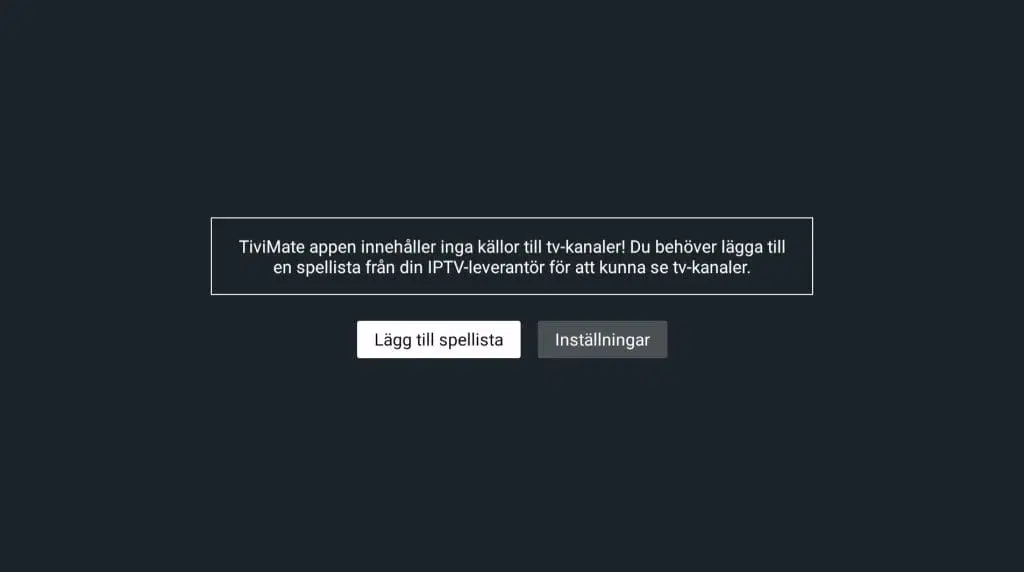
Then tap “Add Xtream Codes API”. Enter the login details you received from us. Then tap “Save” or “Next”.
Step 2
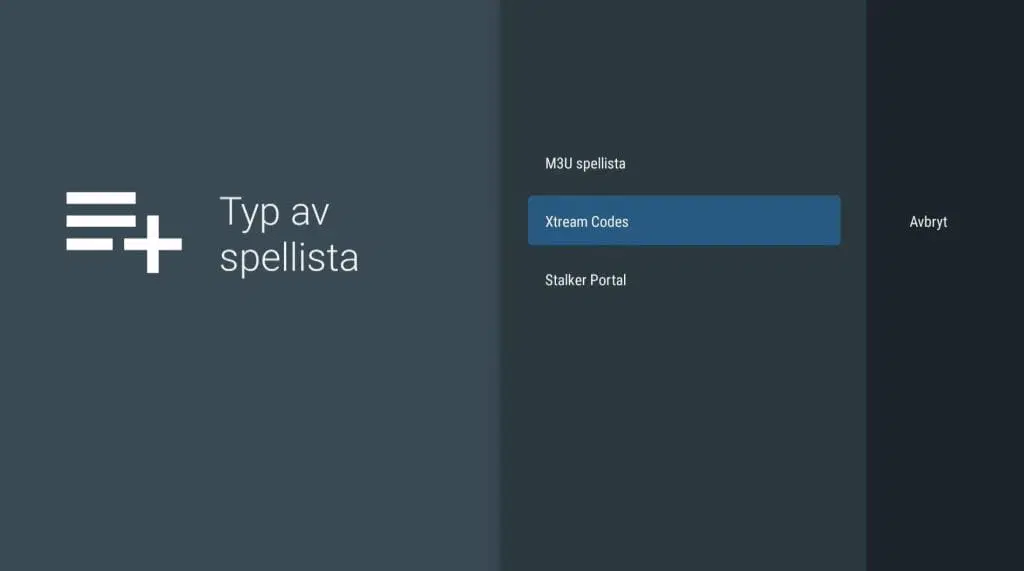
Now select the playlist type. We recommend “Xtream Codes”.
Step 3
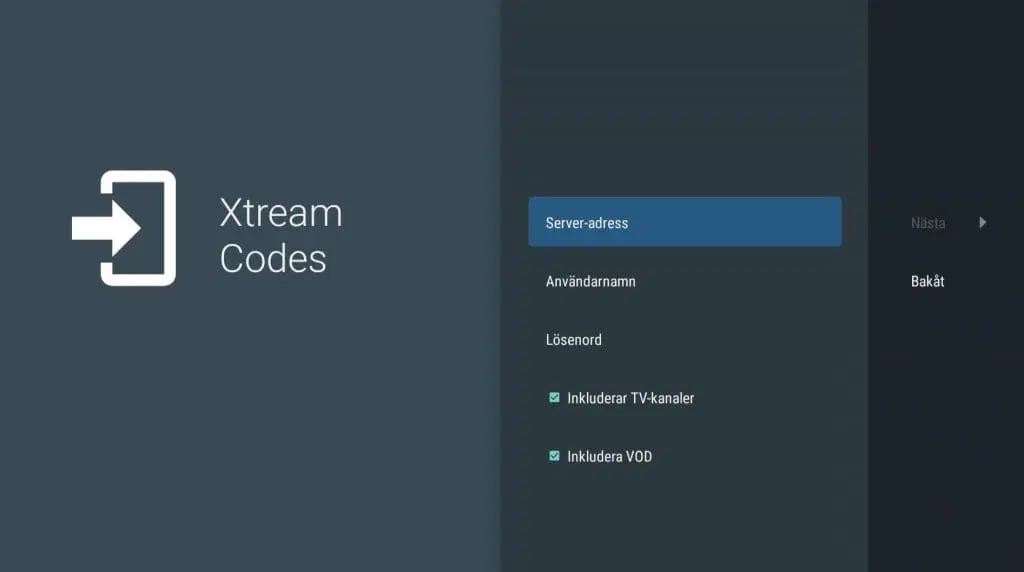
In the “Server address” field, enter your Portal URL along with the username and password you received from us in the welcome email. Make sure that “Include VOD” and “Include TV channels” are checked to ensure that movies, series, and TV channels are all available.
Step 4
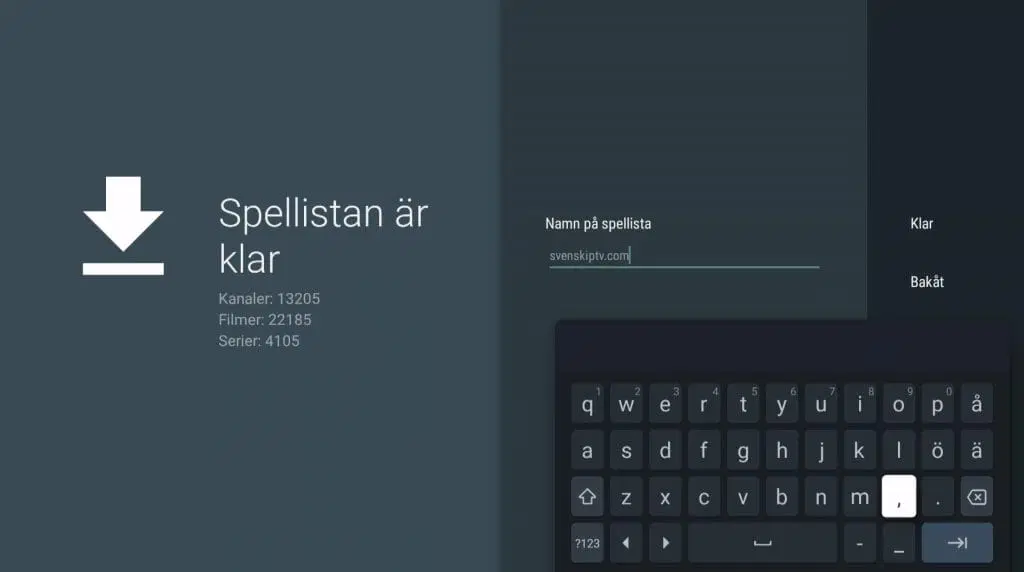
Name your new playlist “svenskiptv.com”.
Step 5
Done! Remember that even though this app is very good, it is always recommended to use a box to watch IPTV, such as IPTV with Apple TV.
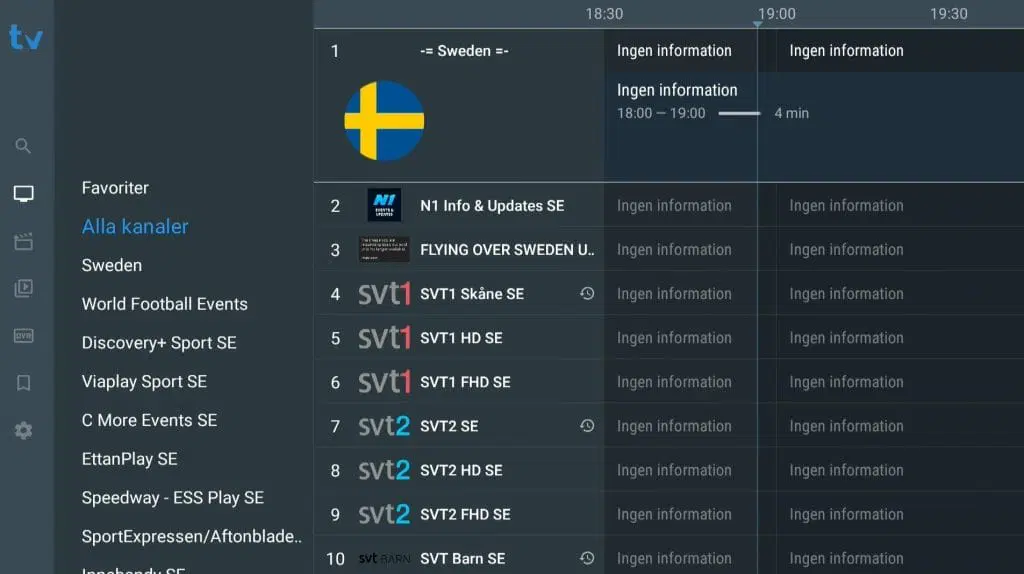
NOTE! The EPG will appear after a short while and after purchasing the service and the Premium version of the app; therefore, the EPG is not visible in the image.
Where can I download the app?
The app can be downloaded from the Play Store to your device. It is not available for all Smart TV devices and boxes, but if you have an Android-based system, there is a good chance the app is available for download.
Which devices can I use?
Smart TV
Tivimate works excellently on Smart TVs, but it is important that your Smart TV runs an Android-based system. Unfortunately, the app is not available for standard Smart TVs that do not use Android. If you have an Android TV or an Android-based device, you will be able to install and use Tivimate to stream IPTV channels without any issues. For the best experience, it is recommended to use an Android-based device, as it provides a more stable and smoother IPTV experience.
Specifications for Tivimate
- App: Tivimate
- Installation time: Approx. 5 minutes
- Wi-Fi/Cable: Supports both
- Cost: 395 SEK
- Free trial available: Yes
Nvidia Shield
Tivimate works excellently with Nvidia Shield, as Nvidia Shield is an Android-based device with powerful hardware, including a strong processor and sufficient RAM. This combination allows the app to run very well and provides a stable and fast IPTV experience. It is highly recommended to use an Android-based box such as Nvidia Shield to achieve the best possible results with Tivimate.
Android Box
Tivimate works excellently with Android Box. Like other Android-based devices, boxes are a popular choice for IPTV viewing. If you plan to use the app for longer periods, it is recommended to purchase the Premium version for an even better experience.
Tivimate – Instructions
Step 1
Start the app and then select “Add Playlist”. Enter your details and start watching IPTV.
Step 2
Now select the playlist type. We recommend using Xtream Codes for the best results.
Step 3
In the server address field, enter the portal URL you received from us via email, along with your username and password. Keep VOD and TV channels checked.
Step 4
You can choose “svenskiptv.in” as the name of your new playlist. This makes it easy to identify and keep track of your IPTV list.
Step 5
Tap “Live TV” if you want to see all channels. Then select a channel from the list. Once you choose a channel, playback starts immediately. Done! 🙂
