
Vizora on your Apple TV
Below you will find instructions for using our IPTV service with your Apple TV.
For Apple TV 4th generation, we recommend iPlayTV or Perfect IPTV
For Apple TV 5th generation (4K), we recommend IPTVX or Perfect IPTV.
Other applications may work as well, but these are our top choices for easy installation and easy use based on user feedback and comments. Remember to use only one app at a time to ensure everything runs smoothly!
you can visit our Youtube channel for video instructions
Get Started
To get started, begin by searching for the apps below on the order they are listed. if the first app doesn’t work for you, move on and try the next one until you find one that works. Your login details work with all apps, so you are not limited to a specific app.
Remember to use only one app at a time to ensure everything runs smoothly!
IPTV Apps for Apple TV
The following steps should be followed

Step 1. IPTV with Apple TV Box
For best results, purchase a new Apple TV box from stores such as Elgiganten, Power, or Webhallen. We recommend Apple TV 5 for optimal compatibility, although Apple TV 4 and 4K also work. However, Apple TV 3 does not support IPTV, as apps cannot be downloaded on that model.
Another good option is to use a TVIP box to watch IPTV

Step 2: Basic Settings for Apple TV
Start by completing the basic setup on your new Apple TV and accept any terms and conditions. Log in to iCloud and install the necessary apps. Keep the packaging, as the warranty may be linked to it.
Connect the device to your network. For best results, an Ethernet cable is recommended, but Wi-Fi also works if the router has good coverage and is not too far away. Avoid obstacles like refrigerators, closets, or doors between the device and the router, as this can weaken the connection. A network cable is always the safest choice
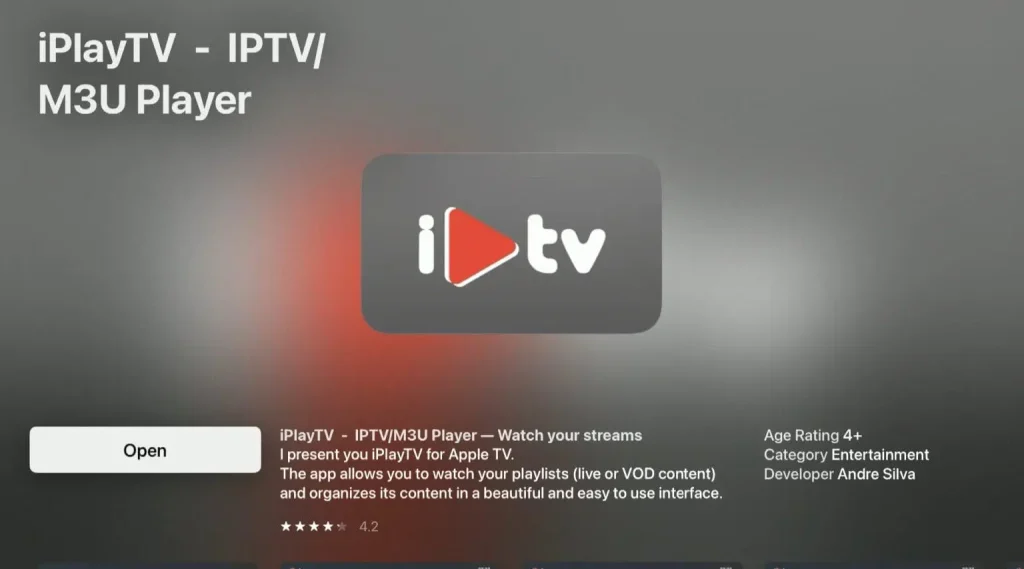
Step 3: Download an IPTV App
There are several IPTV apps for Apple TV. Here are some we recommend, which work excellently with Apple TV 4, 4K, and Apple TV 5. Preferably, download the apps from the App Store.
IPTVX
iPlayTV
GSE Smart IPTV PRO
Perfect IPTV
IPTV Smarters
Xtream IPTV
For more information about the best IPTV app, read here.

Step 4: Test IPTV on Apple TV
Now it’s time to request a free trial from us by pressing the button below. We recommend purchasing a 3-month subscription after your free trial to fully explore our huge selection. We offer almost all sports, movies, series, and documentaries you can think of, and the entire selection is included in your free trial. Read more about our offerings here.
With a longer subscription, you’ll have the opportunity to follow many different events, whether you’re a sports fan or not. Of course, all movies, series, and documentaries are included. After trying our IPTV package, you will probably cancel your streaming services and possibly your TV package (if you have one from providers such as Telia, Tele2, etc.).
Step 5: Summary
We recommend purchasing a new Apple TV to watch IPTV. Complete the basic setup, connect your Apple TV box to the internet (preferably with a network cable), and then download an IPTV app. Request a free trial or purchase a 1–12 month package from us.
Enjoy a wide range of channels, movies, series, documentaries, and all PPV events! We continuously upload new content so you can always access the latest in the media world.
Recommended apps:
- IPTVX
- iPlayTV
- GSE Smart IPTV PRO
- Perfect IPTV
- IPTV Smarters
- Xtream IPTV


